How to migrate profiles from other antidetect browser platforms?
Written By Penny
Last updated 3 months ago
1. Migrate from Dolphin{anty}
Step one: Log in your Dolphin{anty} webpage, navigate to API menu
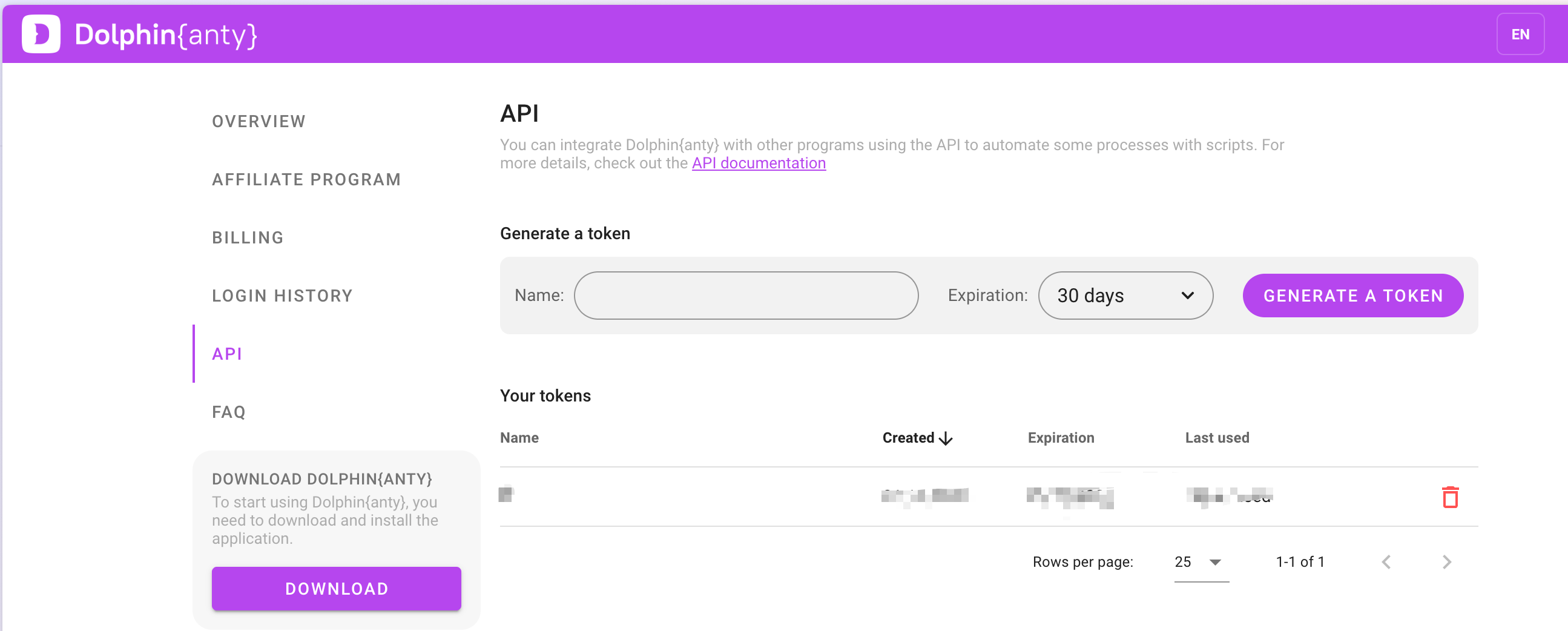
Step two: Generate a token
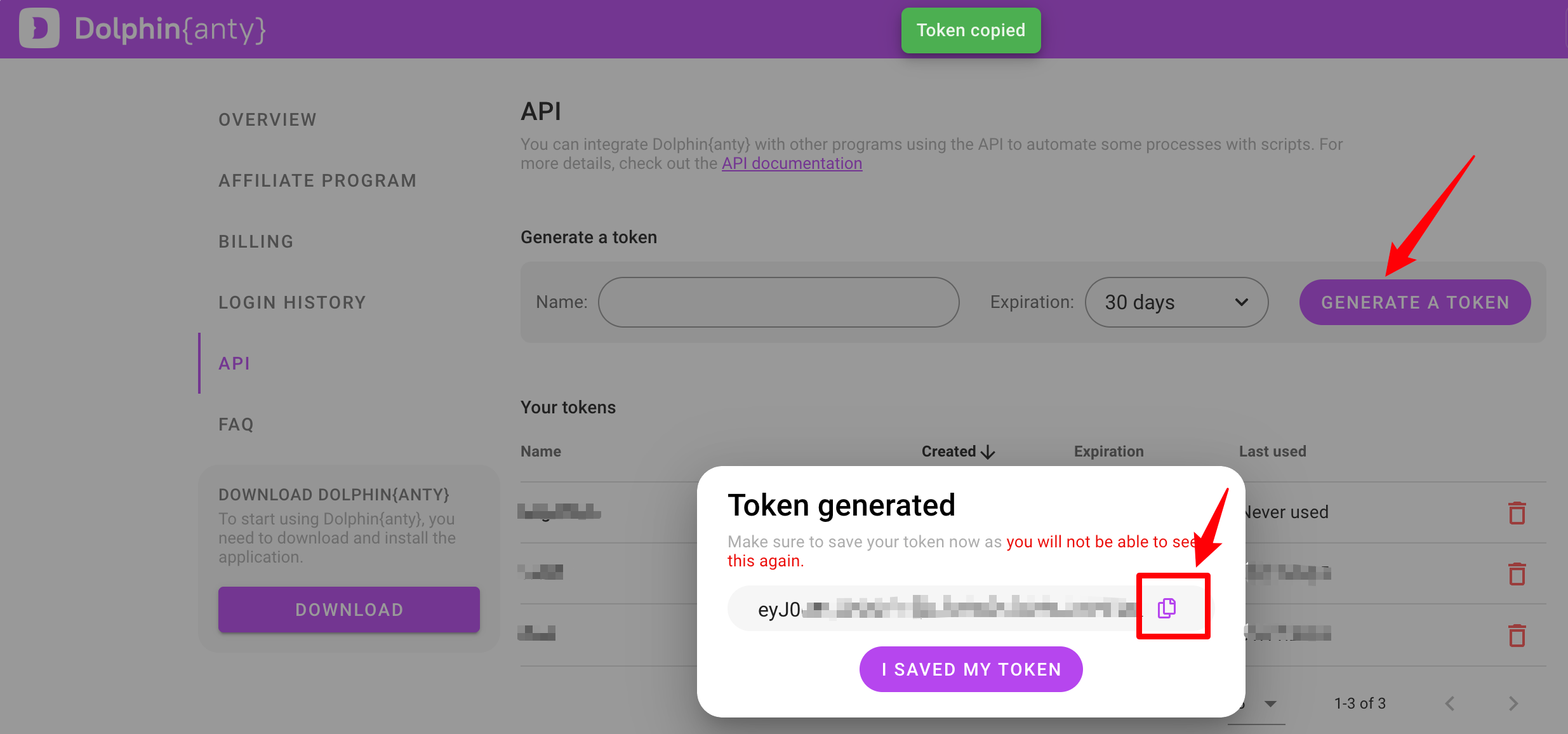
Be sure to save your token in a secure place.
Step three: Log in your MostLogin client app, navigate to API menu
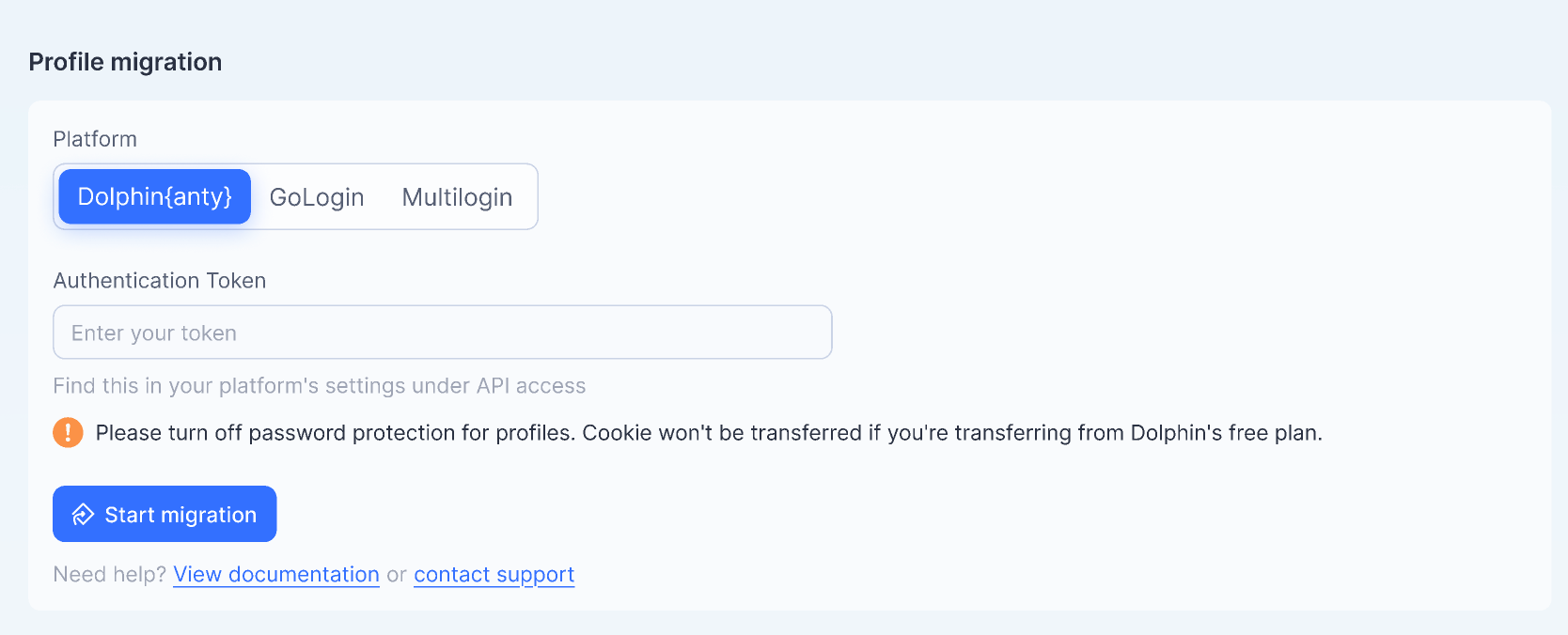
Step four: Enter your token and click [Start migration]
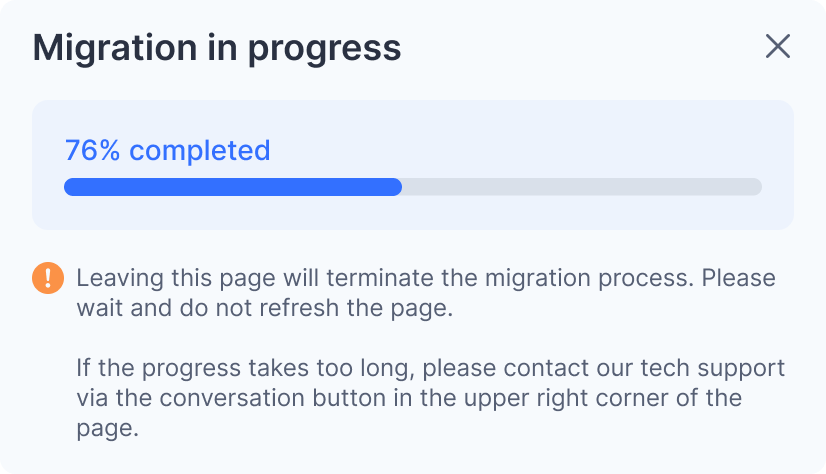
While the migration process is taking place, please wait on the page.
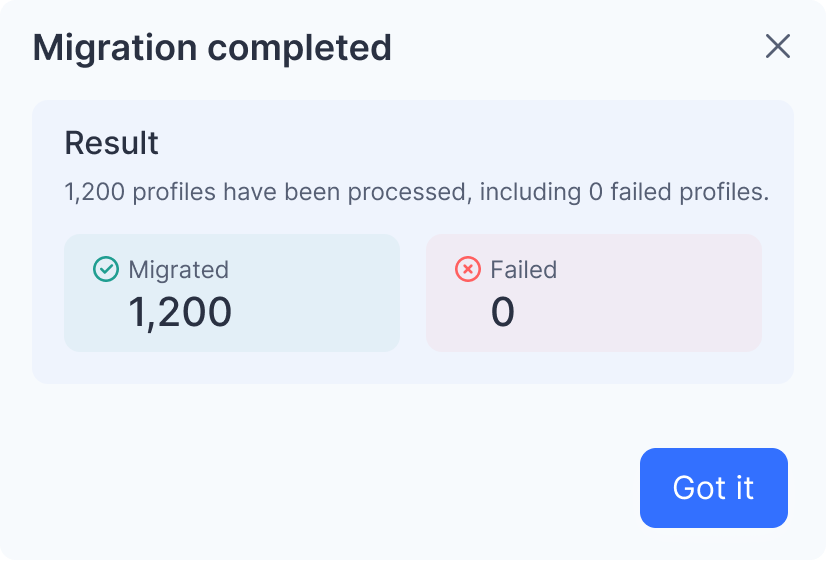
When your migration has been completed, you should see a pop-up window like below:
Reminder:
Please use MostLogin client app Version 2.0.6 and above for migrating profiles.
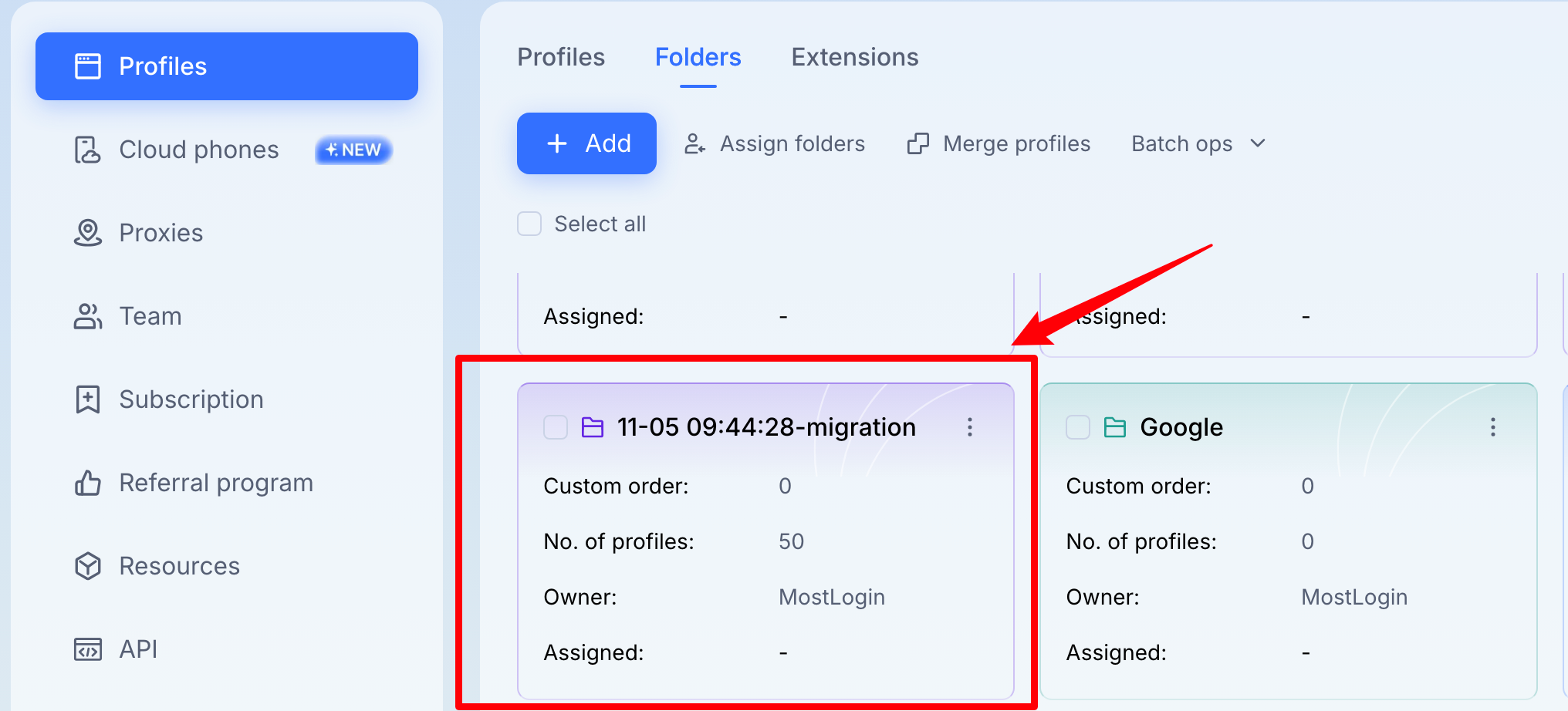
Your migrated profiles will be added in a new folder with the naming format: [Time stamp - migration]
What can be migrated:
Basic profile info: Title, OS (Firefox will be replace as Chromium), proxy fingerprint, cookies
Advanced info: Chrome web store extensions, bookmarks
Notes:
a. Your extensions will not be migrated to MostLogin, please upload to MostLogin in Profiles - Extensions - Extension management.
b. Also check your bookmark information at Settings-Bookmarks.
c. If you cannot open your profiles, please check if you migrated profiles exceed your subscription plan's profiles.
If you encounter migration issues, please contact our tech support at our Telegram channel.
2. Migrate from MoreLogin
Step one: Log in your MoreLogin app, navigate to Profiles - API
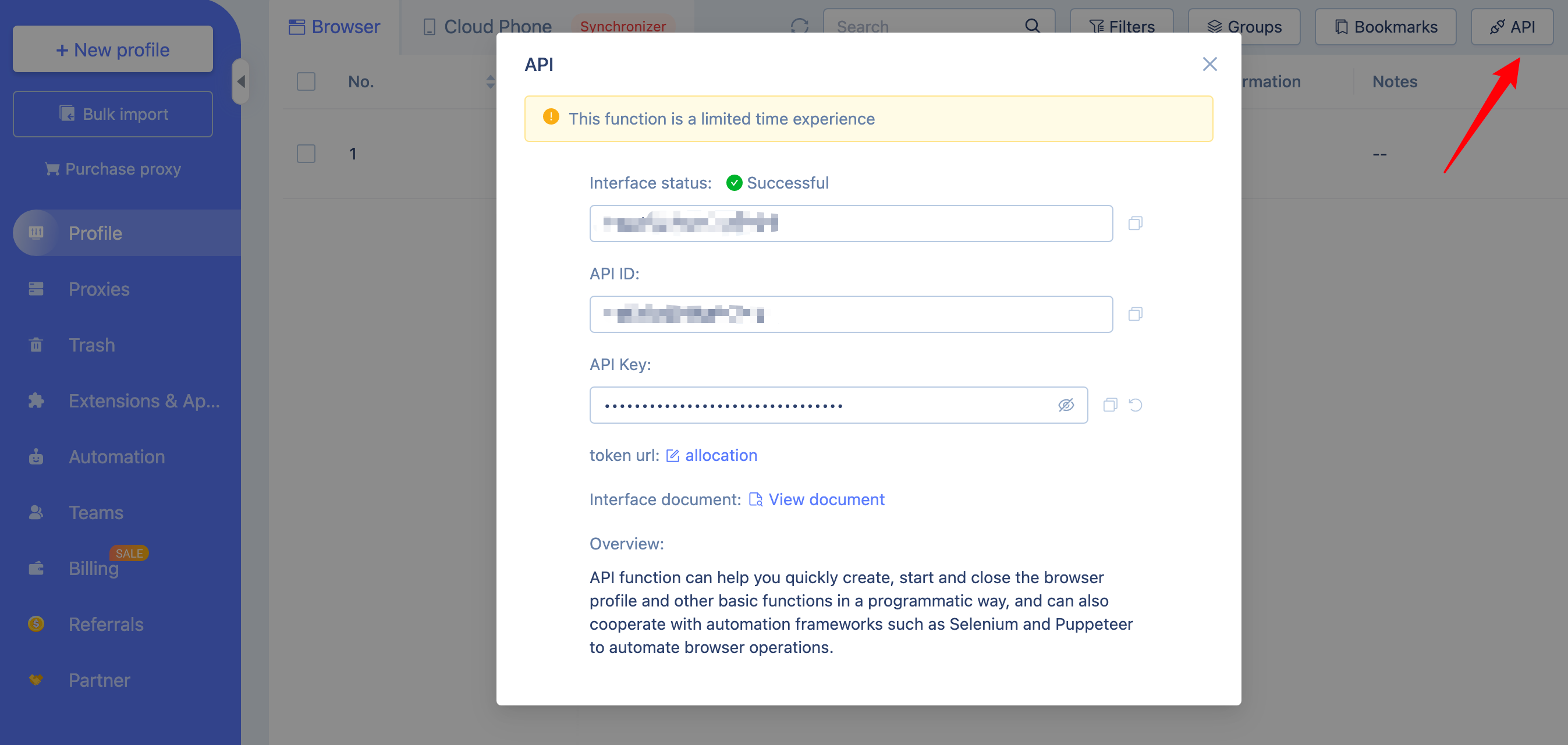
Step two: Log in your MostLogin client app, navigate to API menu
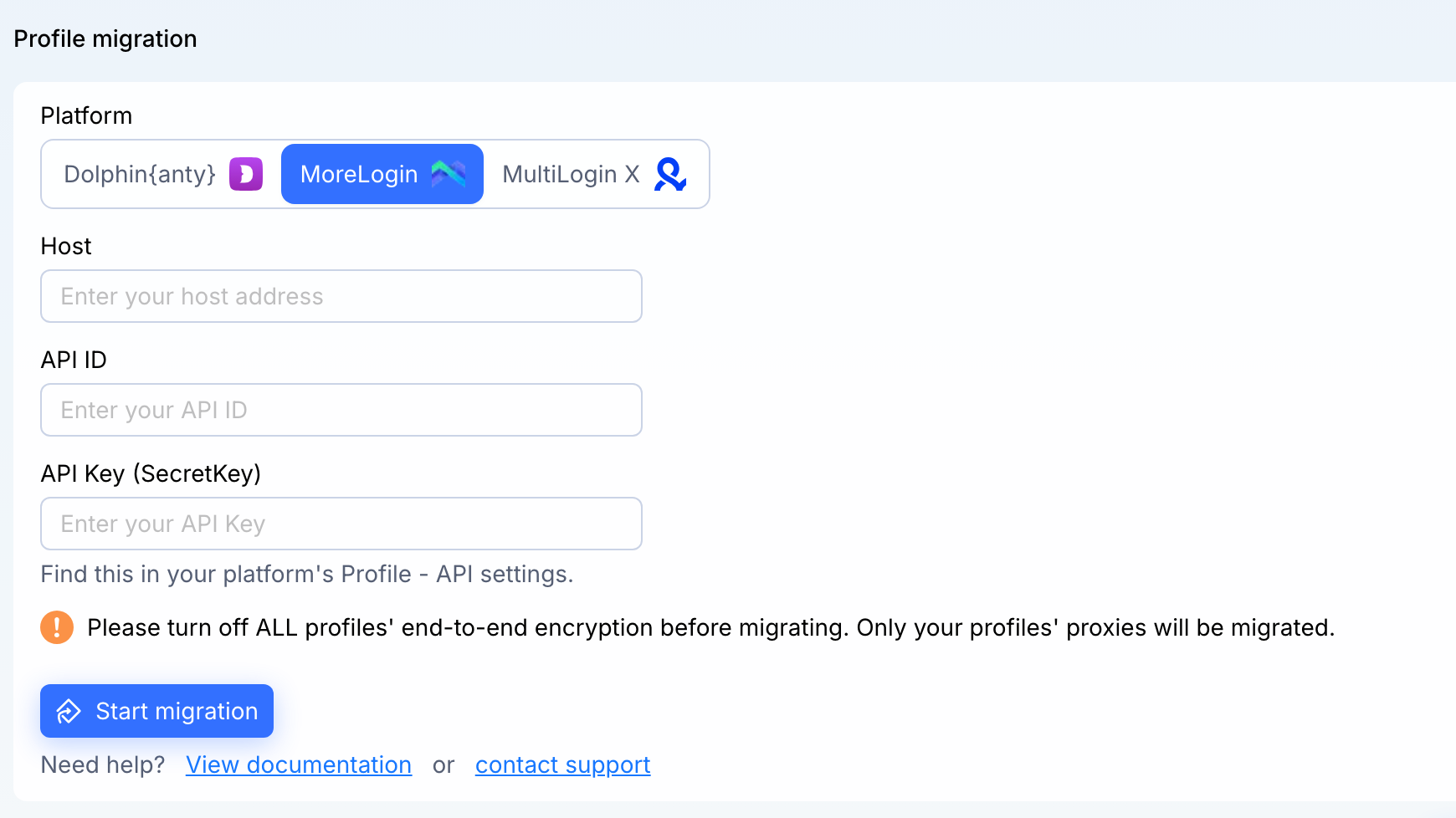
Step three: Enter your Host, API ID and API Key (SecretKey).
Click [Start migration]