Password autofill
Written By Penny
Last updated 4 months ago
Password Autofill Settings Guide
Securely store, manage, and automatically fill your account credentials for frequently visited websites. This feature saves time and eliminates the need to manually type or copy-paste sensitive passwords inside your browser environments.
To access these options, go to Settings on the left sidebar and select Password autofill.
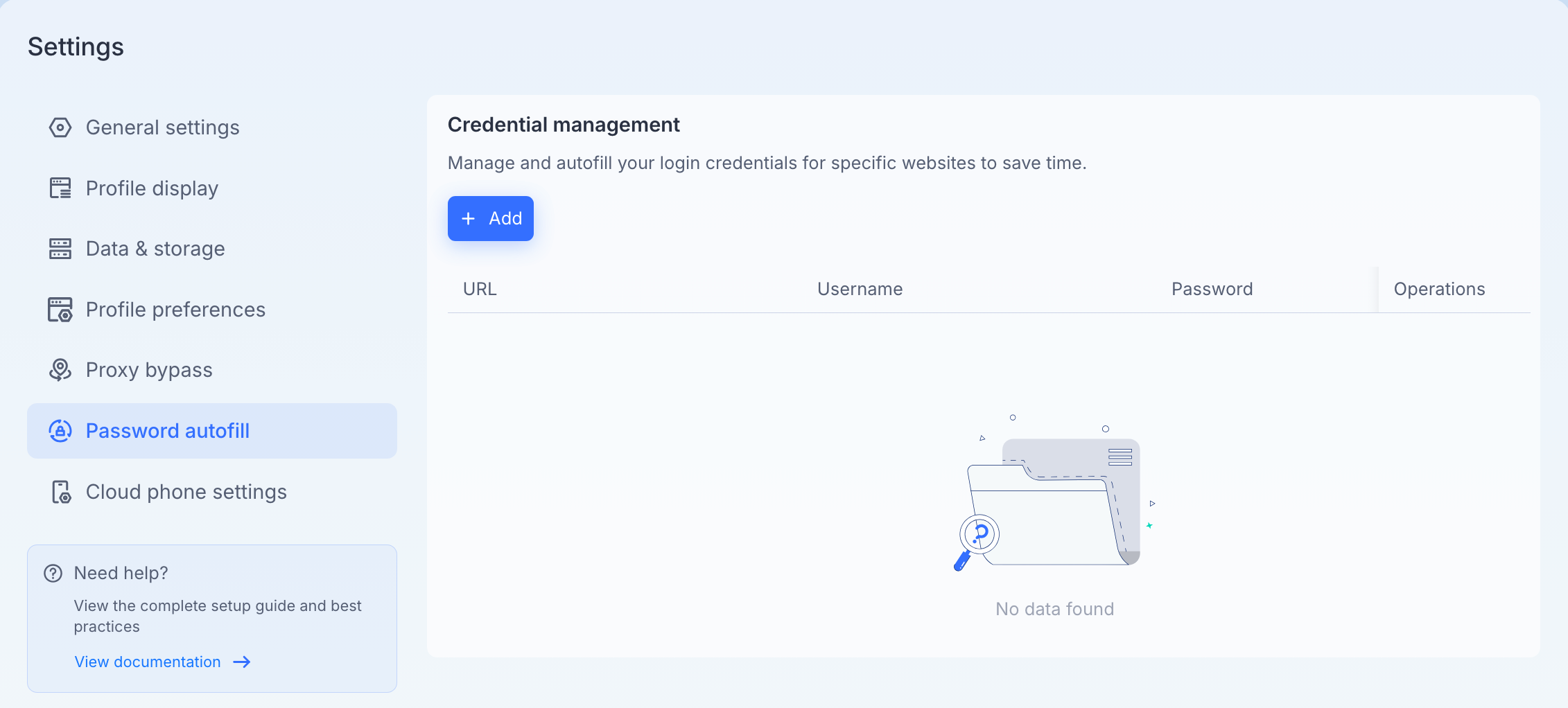
1. Overview of Credential Management
The Credential Management dashboard acts as a central repository for your encrypted login details. Once credentials are added here, MostLogin can detect matching target websites and automatically inject your usernames and passwords when a profile environment loads the login page.
The dashboard displays your stored accounts in a clean table view containing four primary metrics:
URL: The specific website domain or login link where the account belongs.
Username: The login handle, email address, or phone number used for authentication.
Password: Your secret access key (masked securely by default).
Operations: Management actions allowing you to edit or delete existing entries.
2. Managing Your Credentials
Adding New Credentials
To manually seed accounts into your vault:
Click the blue + Add button at the top left of the panel.
Enter the destination URL (e.g.,
https://example.com/login), the associated Username, and the Password.Confirm and save the entry.
Editing or Removing Accounts
To update an expired password or correct a typo, locate the target credential row and select the update option under the Operations column.
To permanently discard an account configuration, select the delete option under the Operations column.
💡 Tip: If your dashboard displays a "No data found" placeholder, it means no global credential mappings have been created yet. Click + Add to set up your first automatic login rule.
Was this helpful?
Still need help? Ask the team