Profile preferences
Written By Penny
Last updated 4 months ago
Configure strict security check fail-safes, anti-leak measures, and browser optimization rules in MostLogin to enforce data integrity and account safety every time a profile runs.
To access these options, go to Settings on the left sidebar and select Profile preferences.
1. Profile Open Preferences
These settings act as pre-launch guardrails. They perform automated checks right before a browser window initializes, blocking the environment from launching if a connection error, IP location shift, or data sync failure is detected.
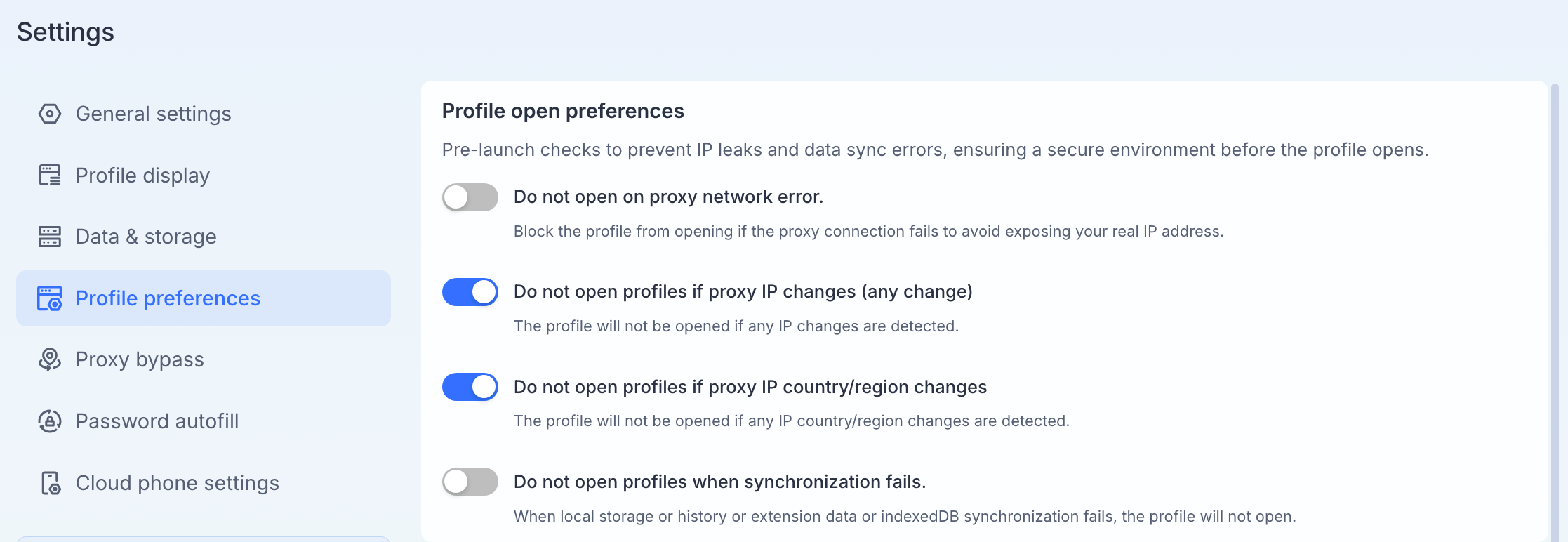
Do not open on proxy network error: Blocks the profile from launching if the underlying proxy connection fails or drops out completely. This prevents accidental traffic leaks that could expose your real ISP IP address.
Do not open profiles if proxy IP changes (any change): Ensures that if the specific proxy IP address has changed since its last successful session, the app will refuse to launch the profile to prevent location inconsistencies.
Do not open profiles if proxy IP country/region changes: A slightly more flexible restriction that allows minor IP shifts, but strictly blocks the environment if the proxy's registered country or geographic region has changed.
Do not open profiles when synchronization fails: Prevents the browser from opening if the client fails to download your latest cloud data (Local Storage, History, Extension data, or IndexedDB). This keeps you from overwriting fresh data with an outdated local state.
2. Profile Use Preferences
These settings manage hardware performance allocation, fingerprint randomization behavior, and resource cleanup rules when running or closing profiles.
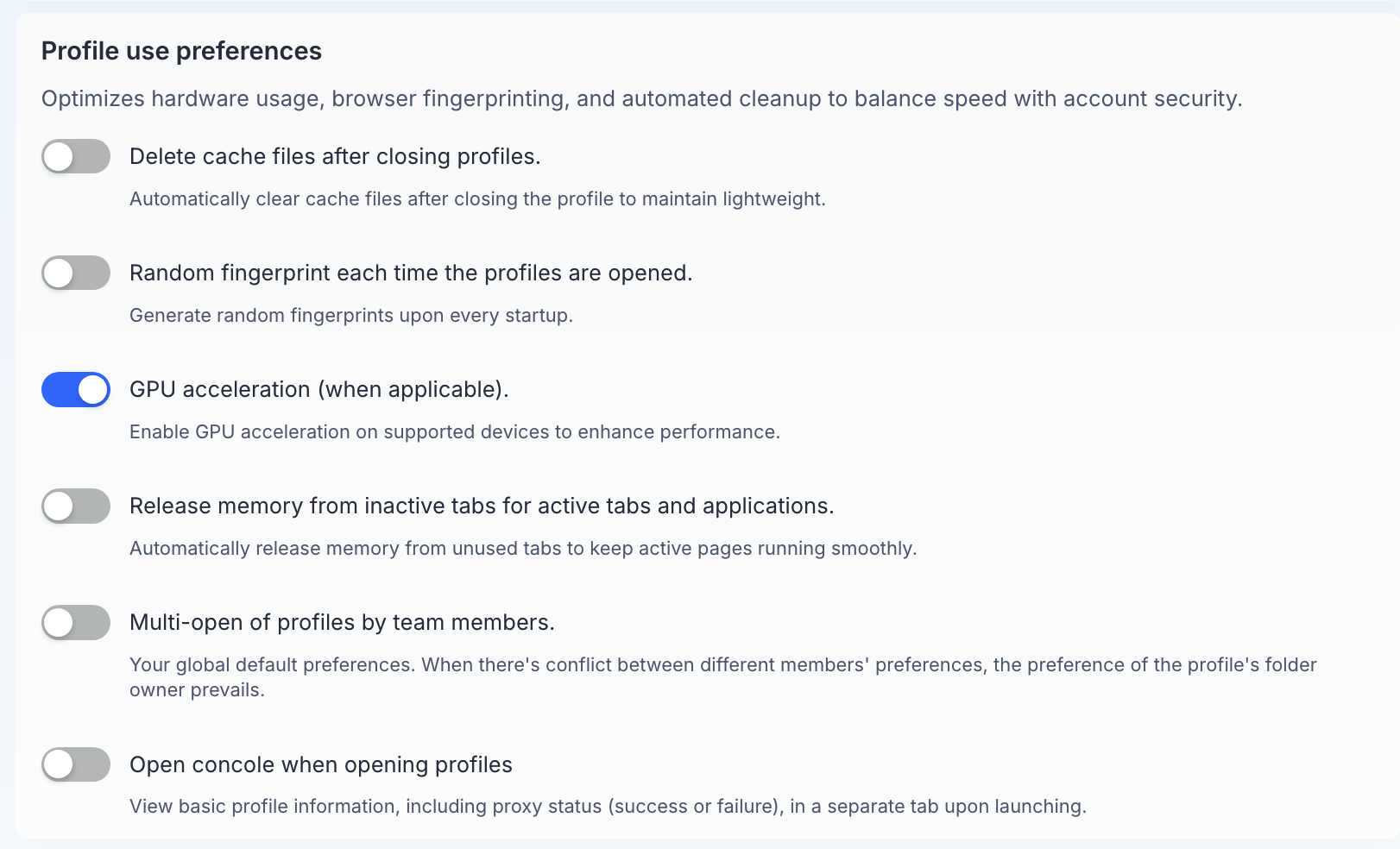
Delete cache files after closing profiles: Automatically wipes out all locally generated cache files from your computer's disk the moment a profile is closed, keeping your local application lightweight.
Random fingerprint each time the profiles are opened: Generates an entirely fresh, random set of browser hardware and software fingerprints every single time you launch the environment.
GPU acceleration (when applicable): Enables hardware-accelerated rendering using your computer’s graphics card to improve the scrolling and loading performance of resource-heavy web pages.
Release memory from inactive tabs for active tabs and applications: Automatically hibernates background tabs that you haven't looked at in a while, freeing up valuable RAM so your active browser tabs and computer stay responsive.
Multi-open of profiles by team members: Defines your global default rule for whether multiple team members can launch the exact same profile at the same time. If conflicting preferences arise between team members, the system defaults to the preference of the folder owner.
Open console when opening profiles: Launches a separate, dedicated terminal/console log window alongside the profile. This allows developers and automated operators to view underlying startup details, including live proxy status (success or failure codes).
Was this helpful?
Still need help? Ask the team