How to batch import proxies?
Written By Penny
Last updated 3 months ago
Got many proxies to add to MostLogin? Try our [Batch import] function.
1. Navigate to the [Batch import] button
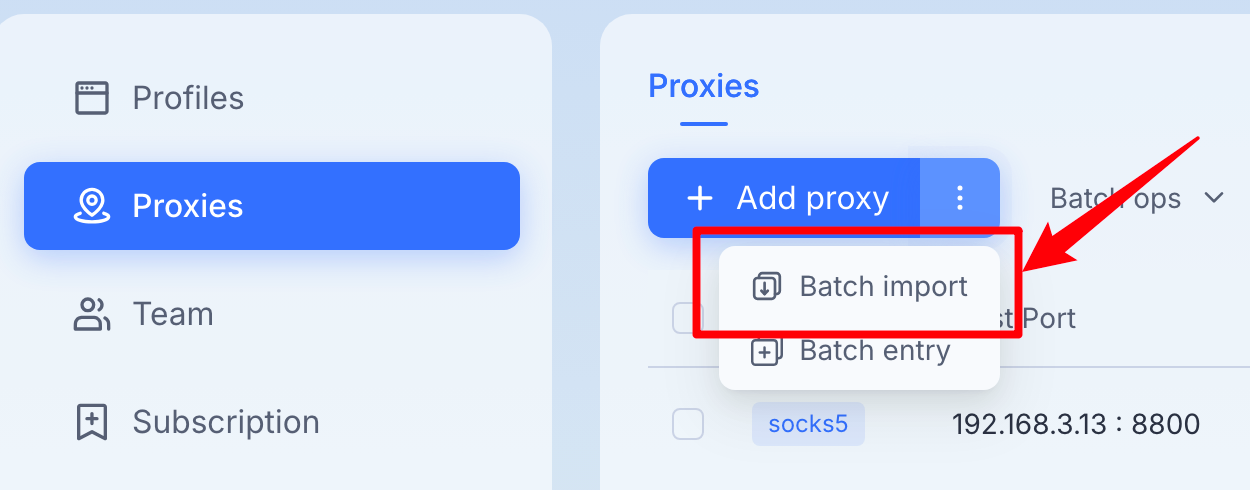
Access Proxies section: On the left-hand navigation panel, click on "Proxies". This will take you to the proxy management screen.
Initiate Batch Import: On the "Proxies" screen, locate and click the "Add proxy" button. This will reveal a dropdown menu.
Select "Batch import": From the dropdown menu that appears, click on "Batch import".
2. Download the template, edit in Excel and upload.
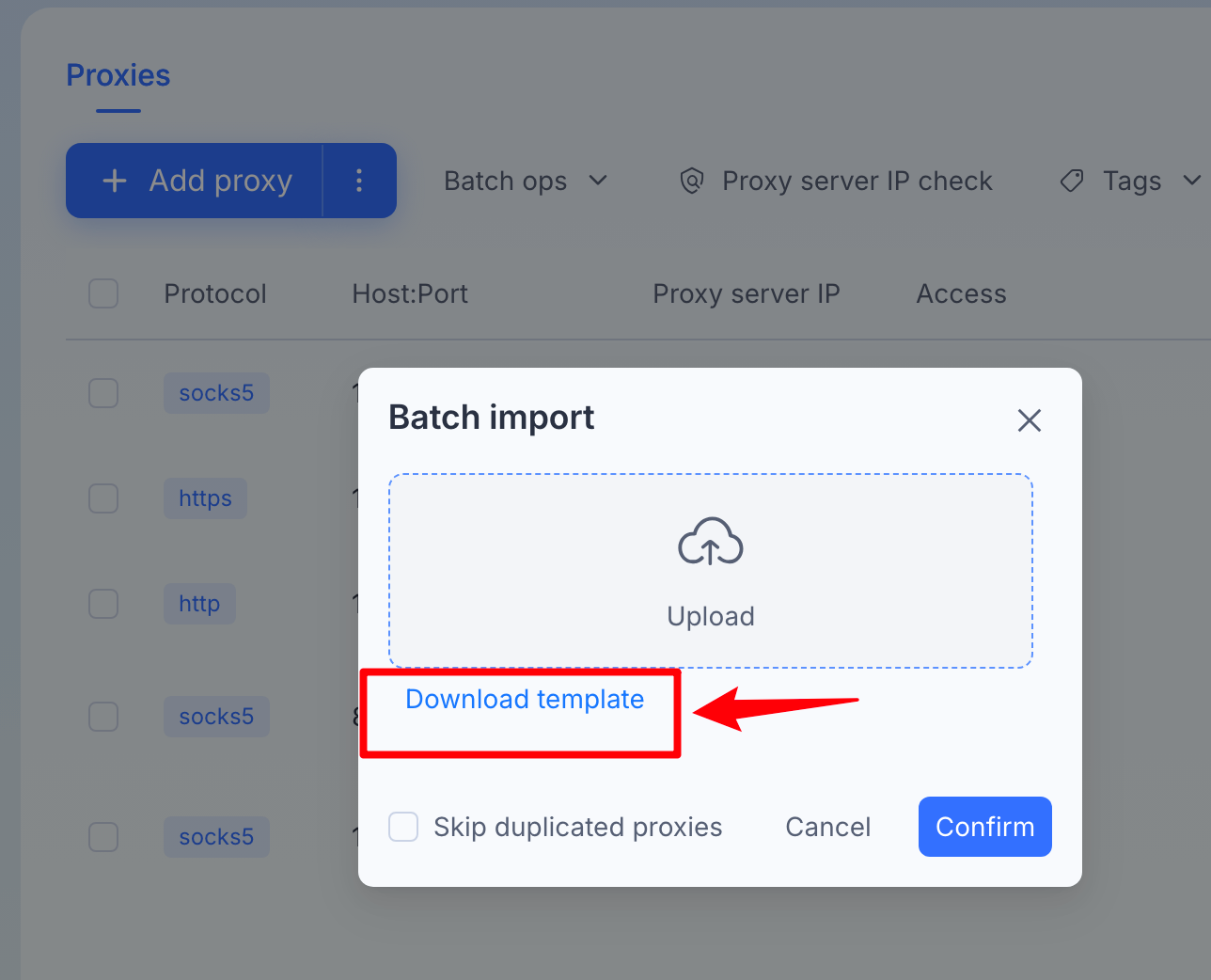
(To ensure your proxy data is formatted correctly for batch import, you'll need to use our provided template.)
Open the Batch Import Window: (If you're not already there, please refer to Step 1: Navigating to Batch Import to open the "Batch import" window.)
Download the Template: In the "Batch import" window, locate and click on the "Download template" link.
This action will download a template file (usually in CSV or Excel format) to your computer. You will then open this file to enter your proxy details.
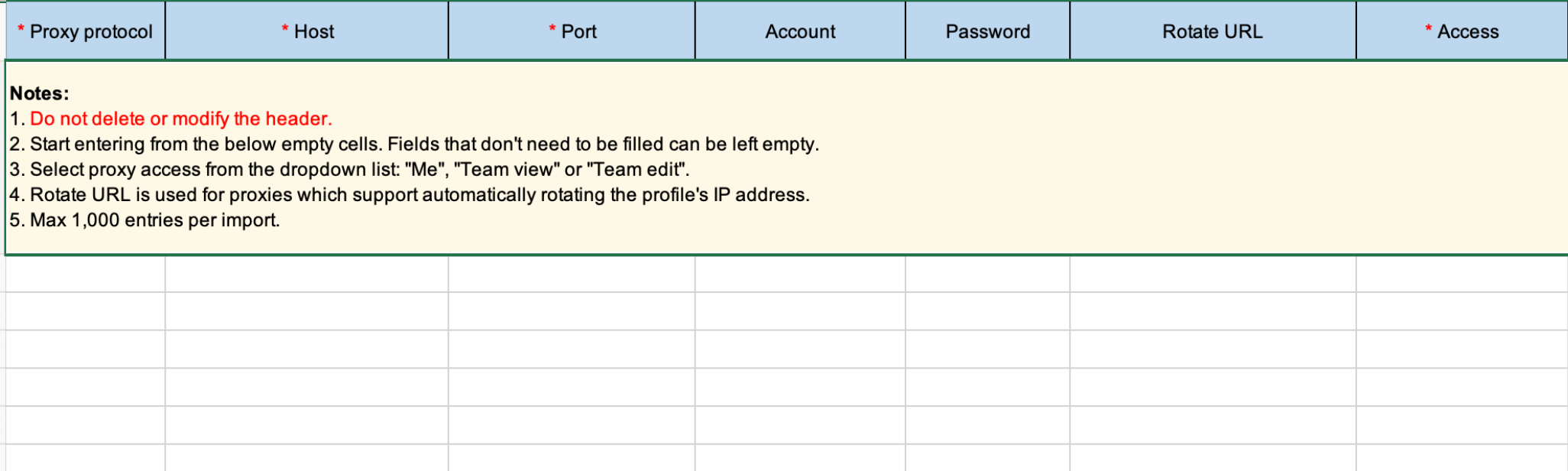
Follow the instructions in the Excel file, fill in the info from your end and click [Upload] to upload your file and click [Confirm]. If all the information are filled in correctly, your proxies will be imported to MostLogin.