Sign up with MostLogin
Written By Penny
Last updated 4 months ago
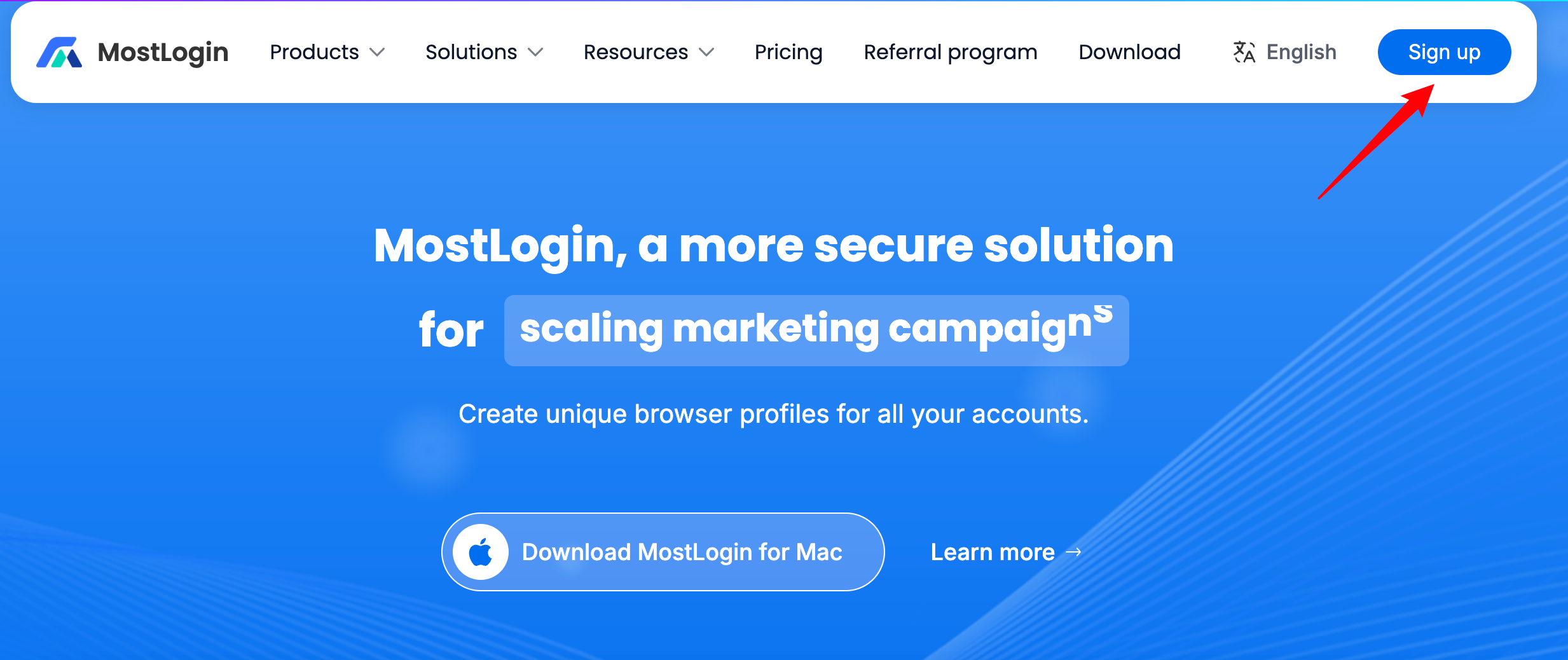
Visit MostLogin's official website at mostlogin.com, click "Sign up", you'll be directed to a sign up page.
1. Sign up with Google
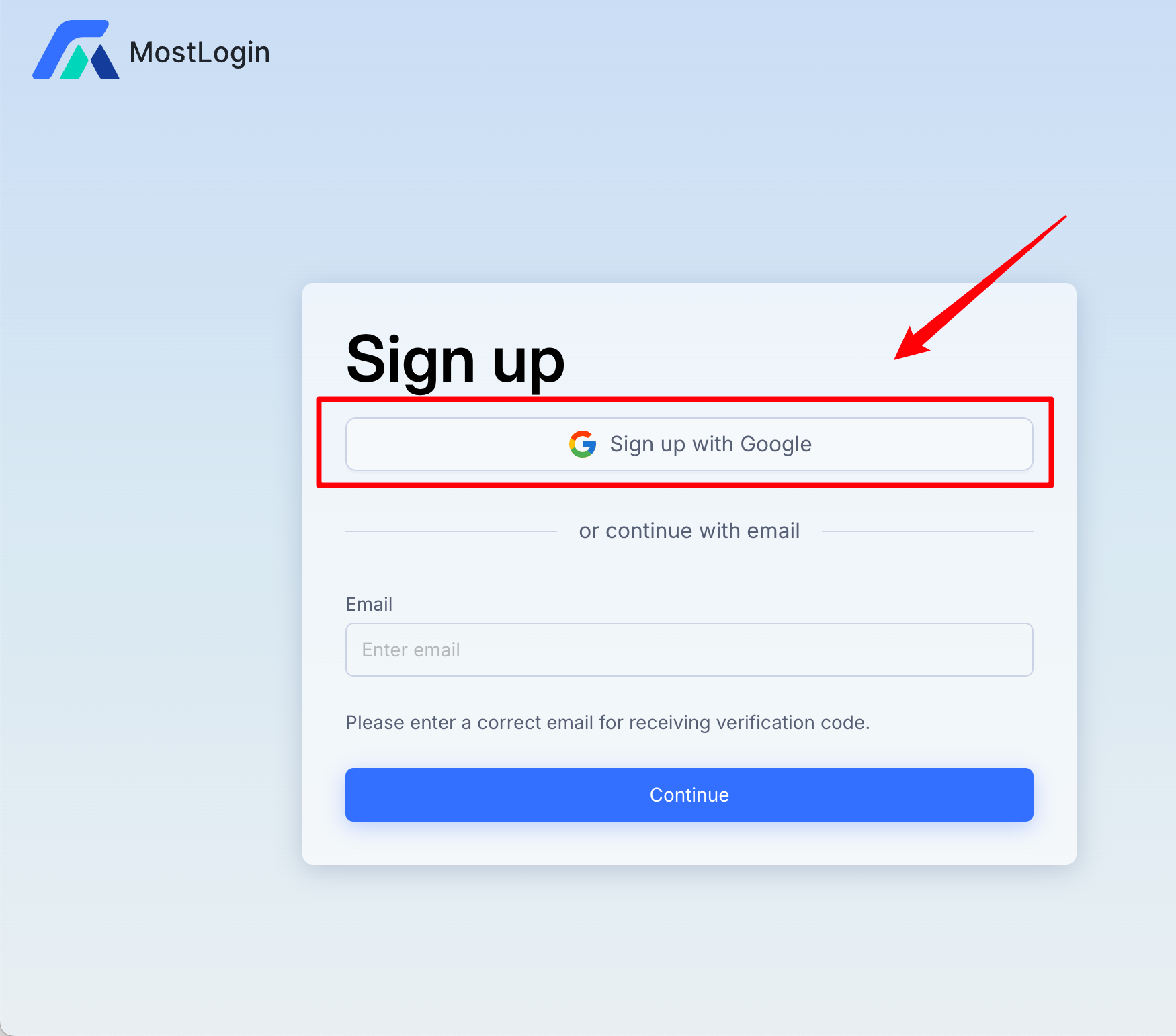
Initiate Google Sign-up:
On the "Sign up" page, click the "Sign up with Google" button. This is the prominent button with the Google logo at the top of the sign-up form.
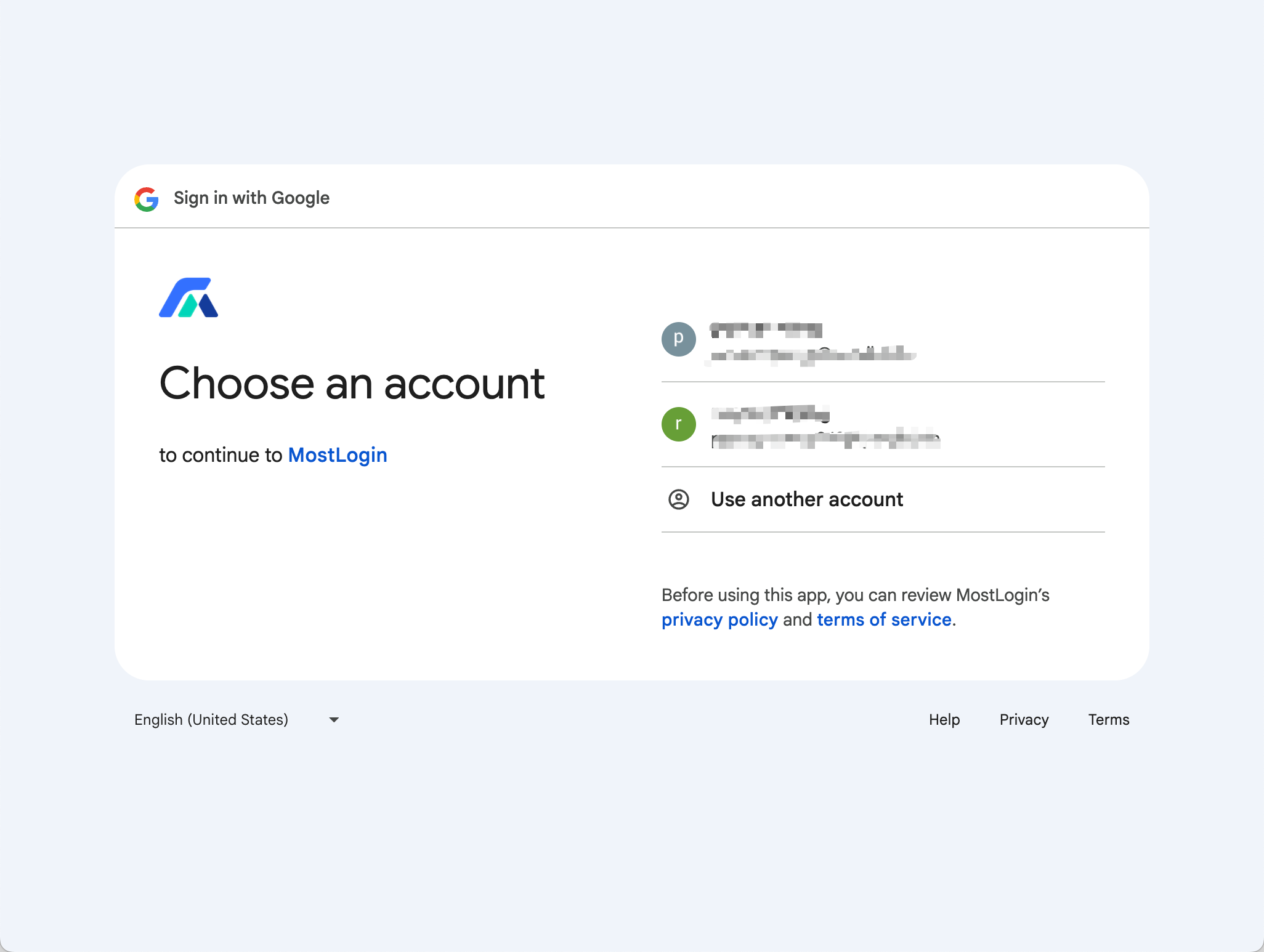
Choose your Google account:
You will be redirected to a Google "Sign in with Google" page, titled "Choose an account to continue to MostLogin."
Select the Google account you wish to use for your MostLogin registration from the list of accounts displayed.
If the desired account is not listed, click "Use another account" and follow the prompts to sign in with that specific Google account.
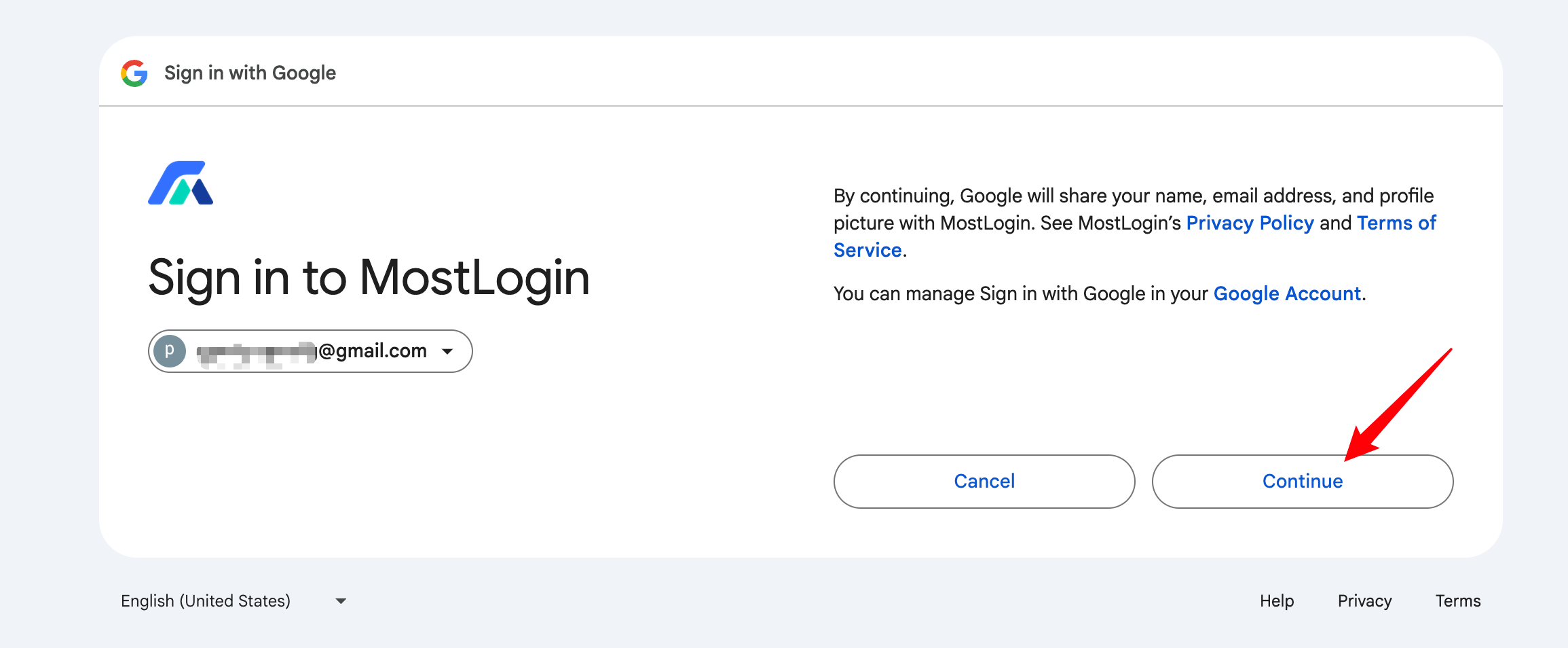
After selecting your Google account, Google may ask you to confirm that you grant MostLogin permission to access basic profile information. Review these permissions and click "Allow" or "Continue" if prompted.
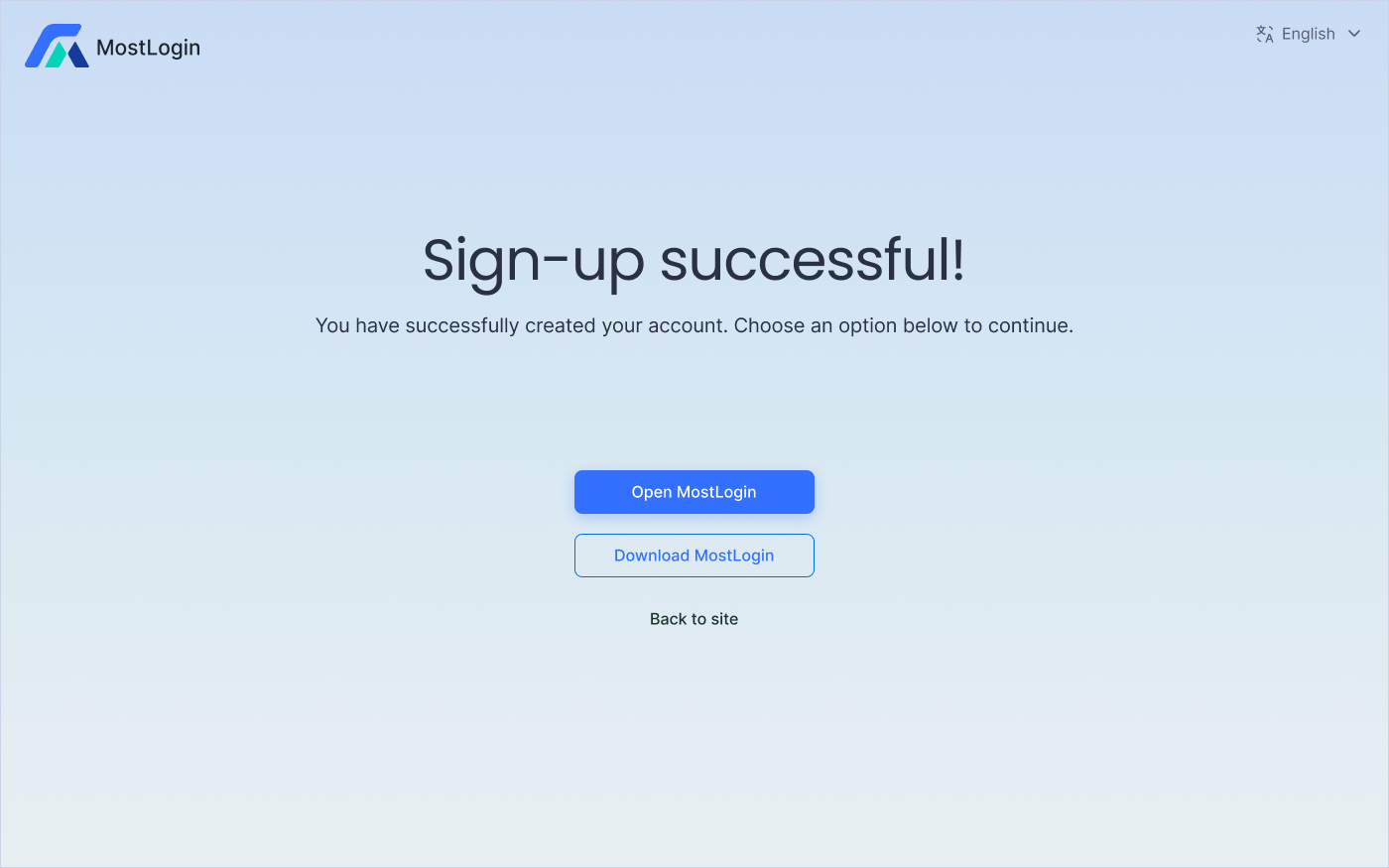
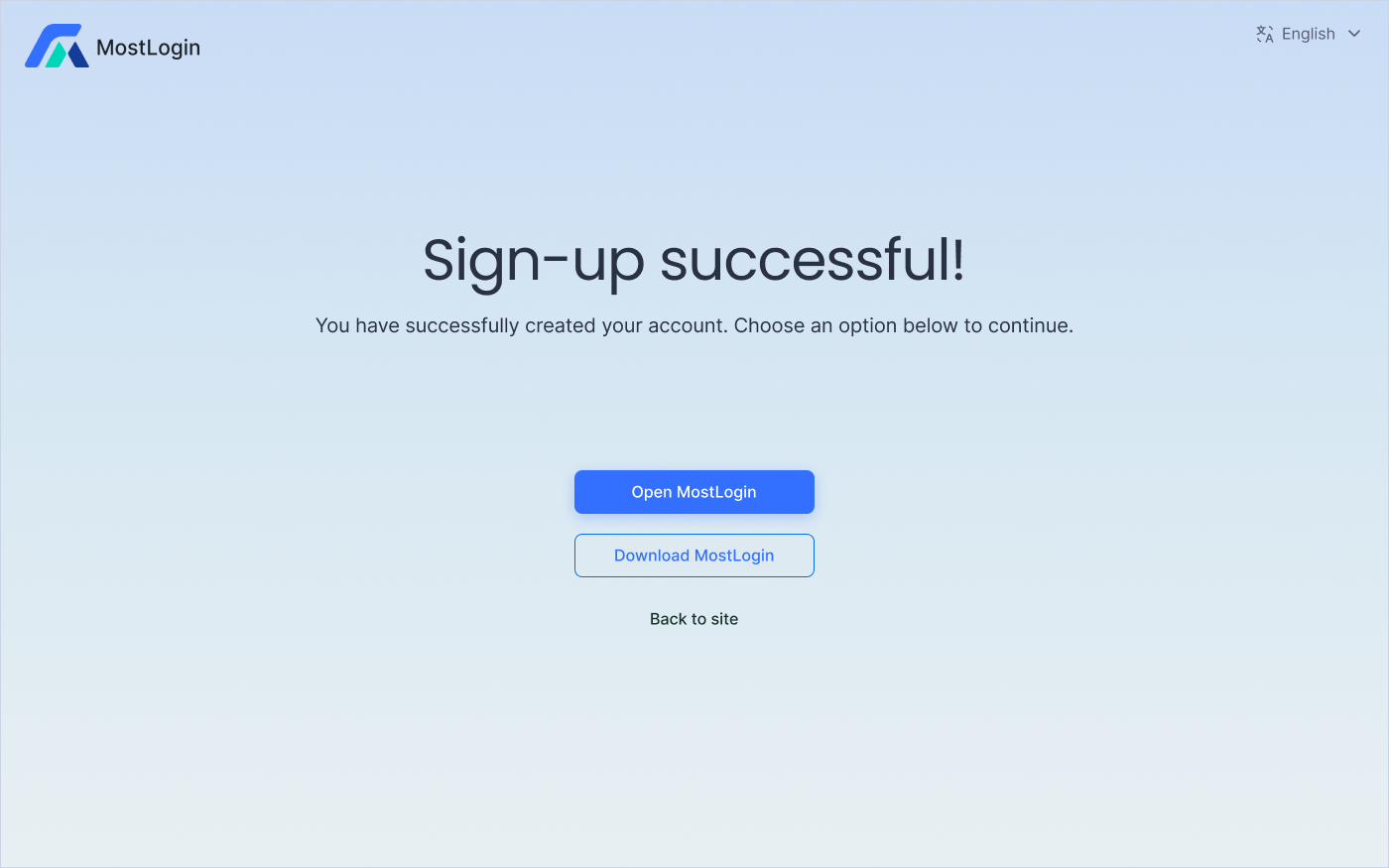
Once authenticated by Google, you will see a success page like below. Click [Open MostLogin] if you have already downloaded the client app, or [Download MostLogin] to download the app.
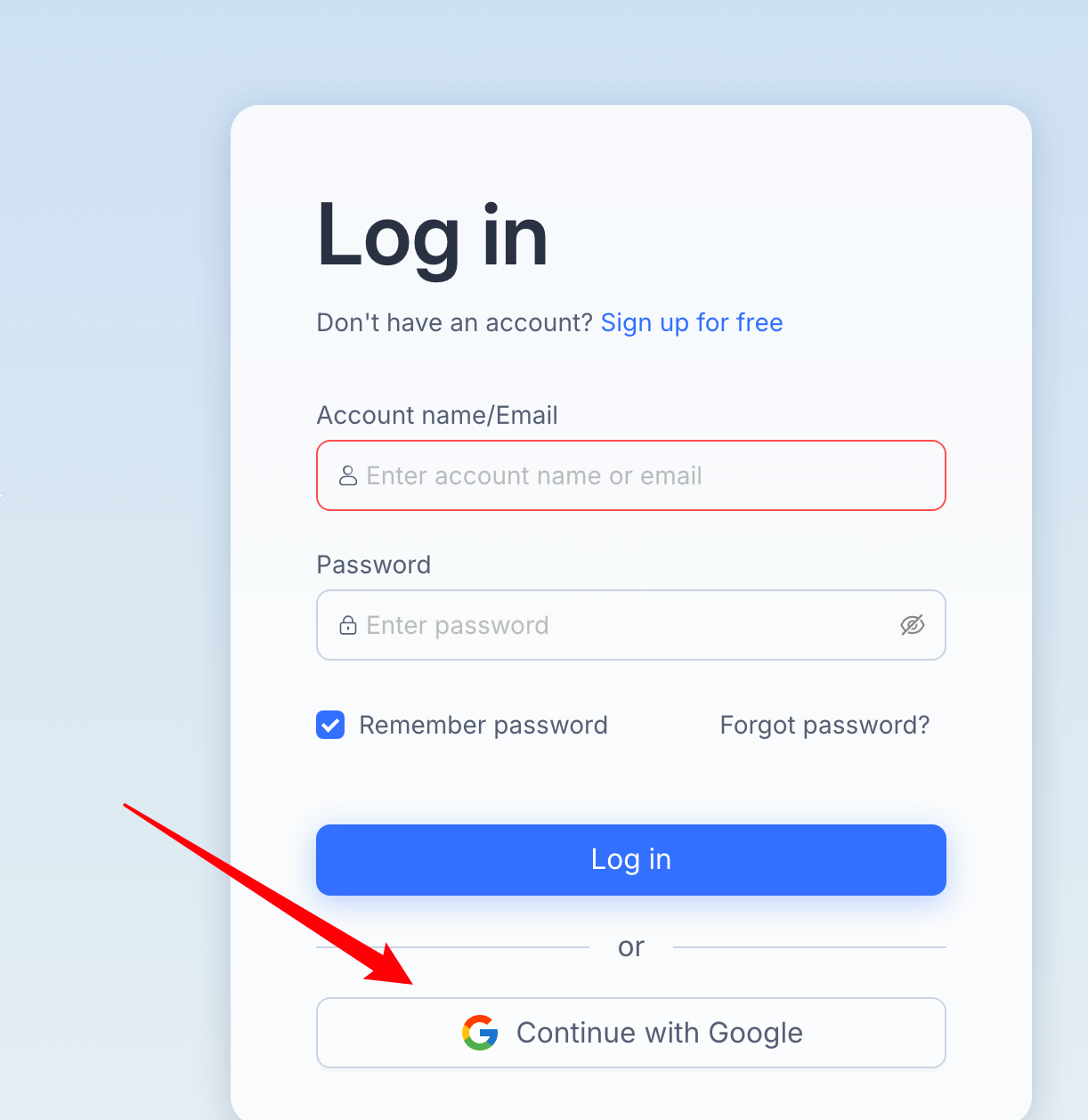
Over at the app, on the login page, you will need to click [Continue with Google] to authorize again. Make sure you select the Google account you signed up.
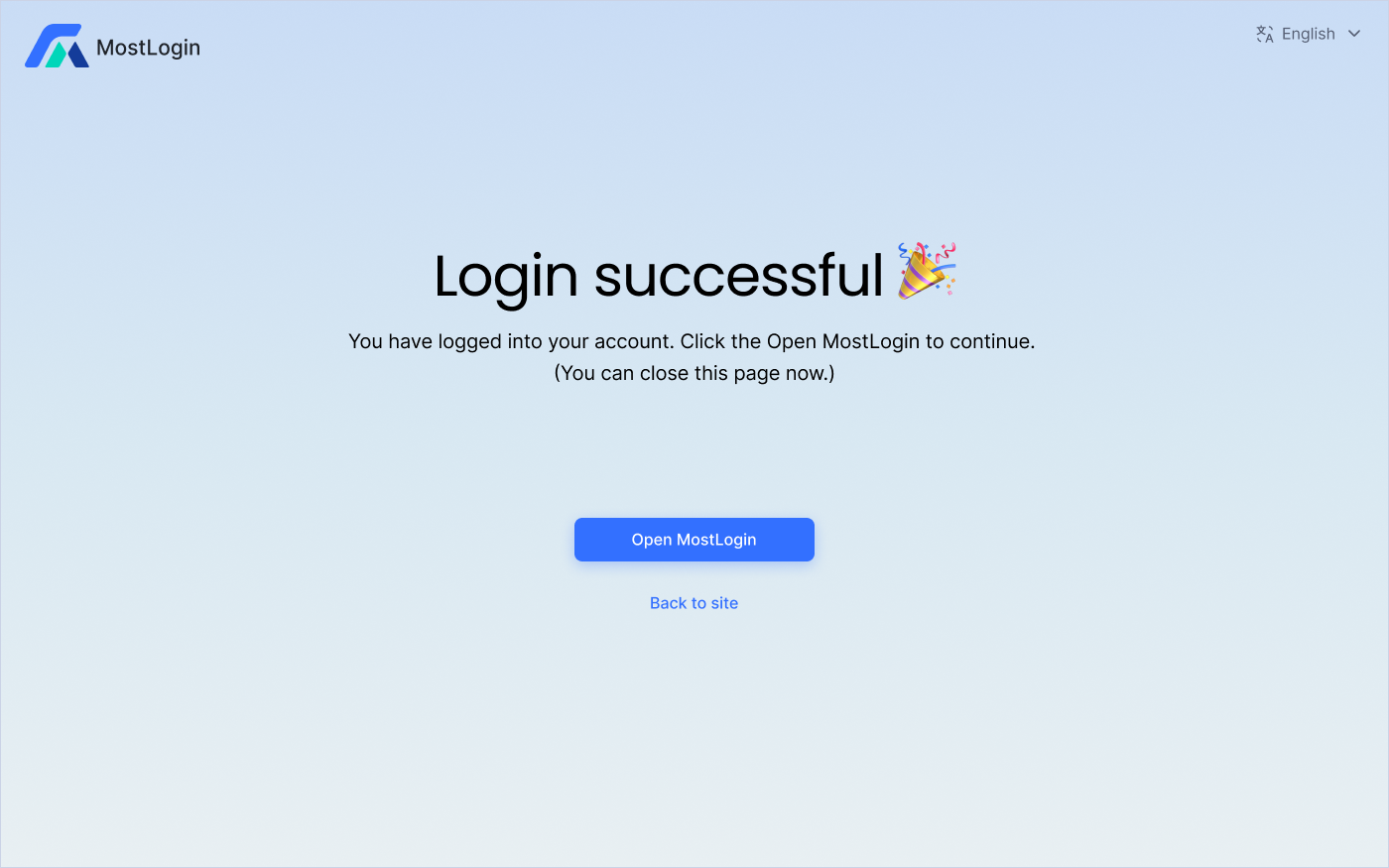
Once authorized, you will see a success page like below. Click [Open MostLogin] to continue using.
2. Sign up with email
If you'd like to sign up with your email, enter your email here to continue.
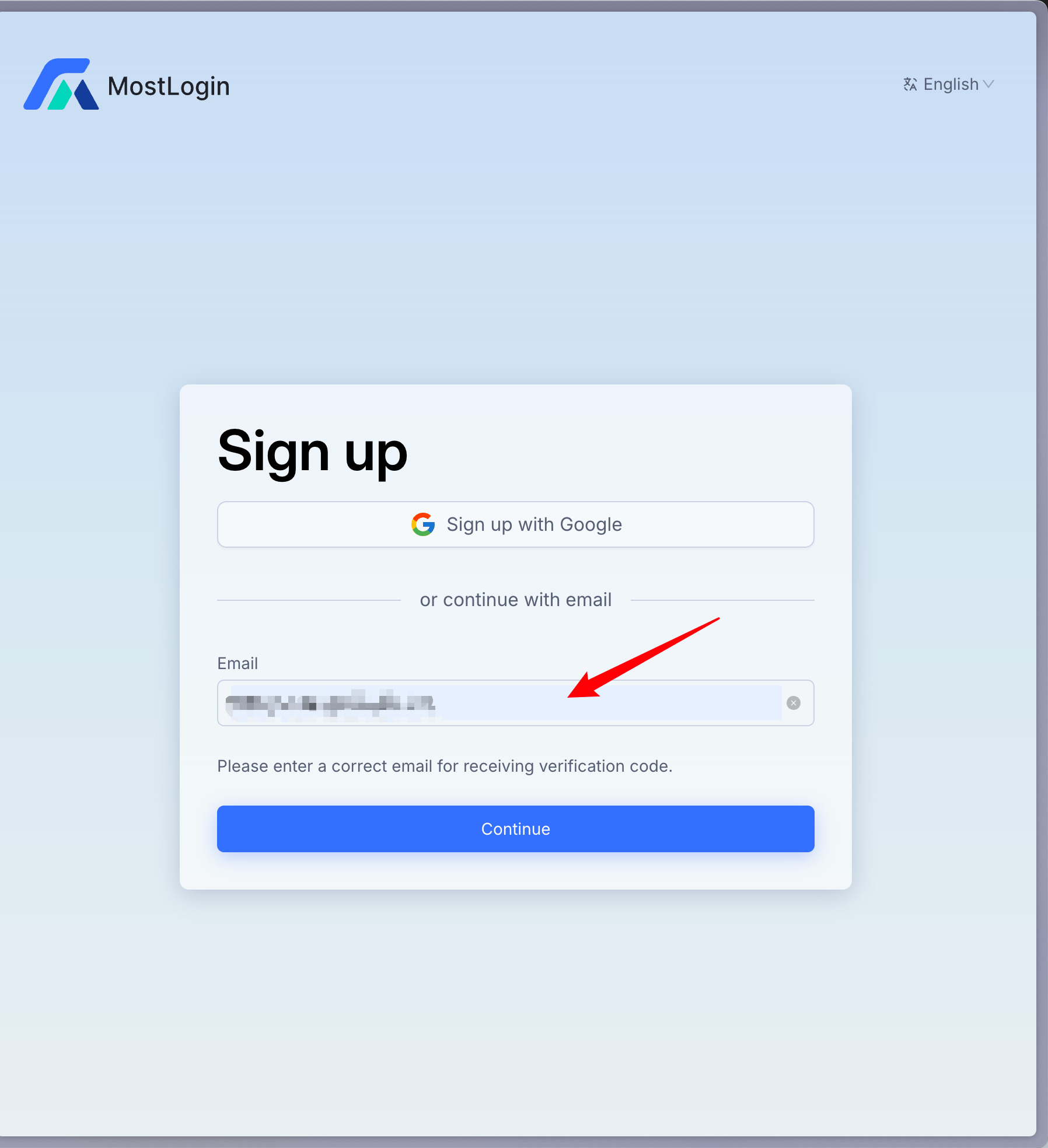
You will need to fill in the following required fields to complete the sign-up process.
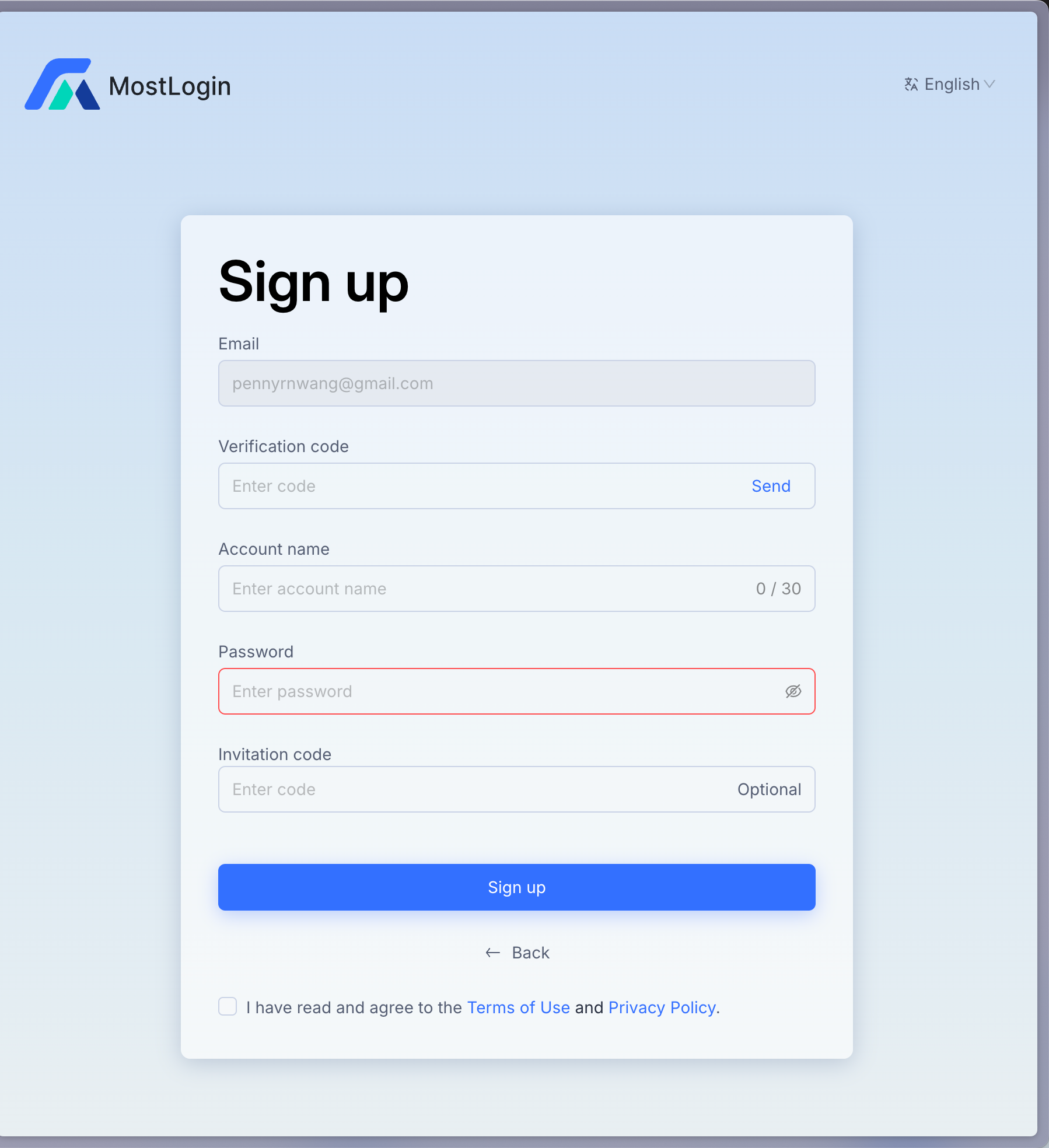
Email address
Your email address has already been filled in at the previous step and is displayed in the "Email" field.
Important: You cannot edit this email address on this page. If you need to use a different email address, please click the "Back" button at the bottom of the form to return to the previous page and enter the correct email.
Verification code
To receive your verification code: Click the "Send" button next to the "Verification code" field.
Check your inbox: A verification code will be sent to the email address displayed in the "Email" field. Please check your email (including your spam or junk folder).
Enter the code: Once you receive the code, type it into the "Enter code" field.
Account name
Choose your account name: In the "Account name" field, enter your desired account name. This name will be associated with your MostLogin account.
Character limit: Your account name needs to be 3 to 30 characters long and cannot contain the "@" symbol or spaces.
Password
Create a strong password: In the "Password" field, enter a secure password for your account.
Password visibility: To temporarily reveal your password as you type (and hide it again), click the eye icon (👁️) at the end of the password field. This can help you ensure you've typed it correctly.
Password must be at least 8 characters
Password cannot exceed 30 characters
Numbers (0-9), letters (a-z, A-Z), special characters such as !@#$%^&*/<>?
Invitation code (Optional)
Enter if applicable: If you have an invitation code, you can enter it in the "Enter code" field under "Invitation code."
Not required: This field is optional, so you can leave it blank if you don't have a code.
Agree to Terms and Privacy Policy
Read the policies: Before proceeding, you must read and agree to the MostLogin's Terms of Use and Privacy Policy.
Click on "Terms of Use" to read the terms.
Click on "Privacy Policy" to read the privacy policy.
Check the box: Once you have read and understood both documents, check the box next to "I have read and agree to the Terms of Use and Privacy Policy."
Sign in
Complete registration: After filling in all the required fields and agreeing to the terms, click the "Sign up" button to complete your registration.
You should see the success page then.
Get started with MostLogin now~
Was this helpful?
Still need help? Ask the team