Synchronizing profile tabs
Written By Penny
Last updated 4 months ago
The Tabs panel is a central control hub for URL management across all active profiles. It ensures that your Primary and Secondary windows are perfectly aligned on the same webpage before you begin synchronization.
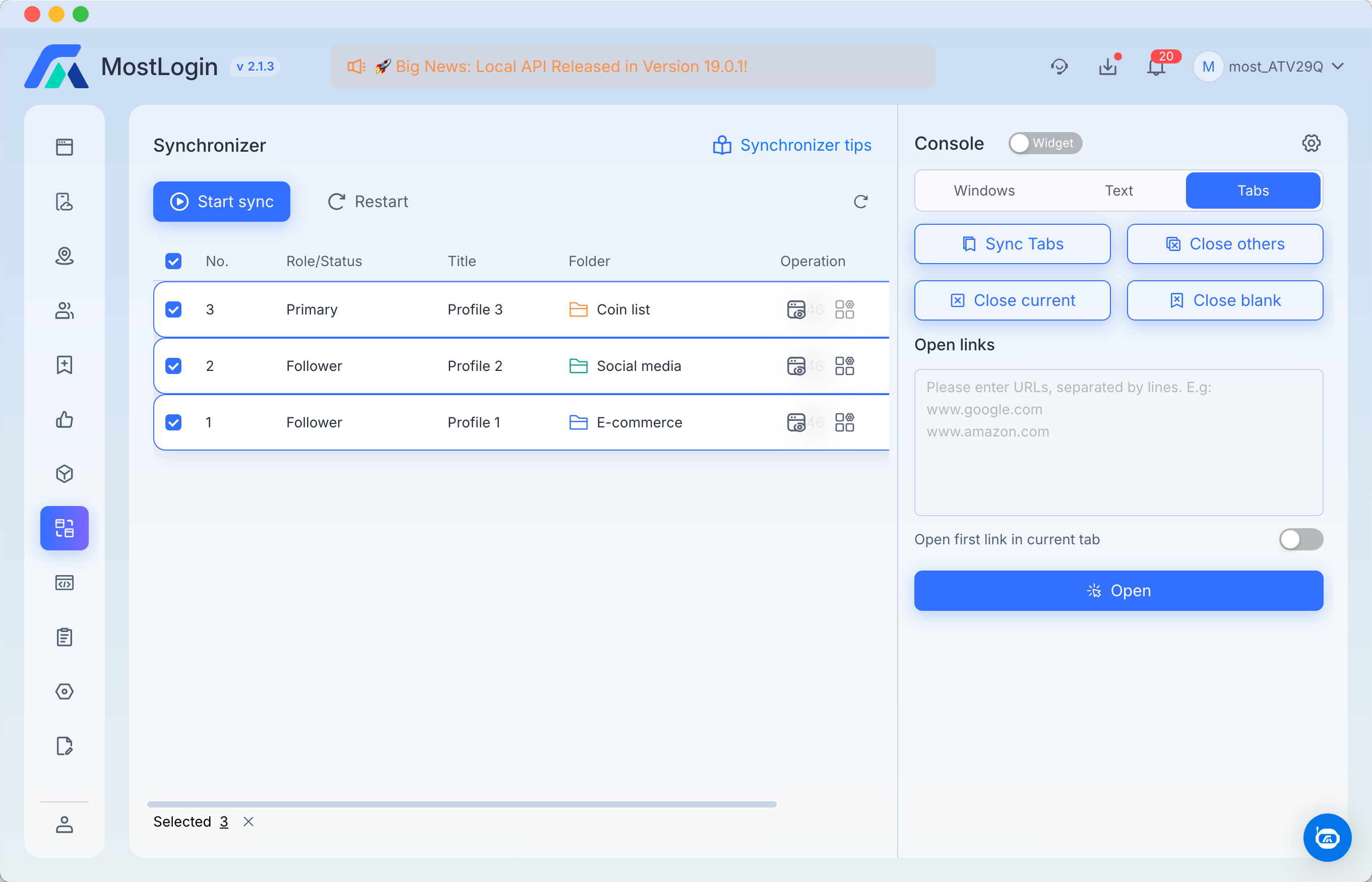
1. Tab Management Actions
Use these four buttons to clean up and organize your browser environment instantly:
Sync Tabs: This powerful feature forces all Secondary windows to synchronize their tab state with the Primary window. If the Primary window has three specific tabs open, clicking this will attempt to match that state across all followers.
Close current: Closes the active (currently visible) tab in every selected profile window.
Close others: Closes all tabs except the one currently being viewed. This is highly effective for reducing CPU/RAM usage by killing unnecessary background pages.
Close blank: Automatically detects and closes any "New Tab" or empty pages across all profiles, leaving only active websites open.
2. Open links
Step 1: URL Input Field: Directly enter or paste the target website address (URL) into the input box.
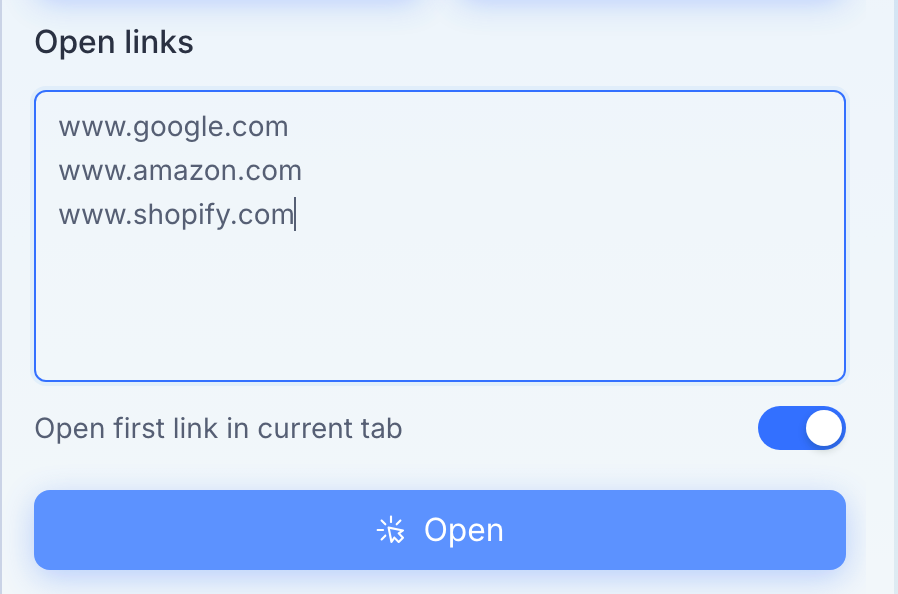
Step 2: Open the URLs: Click this to open the specified URL in all selected profile windows simultaneously.

💡 Why is this important?
Synchronization works best when all browser profiles are at the exact same starting point. Using the Tabs module eliminates the need to manually type URLs into dozens of windows, significantly reducing the risk of "out-of-sync" errors caused by windows being on different pages.
Was this helpful?
Still need help? Ask the team