Synchronizing texts in profiles
Written By Penny
Last updated 4 months ago
📝 Module: Text Management Overview
While the Synchronizer mirrors keyboard strokes from the Primary window by default, the Text panel provides a more robust and error-proof way to input data. It allows you to inject text directly into browser fields, bypassing the risks of network latency or mechanical typing errors.
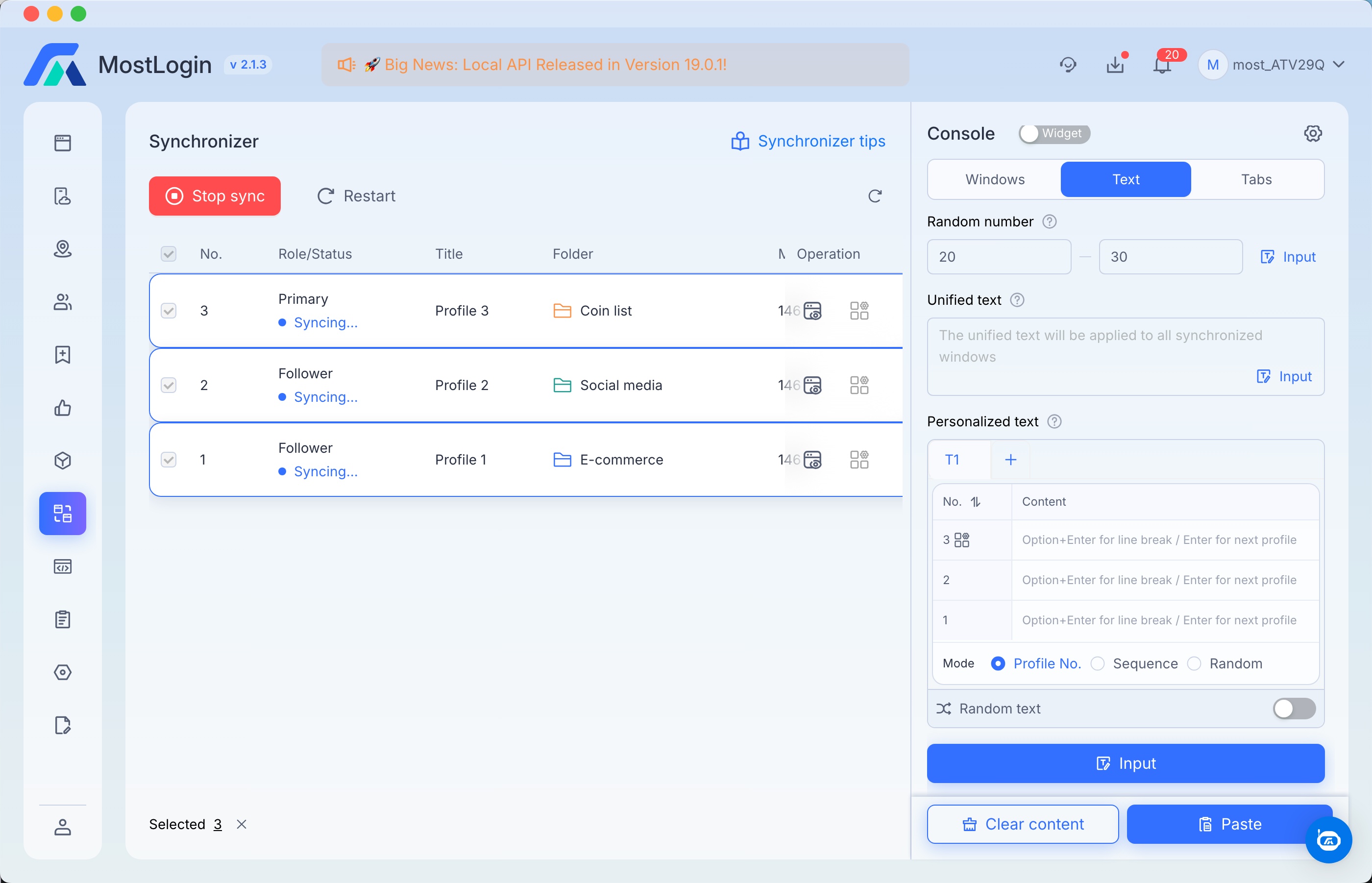
1. Random number
The Random Number tool is designed to inject unique numeric values into each synchronized profile. Our system utilizes an intelligent Decimal Sensing logic that automatically determines the precision of the output based on your input format.
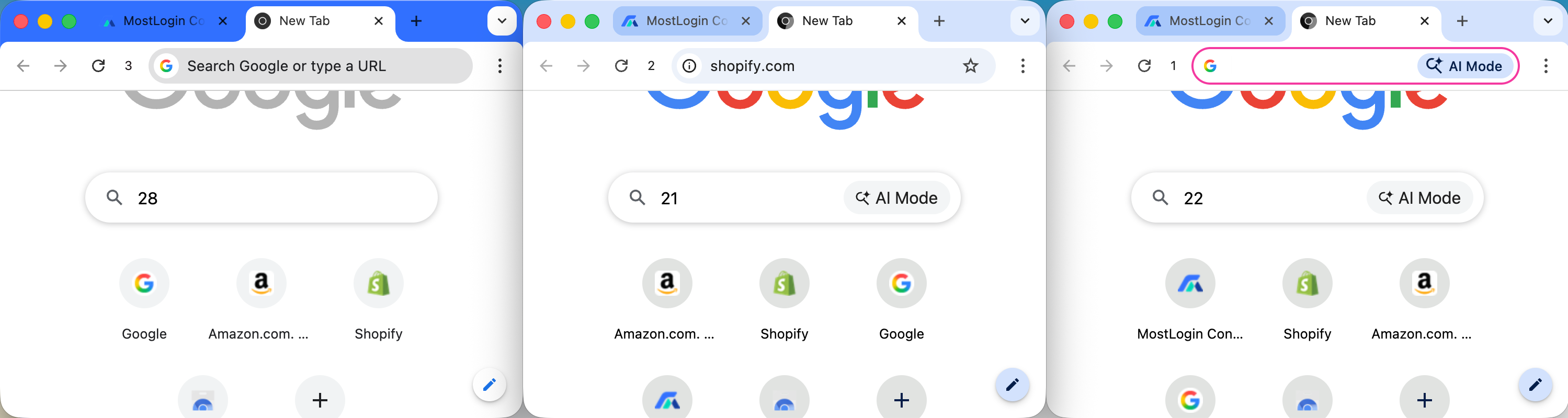
Core Formatting Rules
The system follows three distinct rules to ensure the generated numbers match your specific data requirements:
2. Unified text
This is the specialized guide for the Unified Text feature. This tool is the most efficient way to broadcast identical text data to every active window with a single click.
🔤 Feature Focus: Unified Text
The Unified Text tool allows you to perform "one-to-many" text injection. Instead of manually typing in the Primary window and relying on stroke-mirroring (which can be affected by network lag), this feature pushes the entire string directly into the input buffer of all Secondary windows simultaneously.
Key Capabilities
Instant Broadcast: Injects the exact same string into the focused input field of every synchronized profile.
Format Preservation: Maintains capitalization, symbols, and spacing exactly as entered.
Error Prevention: Eliminates "desync" letters caused by typing too fast or having a high-latency proxy connection.
How to Use
Select Target Field: In your browser windows, ensure the cursor is blinking in the input field where you want the text to appear (e.g., a search bar, a password field, or a comment box).
Enter Text: Type or paste your desired content into the Unified text box in the Console.
Execute: Click the Input button at the bottom right of the text area.
The system will instantly populate the text across all windows.
If Human-like typing is enabled in your settings, the system will "type" the unified string character-by-character to simulate natural behavior.
Ideal Use Cases
Bulk Login: Entering the same password or verification phrase across multiple accounts.
Search Queries: Quickly directing all windows to search for the same keyword on Google, Twitter, or Amazon.
Form Filling: Populating common fields such as "City," "Country," or "Postal Code" that are identical for all profiles.
Command Execution: Pasting specific terminal commands or wallet addresses that need to be uniform.
💡 Pro-Tip for Precision
If you need to enter text and then immediately "press Enter" across all windows, you can keep the Synchronizer active. After clicking Input in the Unified Text box, simply tap the Enter key on your physical keyboard. The "Enter" command will be mirrored from the Primary window to all others, submitting the text you just injected.
3. Personalized text
The Personalized Text feature is essential for workflows that require unique data for every account, such as different usernames, passwords, or recovery phrases.
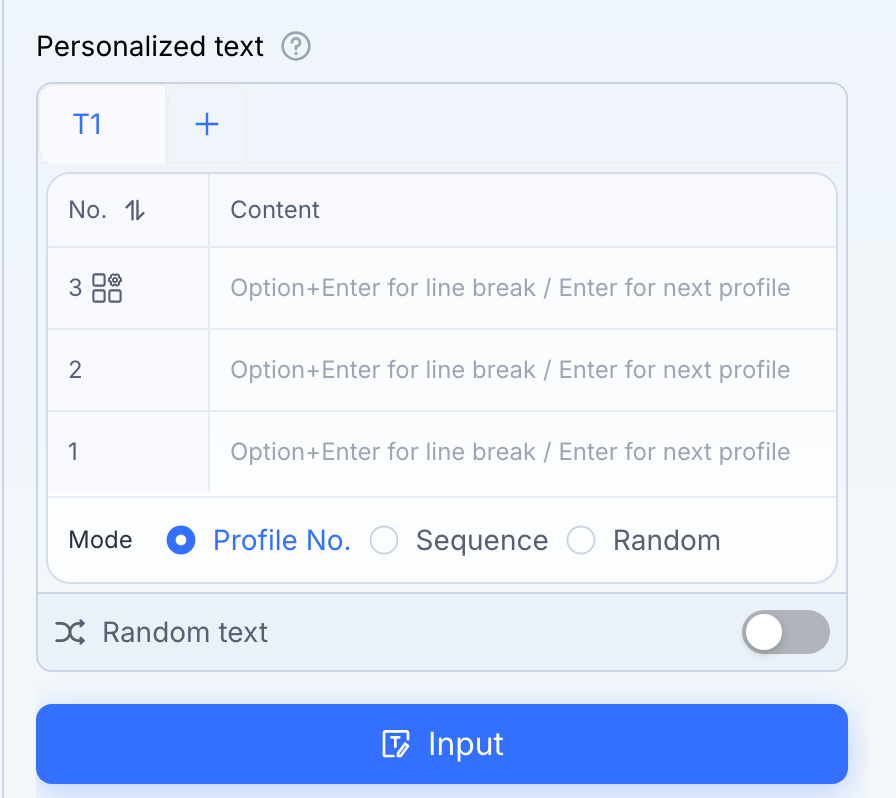
3.1 Personalized Text without Random Text Generation
The Personalized Text module allows you to map specific strings of text to specific profiles. You can manage multiple data sets using tabs (T1, T2, +) and control exactly how the data is distributed using three distinct logic modes.
Distribution Modes
Input Controls & Shortcuts
Data Entry:
Enter: Move to the next profile line to input new data.
Option + Enter: Create a line break within the same profile's text field (useful for multi-line comments or addresses).
Random Text (Toggle): When enabled, the system will apply additional randomization logic to the content itself (if pre-configured) to ensure maximum variety between accounts.
Tab Management: Click the "+" icon to create new sheets (T2, T3, etc.), allowing you to prep different stages of a form-filling process in advance. The maximum number of text tabs is 6.
How to Use
Prepare Your Data: Paste or type your unique strings into the table. Ensure the number of lines matches the number of profiles you are syncing.
Select Your Mode: Choose between Profile No., Sequence, or Random based on your workflow needs.
Target the Field: Ensure your cursor is active in the desired input field across all browser windows.
Execute: Click the blue Input button. The data will be dispatched to each window simultaneously according to your chosen logic.
3.2 Personalized Text with Random Text GenerationR
The Random Text Generation feature. This tool is located within the Personalized text section and is designed to create unique strings for each profile automatically, saving you the trouble of manual data entry.
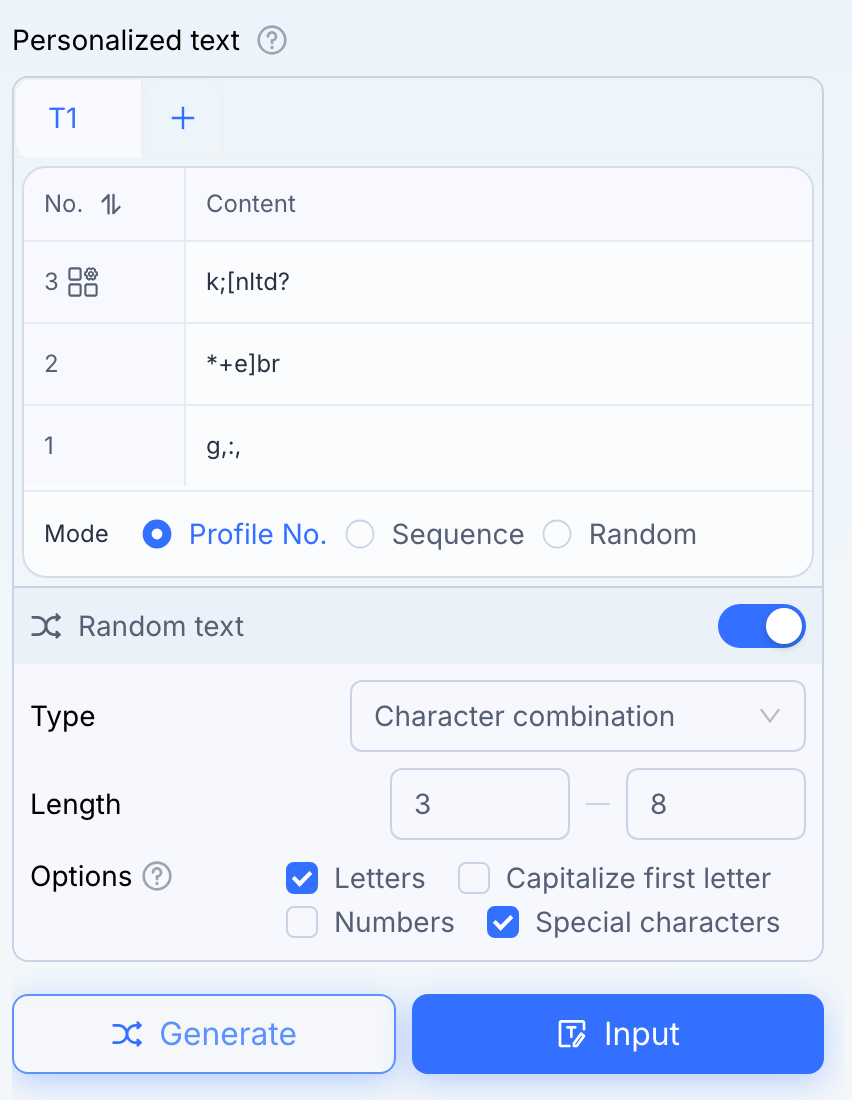
3.2.1 Character combination
When you toggle the Random text switch to ON, the interface expands to reveal a powerful string generator. This is ideal for creating unique usernames, nicknames, or answers to security questions across multiple profiles.
Configuration Settings
Type: Select the generation logic.
Character combination: Creates a string based on the specific character types you toggle.
Length: Set the range for the string length.
Example:
3–8means some windows will receive a 3-character string, while others might receive up to 8 characters.
Options (Character Sets):
Letters: Includes lowercase alphabetic characters ($a-z$).
Numbers: Includes numeric digits ($0-9$).
Capitalize first letter: Automatically ensures the first character is uppercase (e.g.,
Abc123).Special characters: Includes symbols (e.g.,
!,@,#) for higher complexity.
How to Use
Open the Toggle: Click the Random text switch in the Personalized text module.
Define Your Parameters: Choose the length and character types required for your task.
Generate: Click the Generate button.
The system will instantly fill the Content table in your current tab (e.g., T1) with unique, randomized strings for every profile.
Review & Input: You can manually edit any of the generated strings in the table. Once satisfied, click the blue Input button to push these unique strings to your synchronized windows.
3.2.2 Uppercase Letters (A-Z)
This mode restricts the generator to capital alphabetic characters only. It is the ideal choice when a field requires formal or standardized abbreviations.
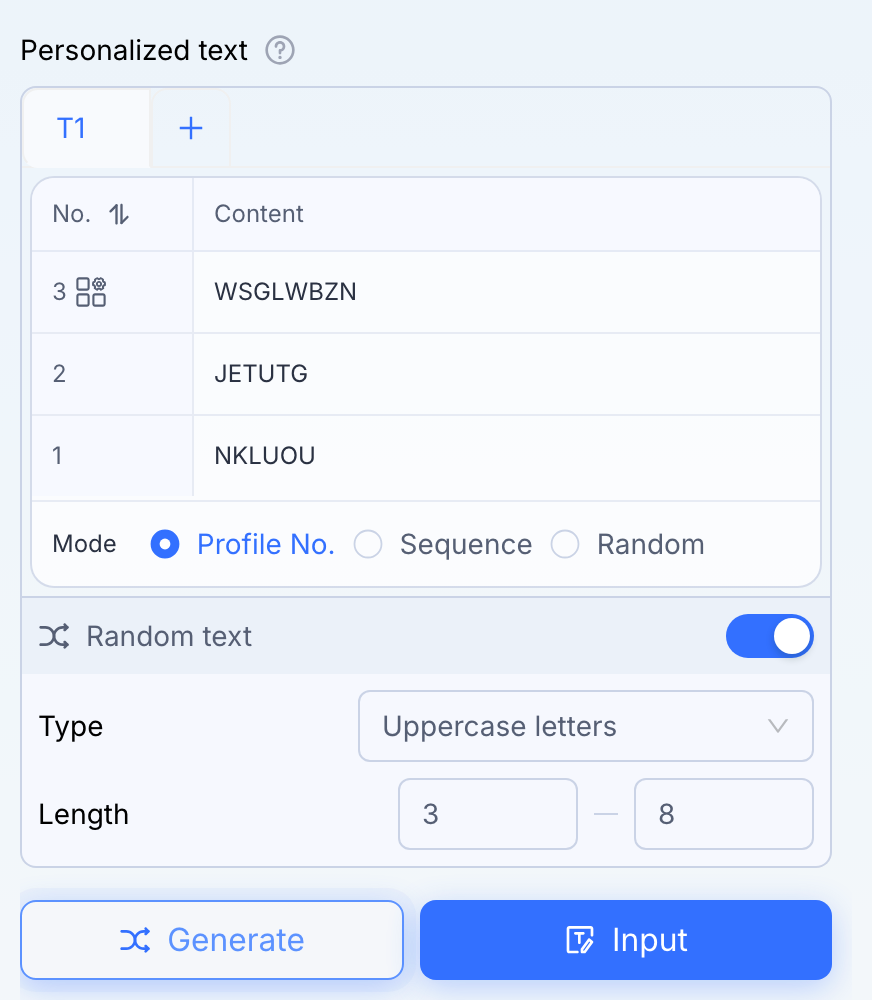
Logic: Generates unique strings using the 26 uppercase letters of the English alphabet.
Parameters:
Length: Set the range (e.g.,
5–8). The system will ensure each profile receives a different capitalized string within that length.
Example Output:
KBDXJ,PLMZNQ,WVYR.
3.2.3 Lowercase Letters (a-z)
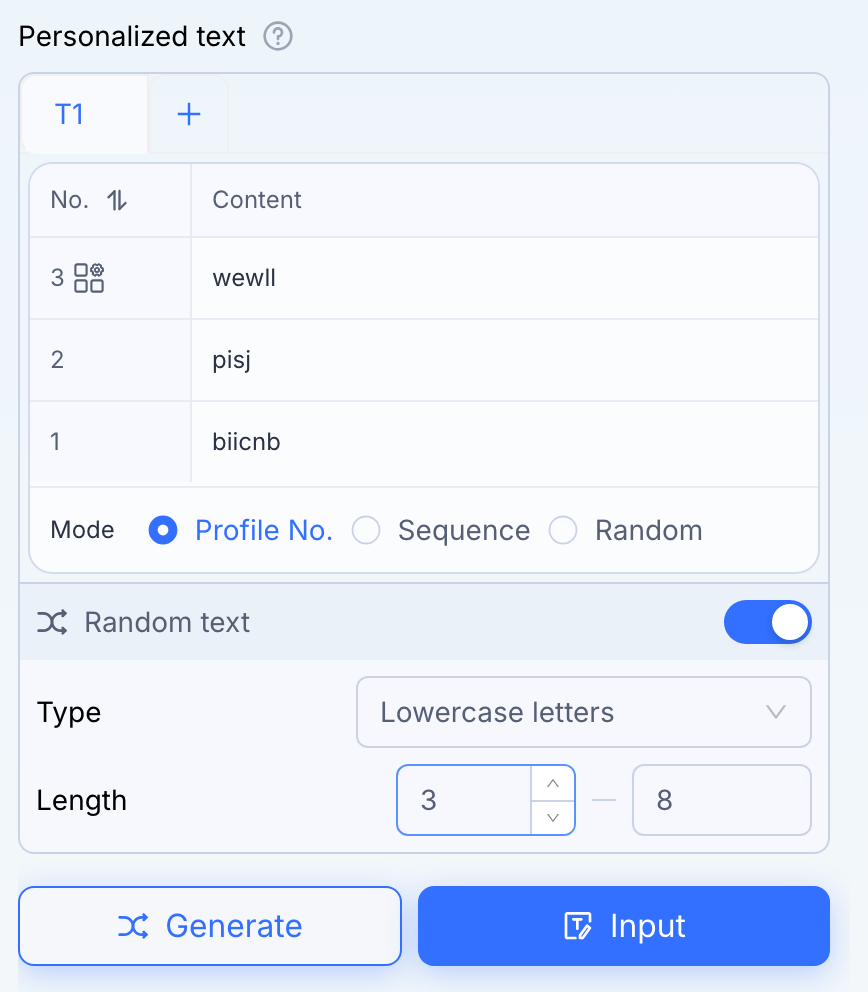
This mode focuses exclusively on small alphabetic characters. It provides a clean, uniform look for accounts that require non-formal text entries.
Logic: Generates unique strings using the 26 lowercase letters of the English alphabet.
Parameters:
Length: Specify the character count. Setting it to
4–4will force every window to receive exactly four letters.
Example Output:
jkwq,rtps,mxlb.
3.2.4 Numbers (0-9)
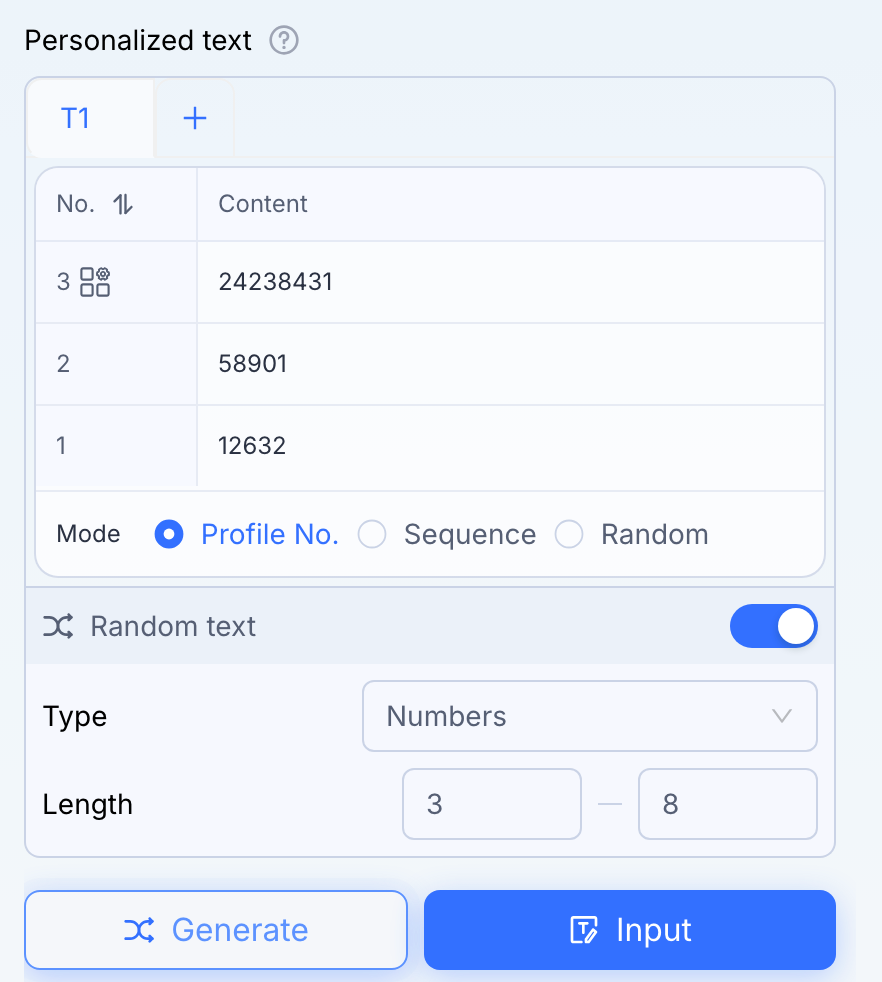
This mode turns the generator into a numeric-only engine. It is perfect for bypassing fields that have "Number Only" validation rules.
Logic: Generates unique strings consisting strictly of numeric digits.
Parameters:
Length: Define the numeric length. For a 6-digit verification code simulation, use
6–6.
Example Output:
58293,1047,938271.
💡 Pro-Tip for Security
If you are managing hundreds of accounts, use the Random mode combined with Human-like typing (found at the bottom of the Console). This combination ensures that not only is the data different for every account, but the speed and rhythm of the input vary as well, making the activity appear completely organic to anti-bot systems.
Was this helpful?
Still need help? Ask the team