Profile display
Written By Penny
Last updated 4 months ago
Profile Display Settings Guide
Learn how to manage the appearance, window layout, and identification markers for your browser profiles in MostLogin.
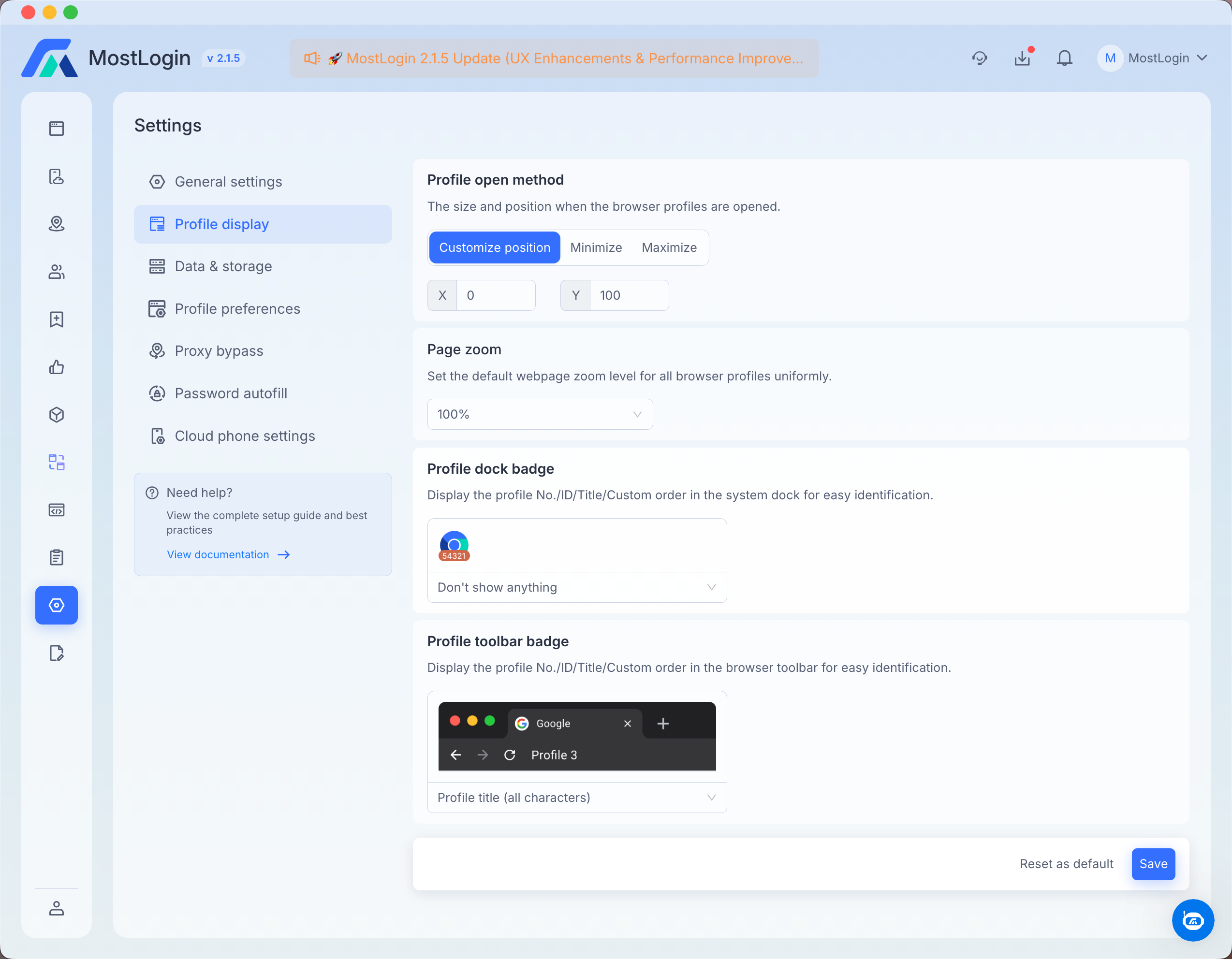
To access these options, go to Settings on the left sidebar and select Profile display.
1. Profile Open Method
Configure the default size and screen alignment for browser windows when they are launched. This is especially useful for managing multiple active profiles simultaneously.
Customize position: Allows you to define exact screen coordinates for the browser window using X (horizontal position) and Y (vertical position) inputs.
Minimize: Launches the browser profile in a minimized state in your taskbar/dock.
Maximize: Automatically expands the browser window to full screen upon opening.
2. Page Zoom
Set a universal default zoom level across all browser profiles to ensure consistent visual scaling.
Click the dropdown menu to select a global scale factor (e.g., 100%). All newly opened webpages will respect this layout size.
3. Profile Dock Badge
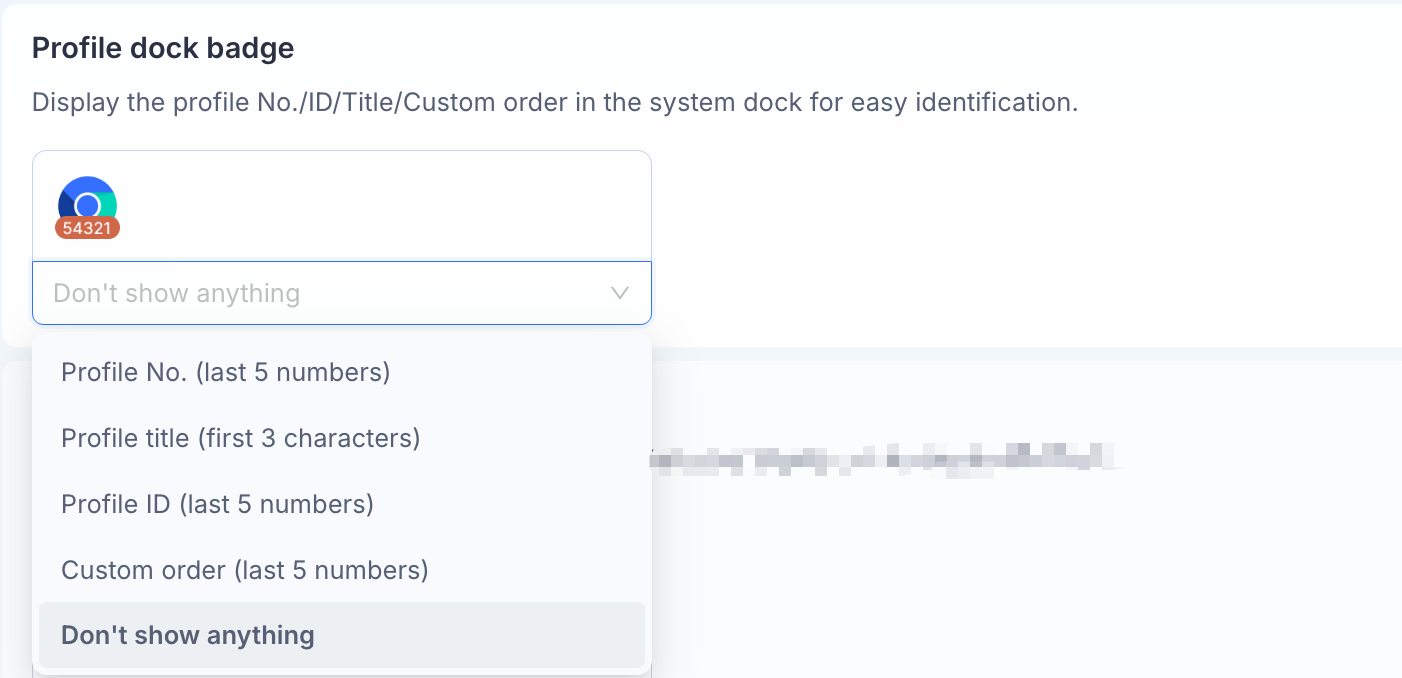
You can customize the badge by choosing one of the following 5 options from the dropdown menu:
Profile No. (last 5 numbers): Displays the final 5 digits of the sequential profile number assigned within your local client list.
Profile title (first 3 characters): Displays the first 3 letters or characters of your custom profile name. This is ideal if you name your profiles using short, distinct prefixes (e.g., "FB1", "AMZ").
Profile ID (last 5 numbers): Displays the last 5 digits of the unique global Profile ID generated by the system.
Custom order (last 5 numbers): Displays the final 5 digits of your personalized, user-defined sorting sequence or custom order configuration.
Don't show anything: Completely hides the badge marker, leaving the system dock icon clean and standard.
4. Profile Toolbar Badge
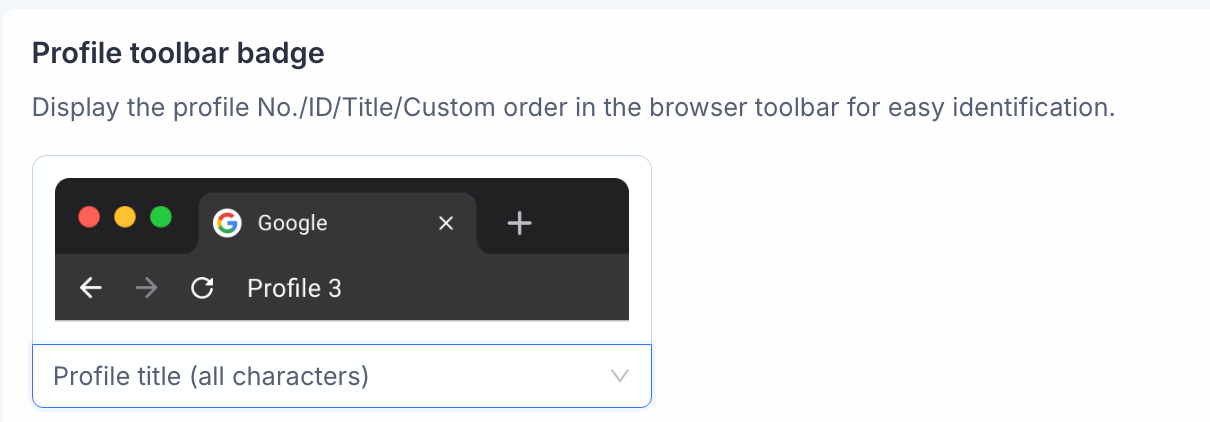
You can customize this layout by selecting one of the following 5 options from the dropdown menu:
Profile No. (all): Displays the complete, sequential profile number assigned to that specific environment in your client list.
Profile title (all characters): Displays the full custom name or title you gave to the profile, ensuring quick visual recognition.
Profile ID (all characters): Displays the full, unique system-generated global ID string for that profile.
Custom order (all): Displays the entire user-defined sorting sequence or priority number assigned to the profile.
Don't show anything: Removes all identification labels from the browser toolbar, giving you a completely clean, standard browser header layout.
Was this helpful?
Still need help? Ask the team