Site cookie banner auto-click settings
Written By Penny - Product specialist
Last updated About 2 months ago
Overview
Site Cookie Settings allows you to automatically click cookie banner buttons when opening a browser profile.
After configuring a website and the target button text, MostLogin will automatically detect matching cookie consent buttons and click them when the profile starts with the specified URL.
This helps reduce repetitive actions when managing multiple browser profiles.
Note: This feature requires MostLogin version 2.2.2 or later.
How to Enable Site Cookie Settings
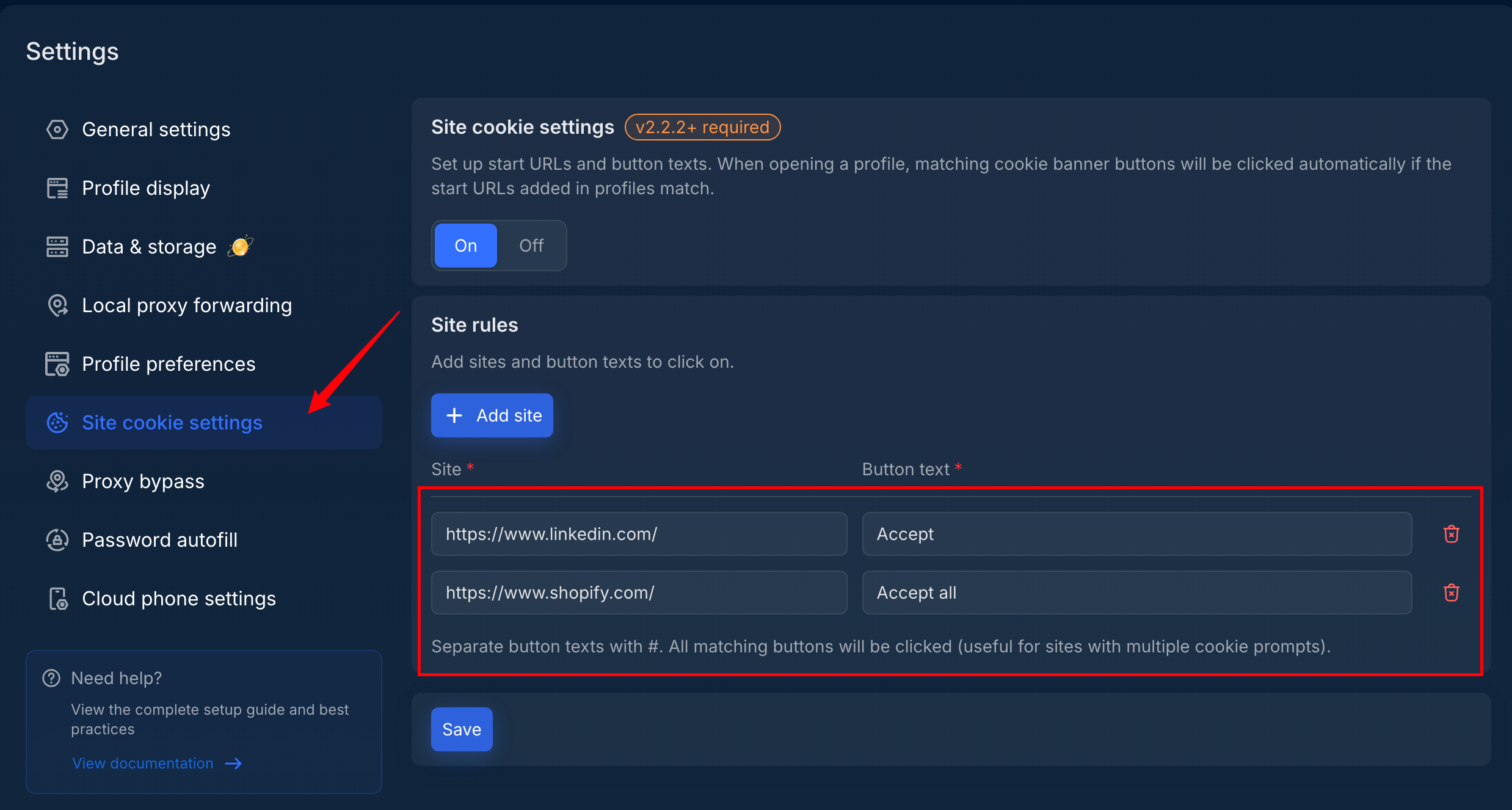
Open Settings.
Go to Site cookie settings.
Turn on the feature.
Click Add site to create a cookie rule.
Enter the website URL and the cookie button text you want MostLogin to click.
Click Save.
When a profile starts with a matching URL, MostLogin will automatically click the configured cookie button.
Make sure the button text matches the website's cookie banner.
Add Multiple Button Texts
Some websites may display different cookie buttons depending on region, language, or banner version.
You can add multiple button texts by separating them with #.
MostLogin will click matching buttons found on the page.
How It Works
When launching a browser profile:
MostLogin checks whether the start URL matches a configured site rule.
The browser opens the website.
MostLogin detects the configured cookie banner button.
The matching button is clicked automatically.
If no matching button is found, the browser will continue loading normally.
Supported Scenarios
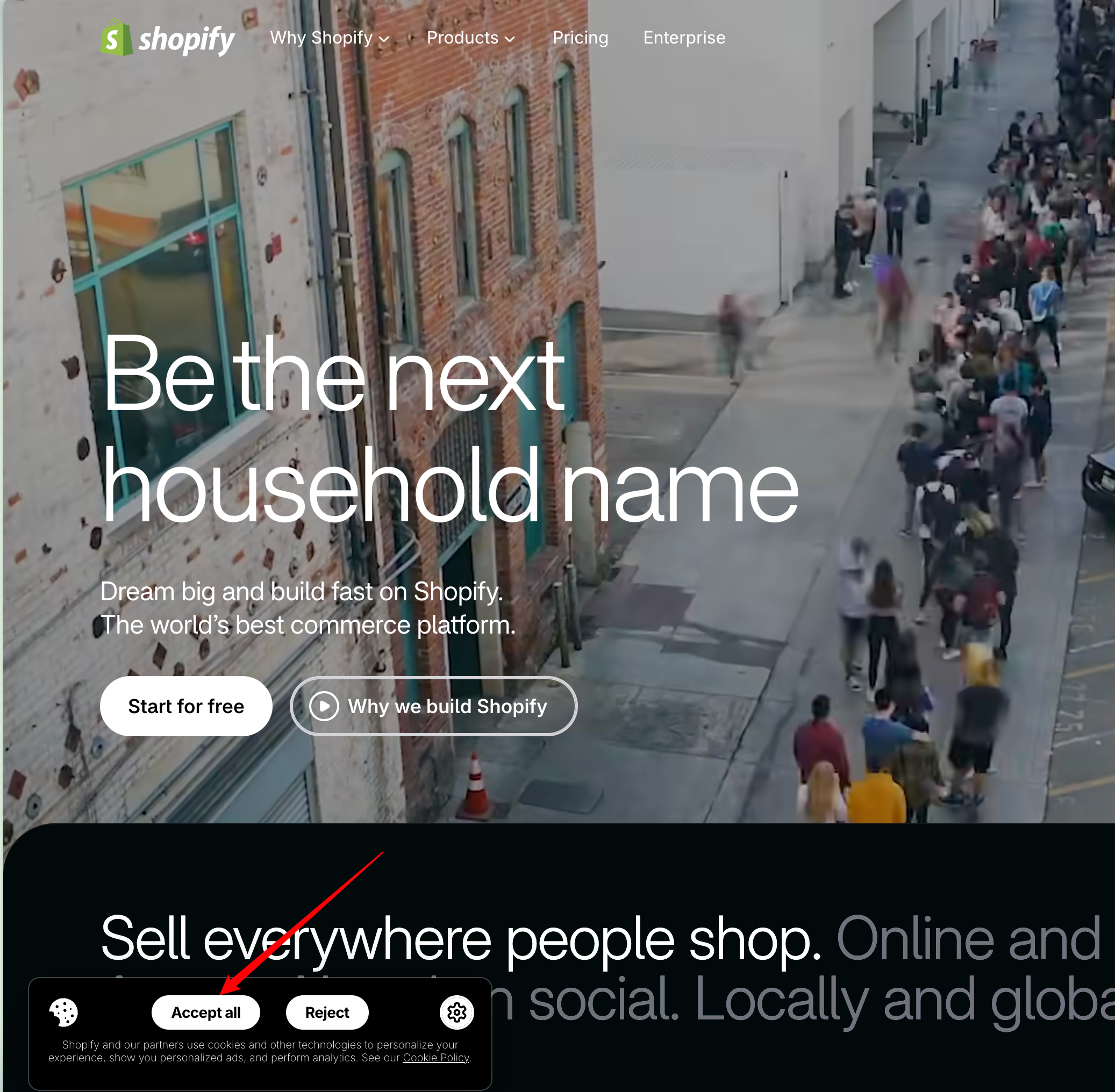
Site Cookie Settings works well with common cookie consent banners, including:
Accept cookies buttons
Cookie consent popups
Privacy preference banners
GDPR consent notifications
Enable or Disable Site Cookie Settings
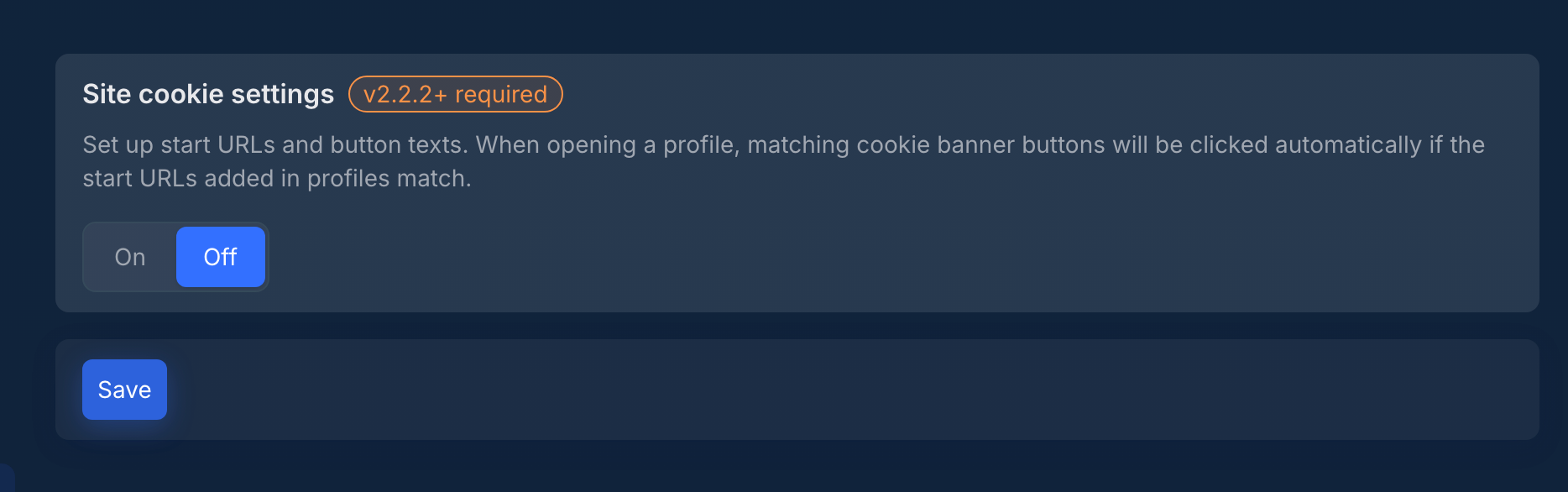
You can turn Site Cookie Settings on or off at any time.
When disabled
When the feature is turned off:
Cookie banner buttons will not be clicked automatically when opening profiles.
Existing site rules will be kept and saved.
You can enable the feature again later to continue using your saved rules.
Tips
Use a fresh browser profile for testing
Many websites remember your cookie choice after the first visit. If the banner does not appear:
Create a new profile, or
Clear the existing cookies and site data.
Check button text carefully
The button text must match the website's displayed text.
For example:
✅ Correct:
Accept all❌ Incorrect:
Accept cookiesif the actual button says "Accept all".
Website changes may affect matching
Cookie banners are controlled by each website and may change over time. If a rule stops working, update the button text based on the latest banner.
Frequently Asked Questions
Why didn't the cookie button get clicked automatically?
Possible reasons:
The website URL does not match the configured rule.
The button text is different from the configured text.
The cookie banner did not appear.
The website uses a custom consent flow that requires additional steps.
Can I configure multiple websites?
Yes. You can add multiple site rules and each website can have its own button text.
Can I click multiple cookie buttons on one website?
Yes. Add multiple button texts separated by #. MostLogin will click matching buttons available on the page.
Was this helpful?
Still need help? Ask the team