Cloud phone settings
Written By Penny
Last updated 4 months ago
Cloud Phone Settings Guide
Configure visual interface scaling and automated inactivity timeouts for your cloud phone environments. Managing these options helps you optimize remote display dimensions and control usage costs effectively.
To access these options, go to Settings on the left sidebar and select Cloud phone settings.
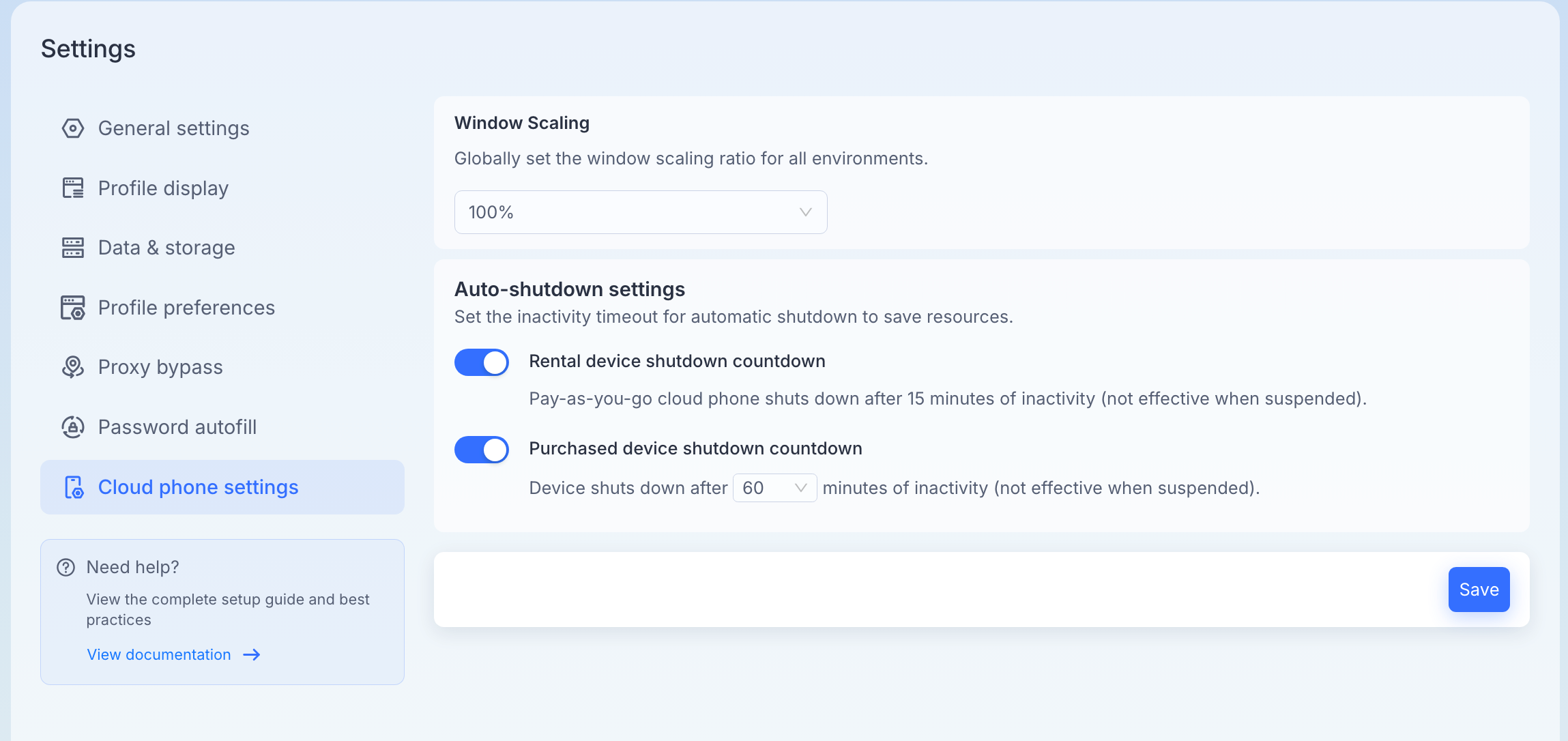
1. Window Scaling
Globally adjust the display interface resolution scale across all launched cloud phone instances.
Click the dropdown menu to select a universal scaling ratio (e.g., 100%). This ensures that your cloud phone interaction windows fit comfortably within your local computer screen setup without manual resizing.
2. Auto-Shutdown Settings
Set custom inactivity timeouts to automatically turn off idle cloud instances. This saves server system bandwidth and prevents unnecessary billing overhead for remote processing power.
Rental device shutdown countdown: * Behavior: When enabled, your pay-as-you-go cloud instances will automatically power down after 15 minutes of absolute idle time.
Note: This automation will not take effect if the device instance status is explicitly set to suspended.
Purchased device shutdown countdown: * Behavior: When enabled, your permanently or long-term allocated instances will power down after a user-defined threshold of inactivity.
Configuration: Click the dropdown menu to customize your preferred idle window limit (e.g., 60 minutes).
Note: This automation will not take effect if the device instance status is explicitly set to suspended.
⚠️ Important Reminder: Make sure to click the blue Save button at the bottom right corner of the dashboard to commit your scaling preferences and auto-shutdown thresholds across your cloud devices.
Was this helpful?
Still need help? Ask the team