Synching window layout
Written By Penny
Last updated 4 months ago
The Synchronizer is a powerful feature that allows you to control multiple browser profiles at once. By performing actions in one window, those same clicks, scrolls, and typing inputs are replicated across all selected profiles.
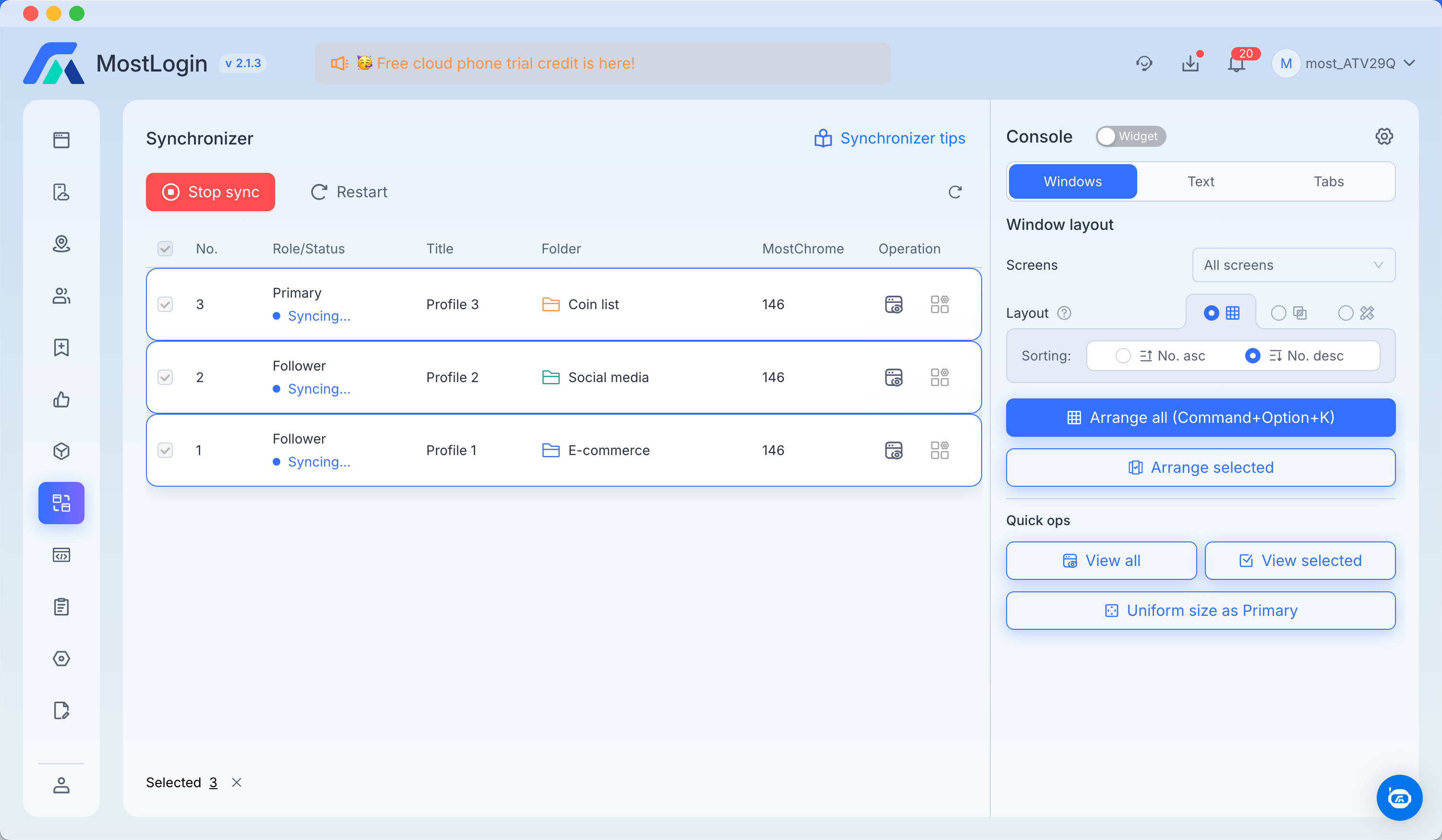
1. Getting Started
To access the synchronization panel, click on the Synchronizer tab in the left-hand sidebar menu.
A few notes:
Your client app version needs to be at least 2.1.4.
Only opened profiles (with latest Chrome kernel 144 and above) will be added in the Synchronizer menu.
Only latest Chrome kernel 144 and above are supported for the synchronizing feature.
If you are synching profiles with various kernels (aka, MostChrome), the synchronization may not work as well as with the same kernel.
Currently only English typing will work in sync. Chinese, Korean, Japanese are not supported. If you have input needs for languages other than English, you can try the Text features.
2. Setting Up Your Windows
Before you start syncing, you need to select which profiles will participate:
Role Assignment:
Primary: The lead window where you will perform your actions.
Follower: The windows that will automatically mimic the Primary window.
Selection: Use the checkboxes on the left side of the profile list to select the windows you want to sync.
Restart: If a profile is unresponsive, use the Restart button next to the "Start sync" button to refresh the connection.
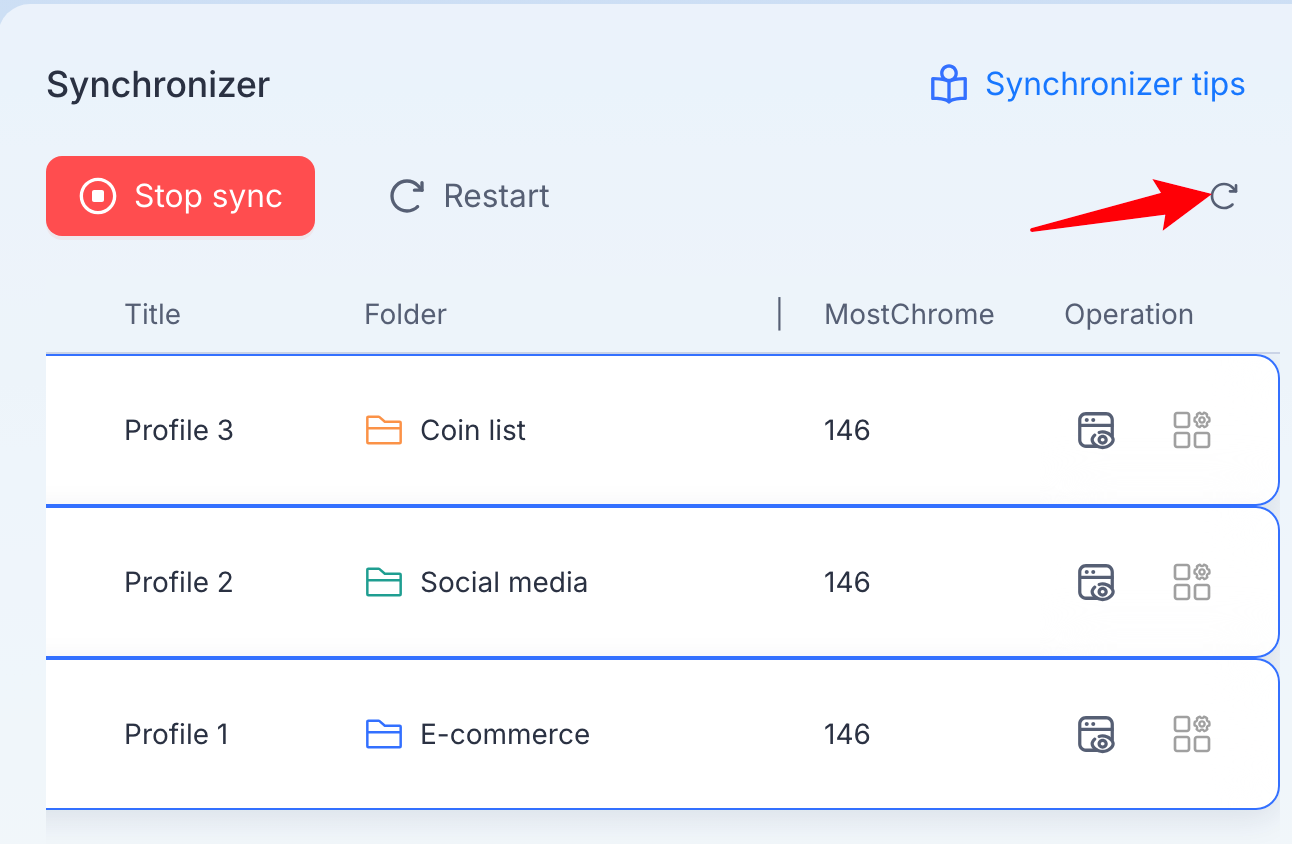
A few notes:
The default Primary window will be the profile with the largest No..
Set the Primary before synching. Primary window cannot be changed during synching. You will need to stop sync first to change the Primary window.
If you edit a profile's title, folder or MostChrome, it will not be reflected right away while they are in sync. Please try refresh the list.
If the synching is interrupted, please restart.
3. Using the Console (Window Layout)
On the right side of the screen, you will find the Console. This allows you to organize your desktop for better visibility.
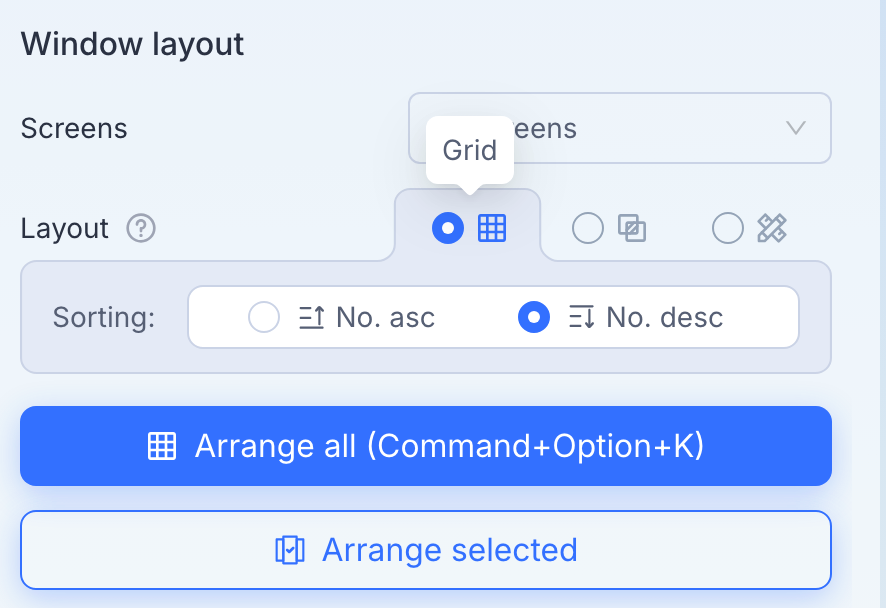
3.1 Tile Layout (System-Optimized Grid)
In this mode, our system automatically calculates the most efficient grid pattern based on your input. You don't need to manually position each window; the algorithm handles the spacing and alignment for you.
Sorting Logic: You decide the sequence in which profiles fill the grid:
No. asc (Ascending): Profiles are arranged in order from lowest to highest ID (e.g., 1, 2, 3...).
No. desc (Descending): Profiles are arranged in reverse order (e.g., 10, 9, 8...).
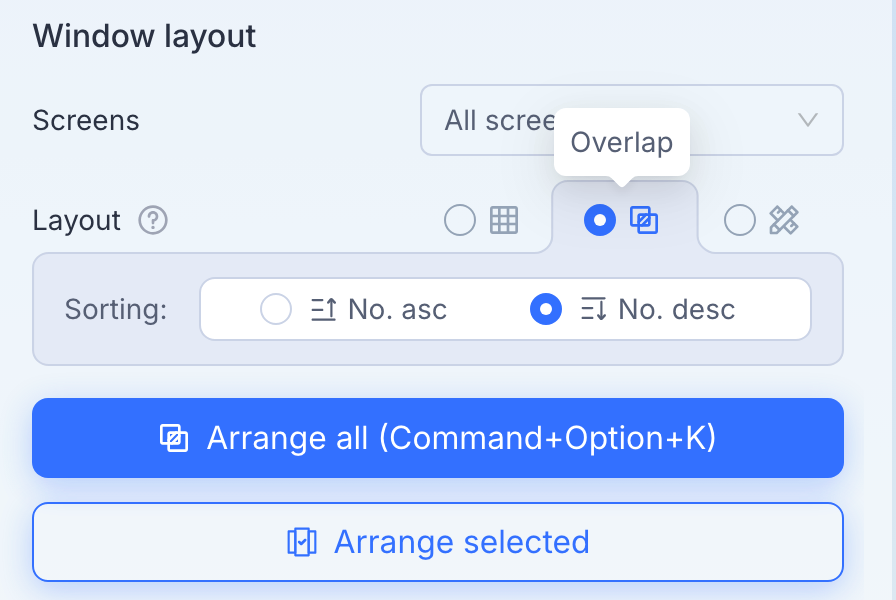
3.2 Overlap Layout (System-Automated Stacking)
The Overlap mode uses a "staircase" algorithm to stack windows so that the title bar of every window remains visible and accessible.
User Control: Like the Grid mode, the spacing and offset distance are managed automatically by our system algorithm.
Sorting Logic:
No. asc: Windows are stacked in ascending order (Profile 1 at the bottom, Profile 3 on top).
No. desc: Windows are stacked in descending order.
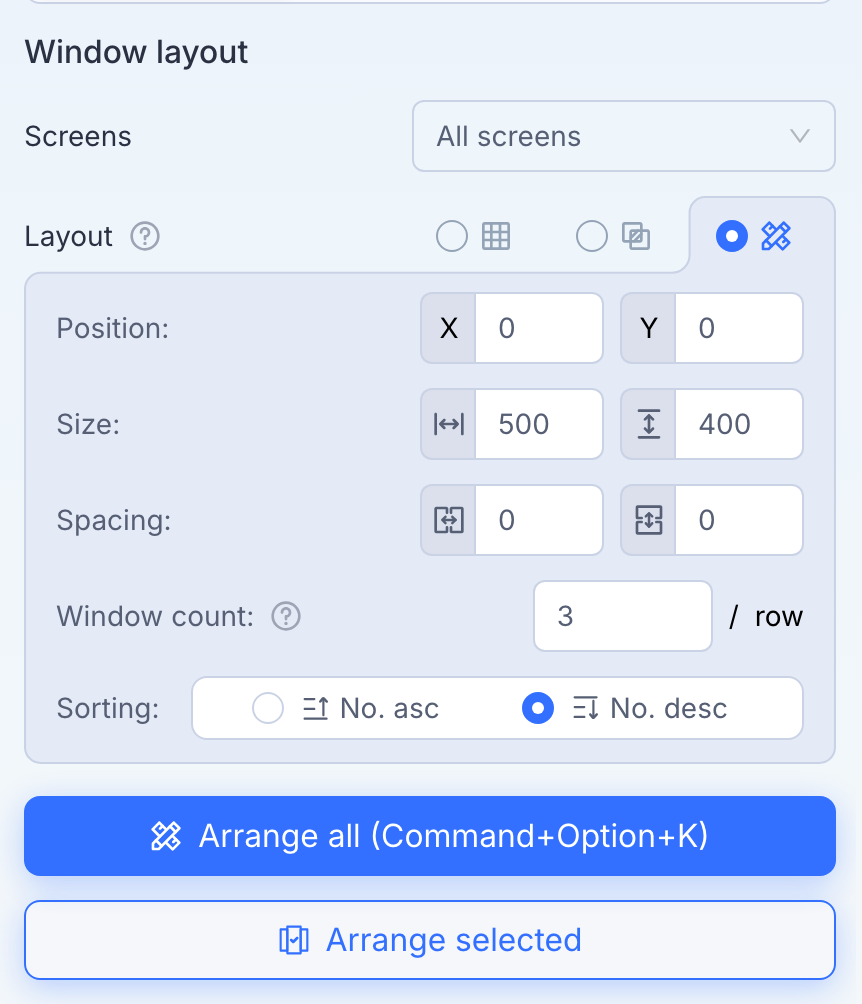
3.3 Customize Layout (Manual Configuration)
The Customize mode bypasses system algorithms, giving you full control over every spatial parameter. Use this mode to pin windows to specific "zones" on your desktop.
Position (X, Y): Define the exact pixel coordinates for the starting window.
Example: Setting X to 1920 will jump the arrangement to the start of your second monitor.
Size (W/H): Manually set the width and height of all windows.
Note: To ensure click-sync accuracy, these should match your Primary window dimensions.
Spacing: Fine-tune the horizontal and vertical gaps (in pixels) between windows.
Window Count (/ row): Specify how many windows should appear in a horizontal line before the system starts a new row.
Sorting: Apply No. asc or No. desc logic to this custom grid.
4. Synchronization across devices
If you are working with multiple displays, follow these steps to organize and sync your workspace efficiently.
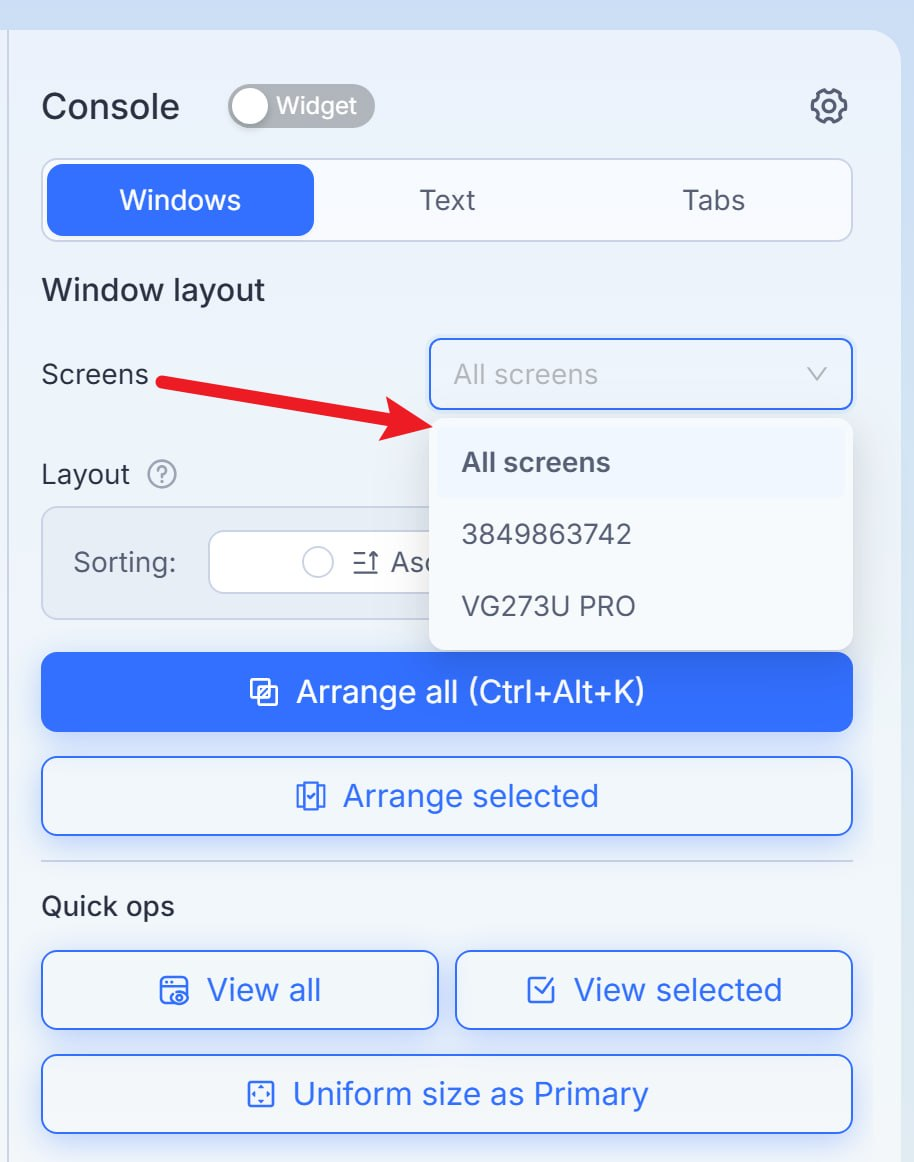
4.1. Select Your Target Display
Before applying any layout changes, you must define which screen(s) the action should affect:
Click the Screens dropdown menu.
All screens: Applies the arrangement to your entire desktop workspace.
Specific Monitor: Select an individual ID or model name to only organize windows on that specific display.
4.2. Configure Sorting
Before hitting the "Arrange" button, ensure your windows will be ordered correctly:
Ascending/Descending: Choose the direction of the sort to ensure your most important windows end up on the "Primary" side of the screen.
4.3. Execute Window Arrangement
Use the primary action buttons to snap your windows into place:
Arrange All (Ctrl + Alt + K on Windows or Command + Option +K on macOS): The fastest way to sync. It will automatically tile or grid all open windows across the selected screens.
Arrange Selected: If you only want to sync specific windows, select them first and use this option.
5. Executing Synchronization
Click the blue Start sync button.
Bring the Primary window to the front.
Perform your tasks (typing, clicking, navigating) in the Primary window.
Observe the Follower windows replicating your actions in real-time.
Pro Tip: Use the "Uniform size as Primary" button under Quick ops to ensure all windows have the exact same dimensions. This ensures that click coordinates align perfectly across all profiles.
6. Quick Operations (Quick Ops)
Located at the bottom right, these shortcuts help manage your workflow:
View all / View selected: Quickly bring all or specific windows to the foreground.
Uniform size as Primary: Synchronizes the resolution of all secondary windows to match the primary window.
⚠️ Important Tips for Success
Network Latency: Ensure all profiles have a stable proxy connection. If one profile lags, the sync may appear out of alignment.
Uniform Content: Synchronization works best when all windows are on the exact same URL/page before starting the sync.
Input Sync: For complex text entry, you can also use the "Text" tab in the Console to push specific strings to all windows.
Was this helpful?
Still need help? Ask the team