How to get seats for my team?
Written By Penny
Last updated 3 months ago
Only team owner can subscribe to seats.
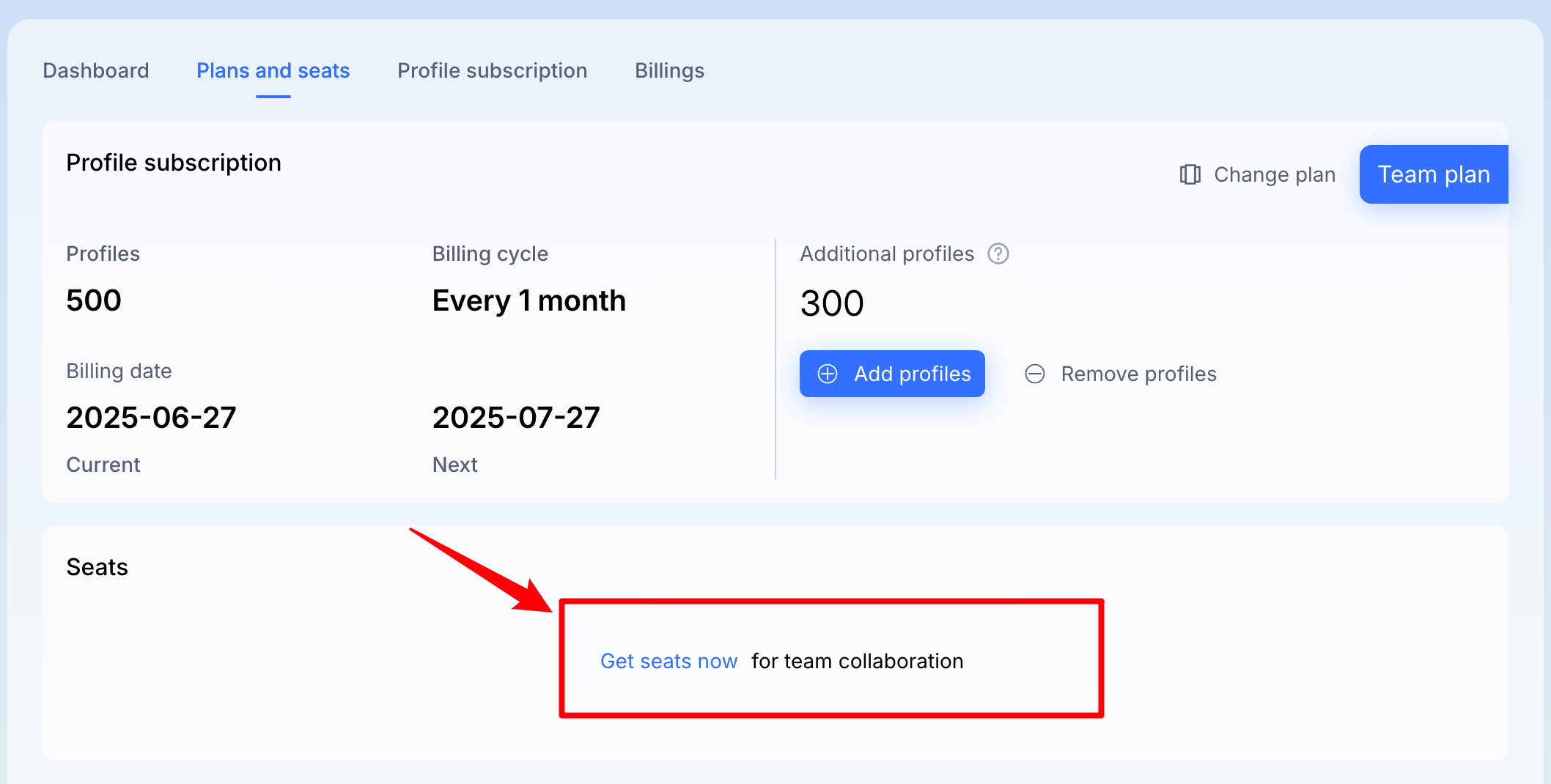
1. Navigate to "Plans and seats":
From your Subscription menu, locate and click on the "Plans and seats" tab in the top navigation bar. This will take you to your subscription overview.
2. Locate the "Seats" section:
Scroll down the "Plans and seats" page until you find the "Seats" section. This section is specifically for managing user collaboration seats.
3. Initiate getting seats:
Within the "Seats" section, you will see a prominent link or button that says: "Get seats now for team collaboration".
Click on this link, you will be directed to the next step.
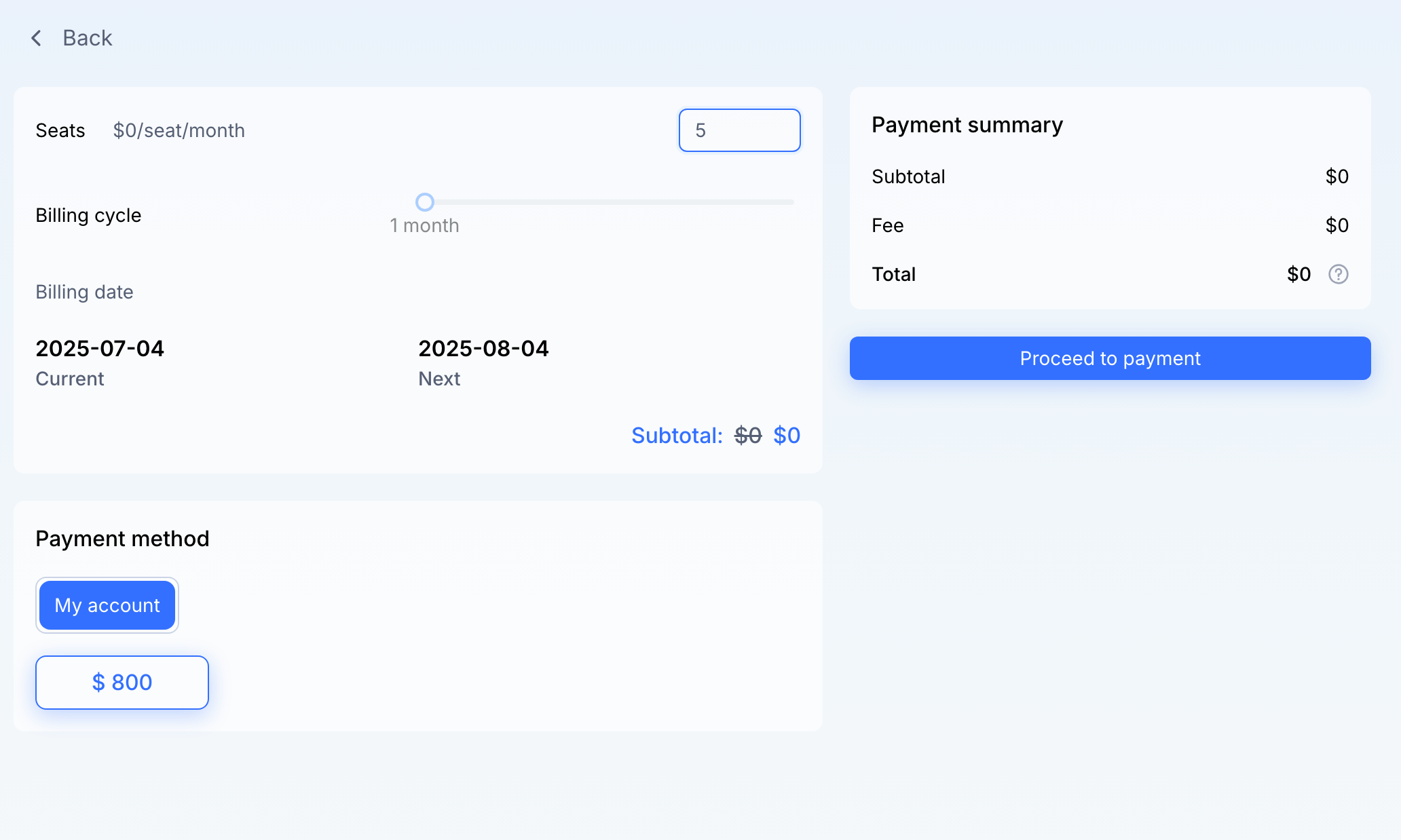
4. Configure your seats:
Number of seats: At the top of the page, you'll see "Seats" with the cost indication.
To adjust the number of seats you want to acquire:
Use the up and down arrows next to the current number to increase or decrease the quantity.
Alternatively, you can directly type the desired number into the box.
Billing cycle: Below the seats quantity, you'll see the "Billing cycle". This indicates the frequency of your billing period.
Billing dates:
"Current" billing date shows the start of your current billing period.
"Next" billing date shows when your next billing period will start.
Subtotal: As you adjust the number of seats, the "Subtotal" at the bottom of this section will update.
5. Review payment summary:
On the right side of the screen, the "Payment summary" provides a breakdown of your current transaction:
Subtotal: This is the total cost of the seats you've configured.
Fee: This section will display any additional transaction fees, if applicable.
Total: This is the final amount you will be charged for this transaction.
6. Confirm payment method (for record-keeping):
Under the "Payment method" section, your selected method (e.g., "My account") is shown. The system requires a payment method to be on file for future billing and record-keeping purposes.
The amount displayed below "My account" represents your current account balance, indicating available funds should future charges occur.
7. Proceed to payment:
Once you have configured the desired number of seats, reviewed the payment summary, and confirmed your payment method, click the "Proceed to payment" button.
Click [Confirm] to complete your subscription.

Your seats subscription will take affect immediately.