Cloud phone synchronizer
Written By Penny - Product specialist
Last updated About 2 hours ago
1. Overview
1.1 About Cloud Phone Synchronizer
The Cloud Phone Synchronizer allows users to control multiple cloud phone instances simultaneously by replicating actions (such as taps, swipes, text input, and app launches) from a main/controller window across selected environments in real time.
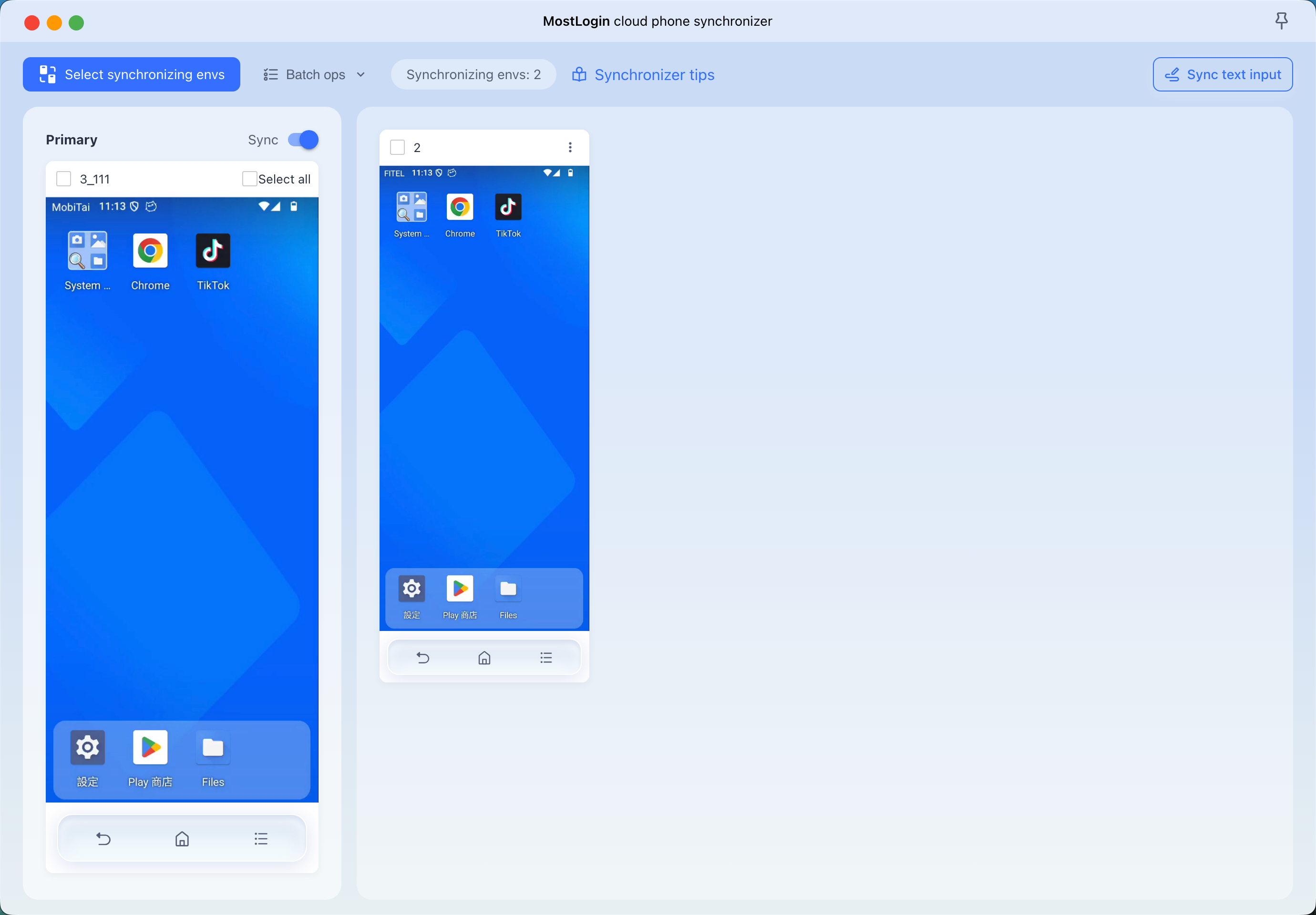
1. 2 Prerequisites
Before enabling the synchronizer, ensure your setup meets the following conditions:
Active Status: At least 2 cloud phone environments must be currently running (Status:
Opened).Homogeneous Device Type: The environments selected for synchronization must share the same device type/operating system configuration to ensure consistent touch coordinates and screen scaling.
Network & Proxy: Ensure each target environment has a stable network or proxy connection configured to prevent synchronization latency.

2. Sync cloud phone environments
2.1 Set the primary environment
Open the Environment Selection Modal
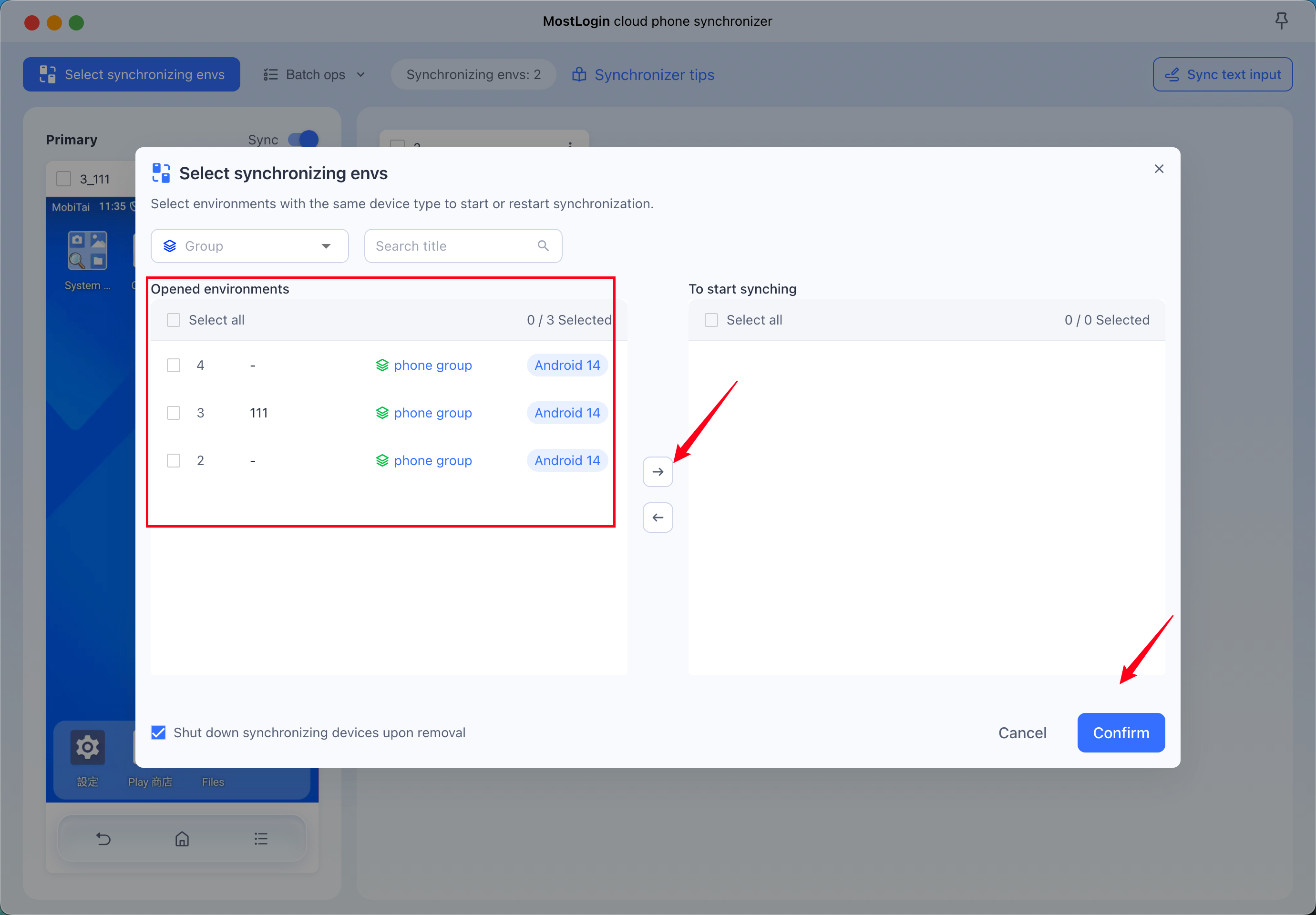
In the top control bar of the MostLogin cloud phone synchronizer, click Select synchronizing envs (or the interface will automatically pop up when starting the tool).
A modal titled Select synchronizing envs will appear, displaying:
Left Column:
Opened environments(All running instances ready to be added).Right Column:
To start synching(Instances currently queued for synchronization).
Filter & Add Environments
Filter Instances (Optional):
Use the Group dropdown to filter instances by specific environment folders.
Enter keywords into the Search title bar to quickly locate specific cloud phone profiles.
Device Type Requirement:
Ensure all selected environments share the same device type / OS version (e.g., all marked as
Android 14).Requirement Prompt: "Select environments with the same device type to start or restart synchronization."
Move Environments to Sync Queue:
In the Opened environments column, check the box next to the instances you want to add (or check Select all).
Click the Right Arrow (
→) button between the columns to move selected instances into To start synching.To remove an instance from the sync list, select it under To start synching and click the Left Arrow (
←) button.
Configuration & Confirmation
Shutdown Option:
Check or uncheck "Shut down synchronizing devices upon removal" at the bottom left based on your preference. When checked, instances removed from synchronization will be stopped automatically.
Start Synchronization:
Confirm that at least 2 environments of the same device type are present in the To start synching column (one will serve as the
Primarycontroller window).Click Confirm to apply the configuration and initiate multi-device sync.
3. Sync text input
Access the Text Input Modal
In the top navigation bar of the MostLogin cloud phone synchronizer, click the Sync text input button located at the upper-right corner.
The Sync text input configuration popup will display a list of all currently active synchronizing instances, arranged by row based on environment title/ID.

Enter & Dispatch Content
Focus the Target Field:
Before sending text, ensure that the input field or address bar inside each cloud phone window is actively clicked/focused (e.g., the browser search/URL bar).
Fill in Text Columns:
Enter the intended text for each corresponding device under the Text 1 column (e.g., assigning
[www.tiktok.com](https://www.tiktok.com)to environment111and[www.instagram.com](https://www.instagram.com)to environment-).If a second round of inputs or additional fields are needed, enter the secondary text under the Text 2 column.
(Optional) Click the Clear (broom icon) at the top of the column header to clear all values in that column simultaneously.
Execute Input:
Click the Input text 1 button at the bottom to dispatch the content from the Text 1 column directly into the focused input fields of each respective device.
Click the Input text 2 button if you need to dispatch the values configured in the second column.
4. Close synchronizer
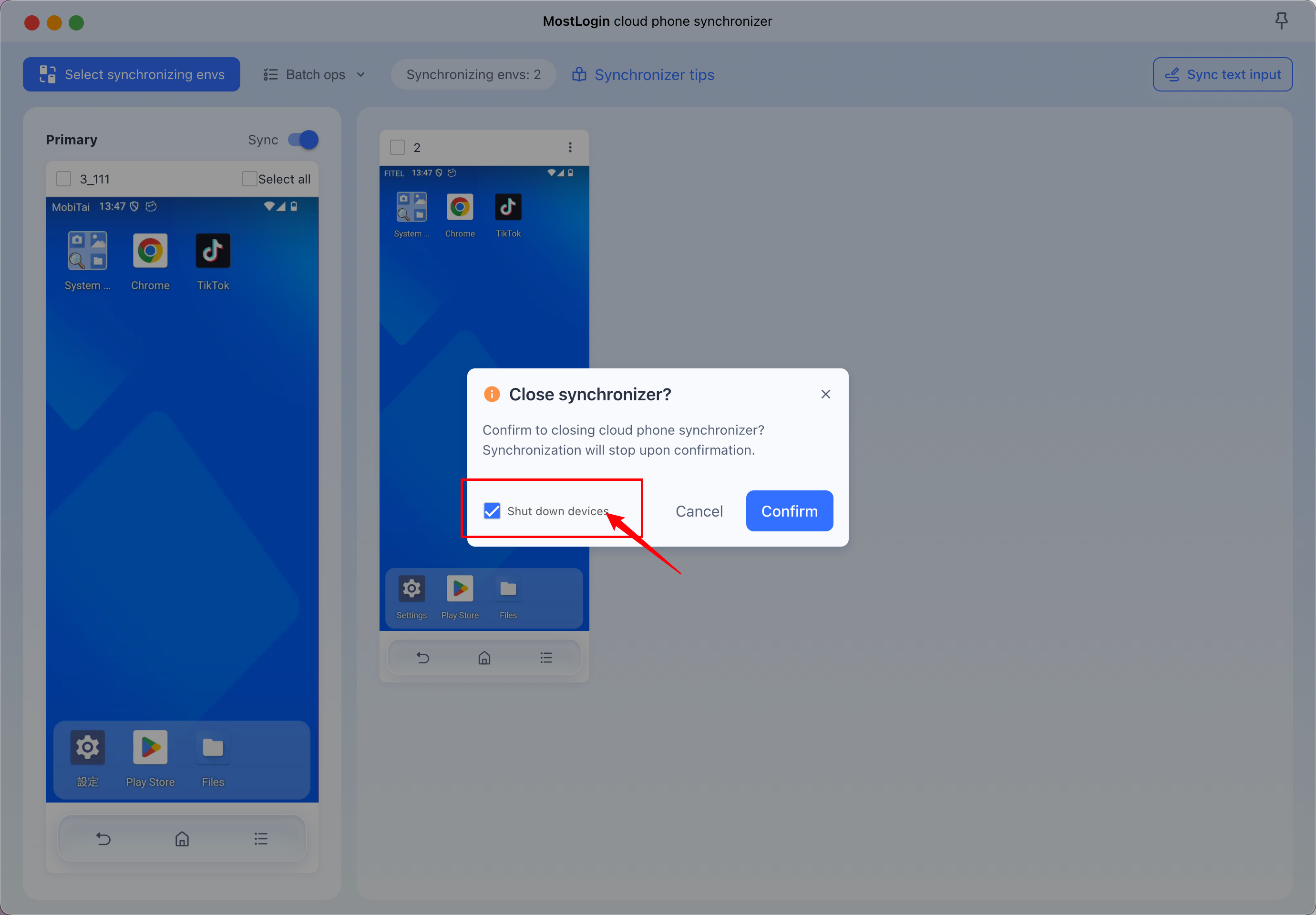
Once synchronization is completed, you can close the synchronizer. You can also choose to shut down the devices at the same time to release the devices.
Tips for using the synchronizer
MostLogin Cloud Phone Synchronizer: Operational Notes & Best Practices
Compatibility & Minimum Requirements
Identical Device Type Requirement: Synchronization functions strictly between instances sharing the same operating system version and hardware profile (e.g., all set to
Android 14). Mixing different OS versions or mismatched resolutions causes touch coordinate drift and will be blocked by the system.Minimum Active Instances: A minimum of 2 opened instances belonging to the same device type must be actively running before synchronization can be engaged.
Window Status Readiness: Confirm all target instances display a green
Openedstatus underEnv statusbefore selecting them. Instances still loading or showingNot readycannot join the sync pool.
Input Synchronization & Focus Management
Active Cursor Focus Required: Before executing
Sync text input, click the target input field or address bar in the cloud phone windows to ensure the cursor is actively blinking. Unfocused fields will fail to register dispatched text.Profile-to-Row Verification: Double-check the instance identifier in the
Titlecolumn against your input data in theText 1orText 2columns before dispatching to prevent credentials or URLs from being sent to the wrong environment.Column Clearance Precaution: The broom icon (
Clear) clears all text entries in that respective column simultaneously. Ensure your inputs are dispatched or backed up before clicking it.
Instance Removal & Lifecycle Behavior
Device Shutdown Handling: Take note of the
Shut down synchronizing devices upon removaltoggle at the bottom-left of the selection window:When Enabled: Removing an instance from the sync queue stops and shuts down the cloud phone container immediately.
When Disabled: Removing an instance releases synchronous control only; the instance remains running in the background and continues device billing.
Latency & Input Timing
Network Stability: Synchronizer execution depends on continuous real-time streaming. Ensure proxy connections assigned to each instance maintain low latency to avoid trailing delays relative to the
Primarywindow.Gesture Pacing: Maintain steady, intentional gestures on the
Primarycontroller window rather than rapid, repeated taps to ensure all secondary instances register identical coordinate events without frame drops.
Was this helpful?
Still need help? Ask the team