Are cloud phone groups necessary?
Written By Penny
Last updated 3 months ago
Feature Guide: Managing Cloud Phone Groups
Overview
The cloud phone groups, like browser profiles folders, are essential for cloud phone environments. Assigning/unassigning groups to members are both group-based operations.
The Groups tab allows you to organize your cloud phone environments into logical clusters. This simplifies management, access control, and batch operations.
1. Creating and Assigning Groups
Create a New Group
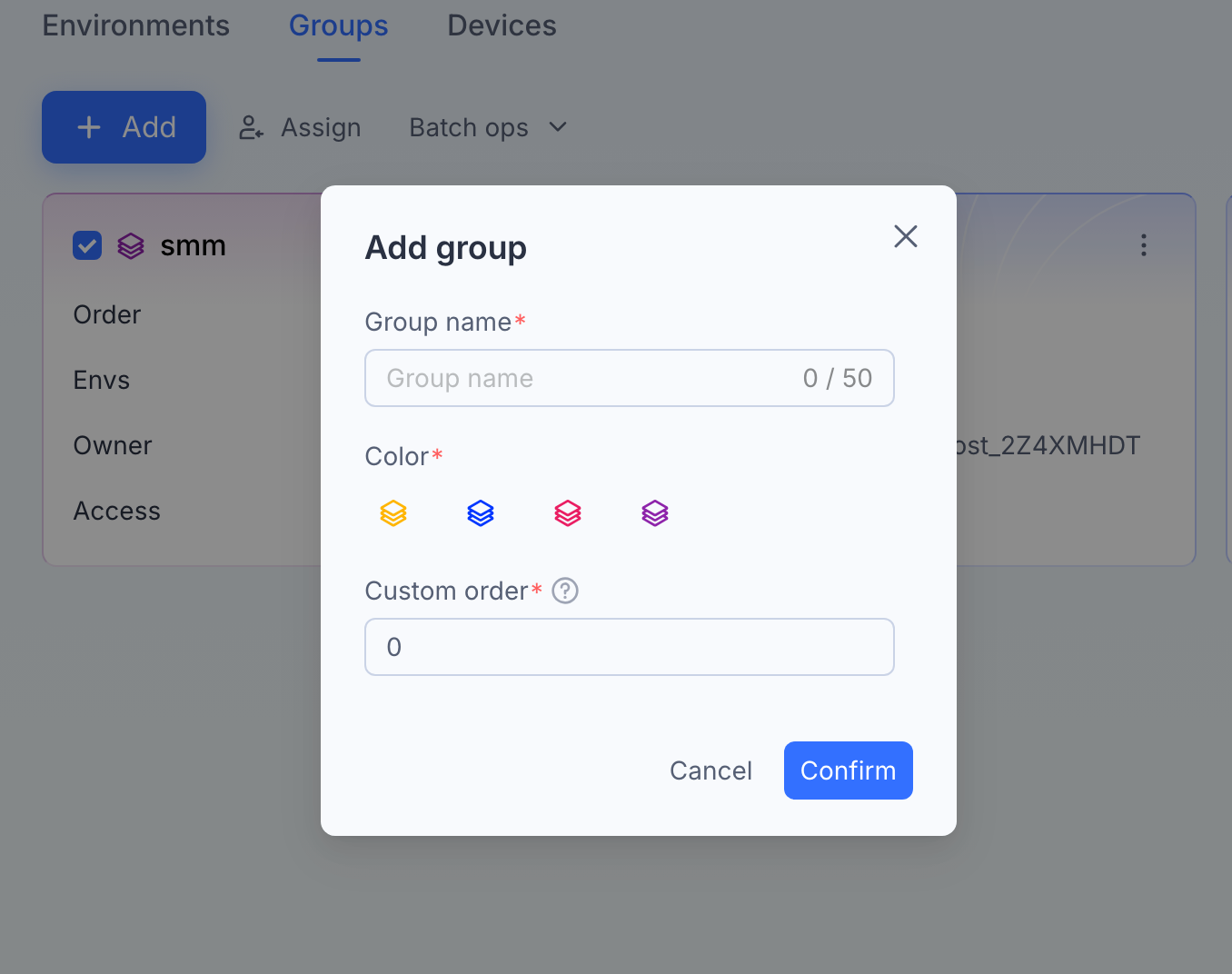
Navigate to the Groups tab at the top of the interface.
Click the blue + Add button.
Enter the group name and any required details in the popup window.
The new group will appear as a card in the main dashboard.
Assign Users/Permissions
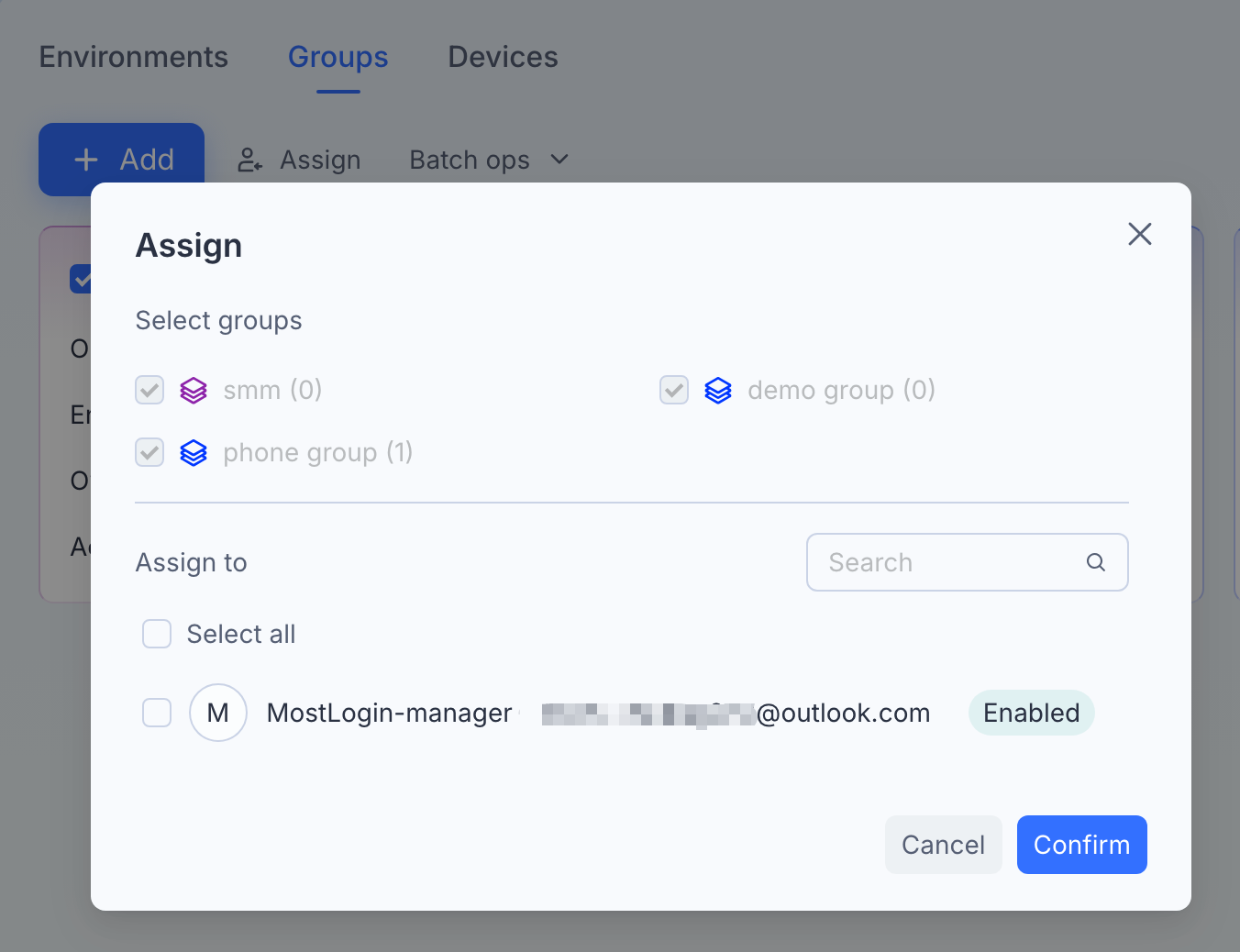
Assign: Click the Assign button (next to "+ Add") to grant specific users or teams access to selected groups.
Access Status: You can view the current access status on each group card under the "Access" field.
2. Managing Existing Groups (Batch Operations)
You can perform actions on multiple groups simultaneously using the Batch ops feature.
How to Perform Batch Actions
Select Groups: Check the box in the top-left corner of the group card(s) you wish to modify.
To select everything on the page, check the Select all box at the bottom left.
Note: The screenshot shows 3 items currently selected.
Open Menu: Click the Batch ops dropdown menu.
Choose Action: Select one of the following commands:
3. Understanding the Group Card
Each group is represented by a card containing key statistics:
Group Name: The title of the group.
Order: The display sorting order of the group.
Envs (Environments): The number of cloud phone environments assigned to this group.
Owner: The username or ID of the person who created or currently owns the group.
Access: Icons indicating the sharing status or permission level.