Using bookmarks in profiles
Written By Penny
Last updated 4 months ago
Advanced Bookmark Synchronization Guide
MostLogin provides three distinct modes to manage your browsing data. Understanding these ensures seamless team collaboration while maintaining the integrity of your browser environments.
Configuring Bookmark Sync for a Profile
To set how a specific Profile (browser window) handles bookmarks, go to the Profile List, click Edit on your target Profile, and navigate to the "Preferences" tab.
Under the "Sync data" section, you will find the following Bookmark options:
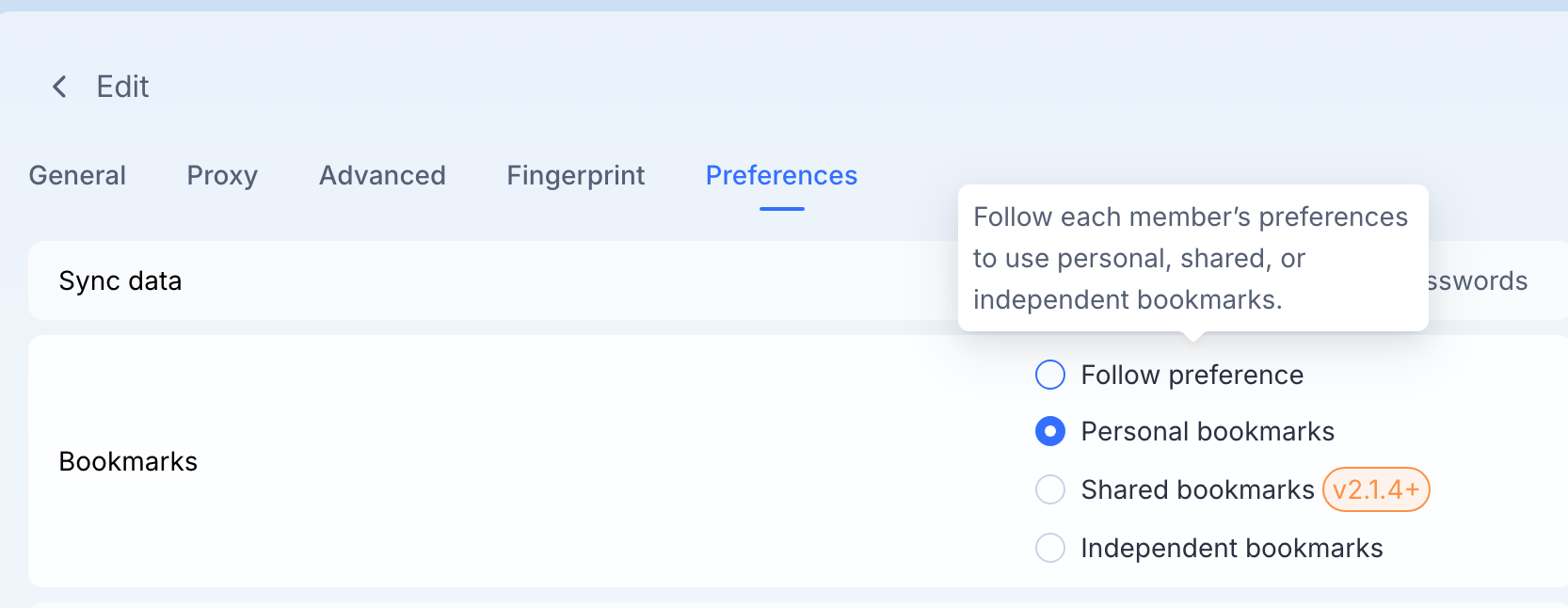
Bookmark Sync Modes (Preferences)
In the Edit Profile > Preferences section, you can define how bookmarks are handled for each specific Profile:
Follow Preference
Behavior: This Profile will automatically adopt the logic currently selected in your Global Bookmark Settings.
Personal Bookmarks (System-Defined)
The Logic: These are the "template" bookmarks you have configured in the system’s global settings.
Behavior: Every time you launch a Profile set to this mode, it will load the exact same set of bookmarks. It is a static, reliable environment.
Best For: Standard operating procedures where you need a fixed set of tools that never change.
Shared Bookmarks (Team Collaboration)
The Logic: A dynamic, shared library accessible by all team members assigned to the Profile.
Behavior: The system always retrieves the latest version of the bookmark data.
Crucial Rule: The final state of the bookmarks is determined by the last team member to close the Profile window. Their bookmarks will overwrite the shared file for the next user.
Best For: Collaborative projects where links need to be updated and seen by the whole team in real-time.
Independent Bookmarks (Member-Specific Cloud Sync)
The Logic: Provides each team member with their own "private" cloud storage for that specific Profile.
Behavior: When you close the window, your current bookmarks are uploaded to the cloud. When you reopen it, the system restores your specific bookmarks, ensuring they are separate from the "Personal" system bookmarks and other members' data.
Best For: Individual workflows within a shared Profile where you need data persistence without affecting others or using the global system set.
2. Management & Setup
Setting System "Personal" Bookmarks
Go to the Bookmarks tab in the main sidebar to upload your .html files or paste plain text. This forms the "Permanent" set used in Personal Bookmarks mode.
Ensuring Data Integrity
For Shared Mode: Coordinate with your team. Since the "last person to close the window" saves the data, ensure important links are saved before exiting.
For Independent Mode: Your data is tied to your account. You can switch devices and still access your specific bookmark state for that Profile.
3. Technical Requirements
Shared Bookmarks require MostLogin v2.1.4 or higher.
All bookmark data is encrypted and synced automatically upon window closure to ensure a 100% seamless transition between sessions.
Was this helpful?
Still need help? Ask the team