Profile bookmark preference and personal bookmarks
Written By Penny
Last updated 4 months ago
We have moved things around a bit. Now you can set your bookmark settings in Profiles-Bookmarks
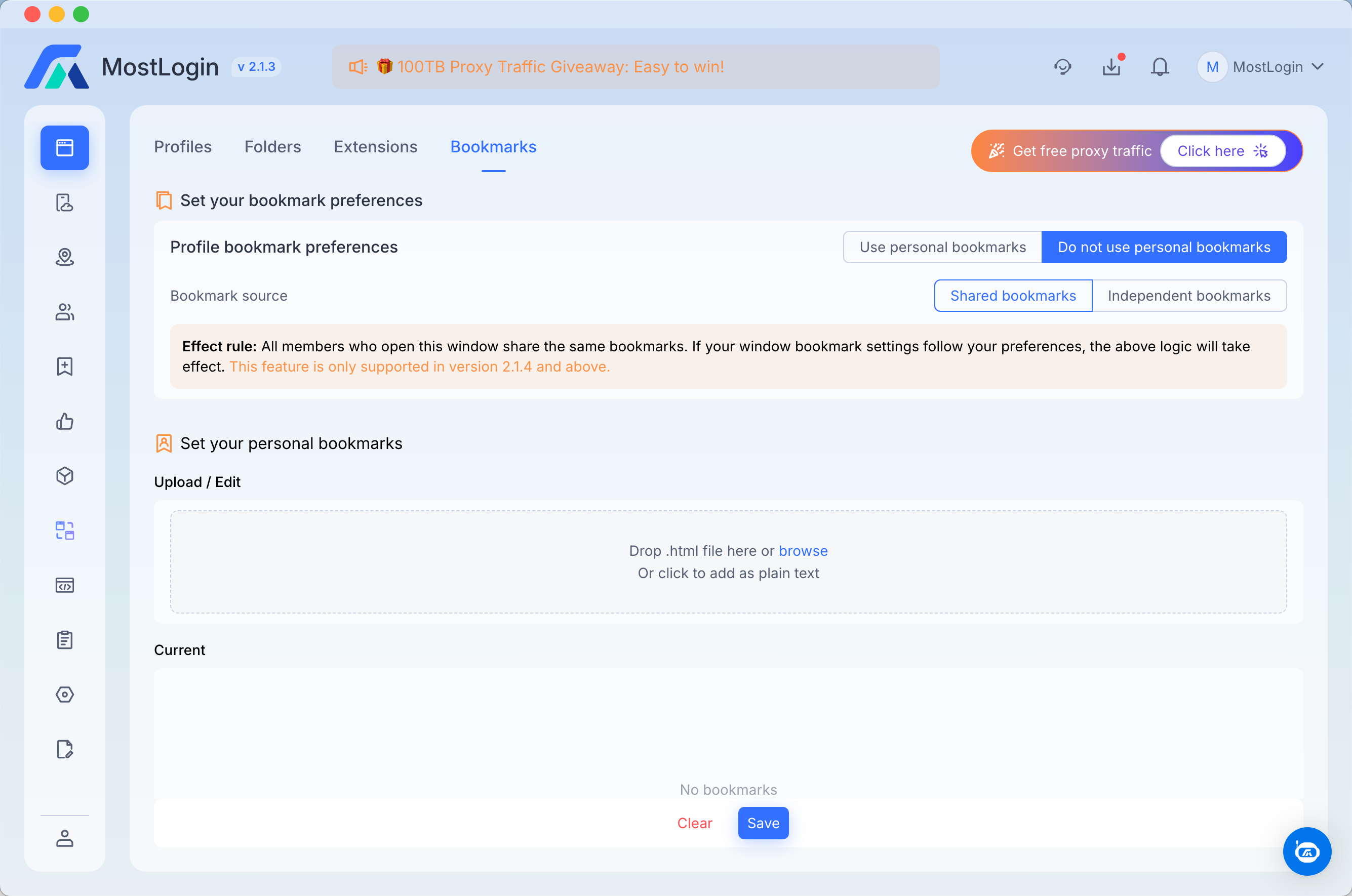
Bookmark Preferences & Synchronization Guide
MostLogin provides flexible bookmark management, allowing you to choose between global personal bookmarks, team-shared bookmarks, or profile-independent bookmarks for each environment.
1. Profile Bookmark Preferences
In the "Bookmarks" tab, you can define how bookmarks behave when a Profile (browser window) is launched.
Option A: Use Personal Bookmarks
Logic: When enabled, the Profile will automatically load your global bookmarks (those uploaded/edited in the "Set your personal bookmarks" section).
Best For: Accessing your primary set of tools and links across multiple different Profiles.
Option B: Do Not Use Personal Bookmarks
If this is selected, you must choose one of the following two Bookmark Sources:
Shared Bookmarks
Rule: All team members who open this specific Profile share the exact same bookmark data. Changes made by one member will be visible to others.
Note: This feature requires Version 2.1.4 or above.
Best For: Team collaboration where multiple users manage the same account and need consistent navigation.
Independent Bookmarks
Rule: Bookmarks are unique to this Profile. When the Profile is closed, the bookmarks are saved to the cloud; when reopened, they remain isolated and will not be overwritten by your personal global bookmarks.
Best For: Specific tasks or account-specific links that should not mix with other environments.
2. Managing Your Personal Bookmarks
This section allows you to manage the "Global" bookmarks that can be applied to any Profile.
Uploading & Editing
Import HTML: Drag and drop a
.htmlbookmark file into the upload area or click "browse" to select a file from your computer.Add as Text: Click "add as plain text" to manually input or paste bookmark links.
Current Library Management
Preview: View all stored bookmarks in the "Current" section.
Actions: * Clear: Wipe all current personal bookmarks.
Save: Commit your changes to the cloud to ensure they are available for your Profiles.
3. Important Reminders
Version Compatibility: Shared Bookmarks synchronization is only supported in v2.1.4 and above. Please ensure your client is up to date.
Logic Execution: If your window bookmark settings are set to "Follow Preferences," the logic selected above will take effect immediately upon opening the Profile.
Cloud Sync: In Independent mode, bookmarks are uploaded automatically upon closing the window, ensuring data persistence across different devices.
Was this helpful?
Still need help? Ask the team