MostKit browser extension
Written By Penny - Product specialist
Last updated About 3 hours ago
1. Overview
MostKit is a built-in extension of MostChrome. It appears as a side panel on the right side of the browser window and gives you quick access to the data of the website currently open in the active tab:
Two-factor authentication (2FA / TOTP) codes
Cookies of the current site
Local Storage entries of the current site
Session Storage entries of the current site
MostKit is site-scoped: every tab shows the data of the domain you are currently viewing. If you switch tabs or navigate to another domain, the panel content updates accordingly.
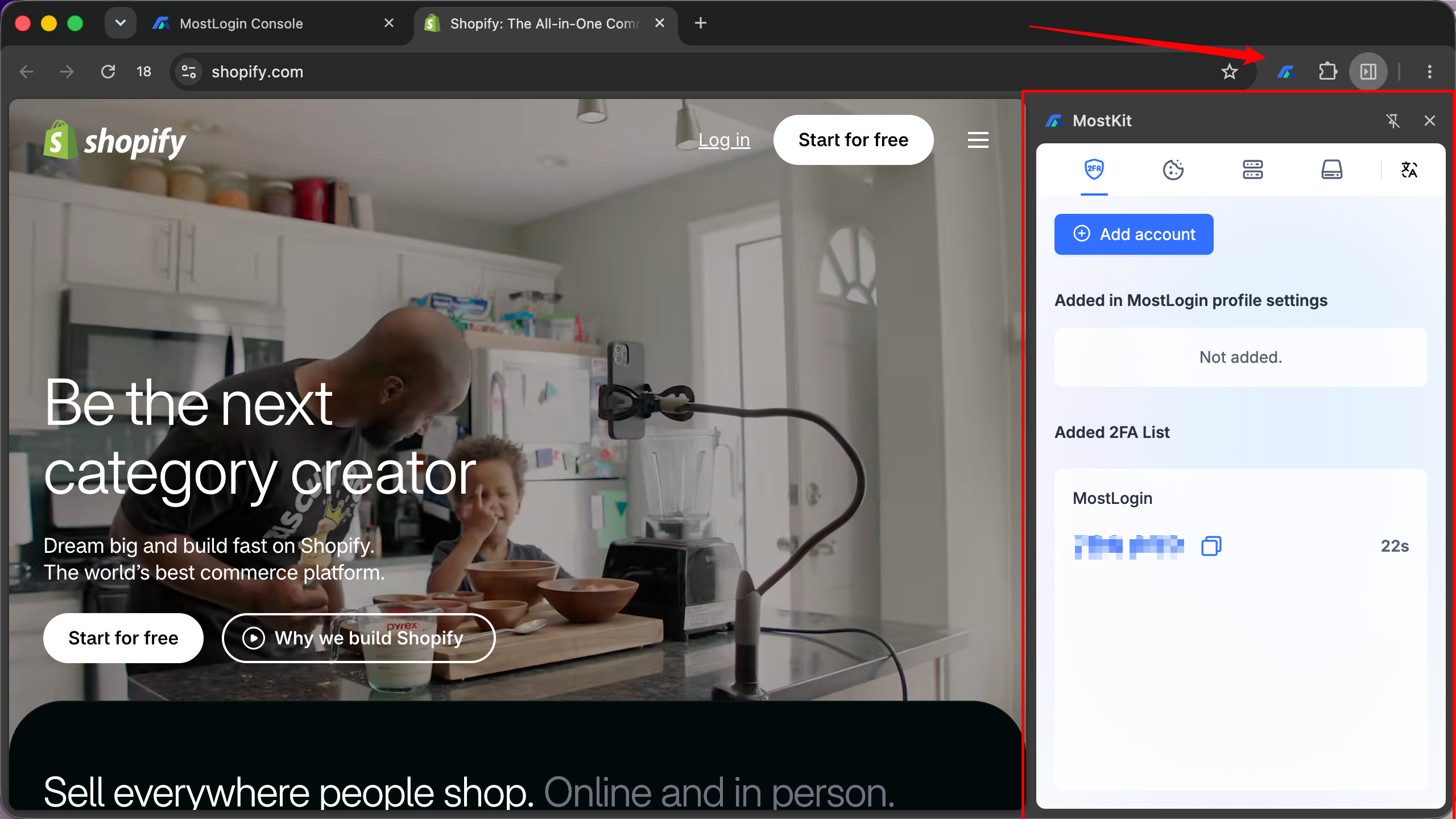
2. Tab 1 — 2FA & Accounts (🛡️)
This tab manages your two-factor authentication (TOTP) accounts so you can read login verification codes without opening an authenticator app.
2.1 Adding a 2FA account
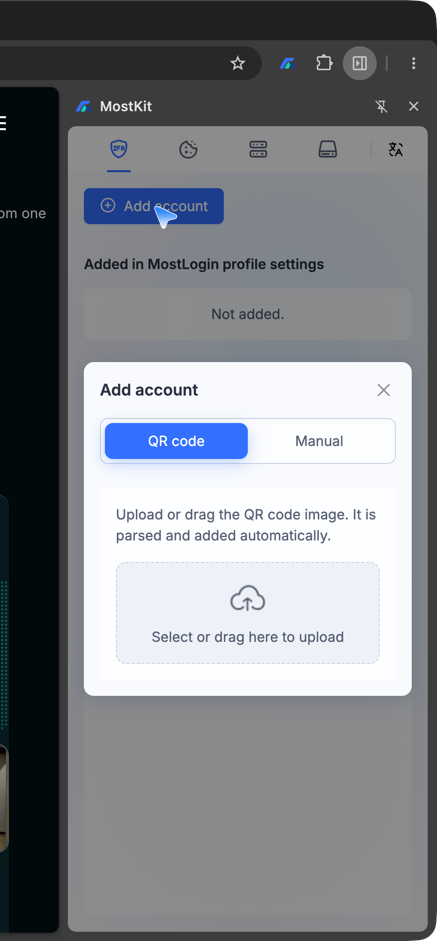
A. QR code mode
"Upload or drag the QR code image. It is parsed and added automatically."
Click Select or drag here to upload, pick the QR code image (usually the one shown on the website when you enable 2FA), and MostKit parses it automatically.
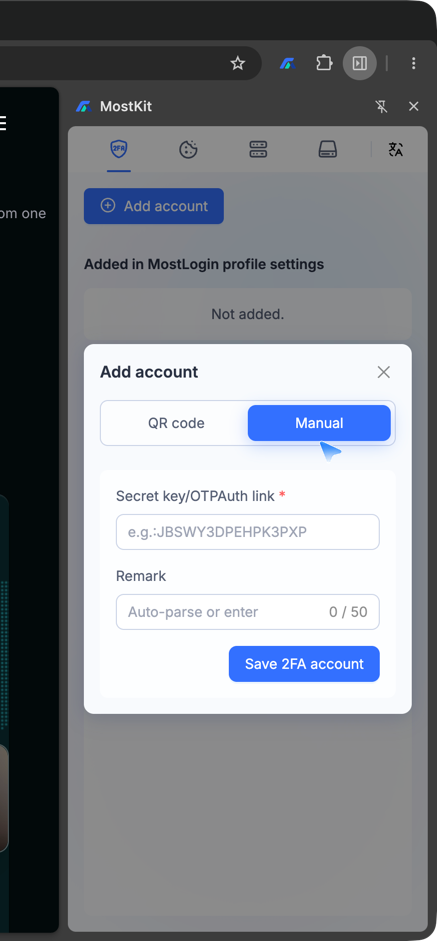
B. Manual mode
Secret key / OTPAuth link (required): paste the base32 secret key or the full
otpauth://URI, e.g.JBSWY3DPEHPK3PXP.
Remark (optional, up to 50 characters): a label for the account. Auto-parse or enter it manually.
Click Save 2FA account.
2.2 Using the 2FA list
The Added 2FA List shows each account with its current 6-digit code and a countdown timer.
Click a code to copy it, then paste it into the website's verification field.
Accounts that were added through MostLogin profile settings appear under "Added in MostLogin profile settings"; if none, the panel shows "Not added."
3. Tab 2 — Cookies (⏱️)
Manage the cookies of the current site. All cookie operations apply only to the domain of the active tab.
3.1 Toolbar
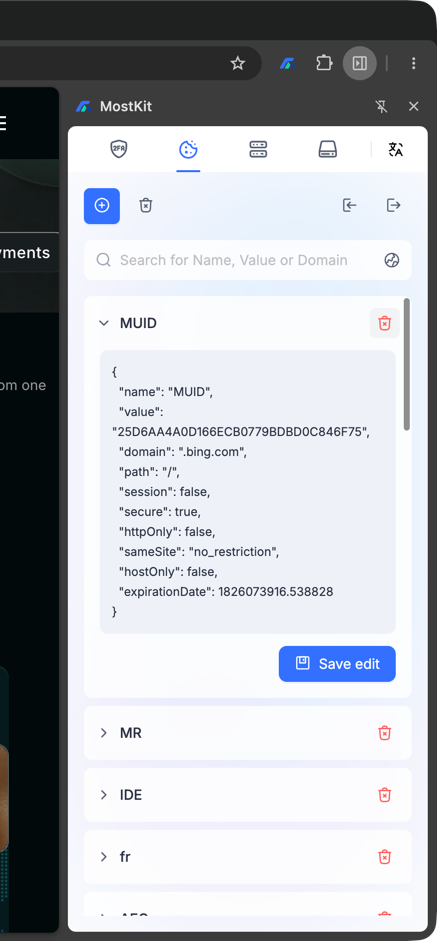
3.2 Viewing and editing a cookie
The list shows each cookie's name (e.g.
MUID,MR,IDE,fr,AEC,NID).
Click a cookie row to expand an inline JSON editor with all fields:
Edit any value, then click Save edit to write the change to the browser.
To remove a single cookie, click the trash (🗑) button on the right side of its row.
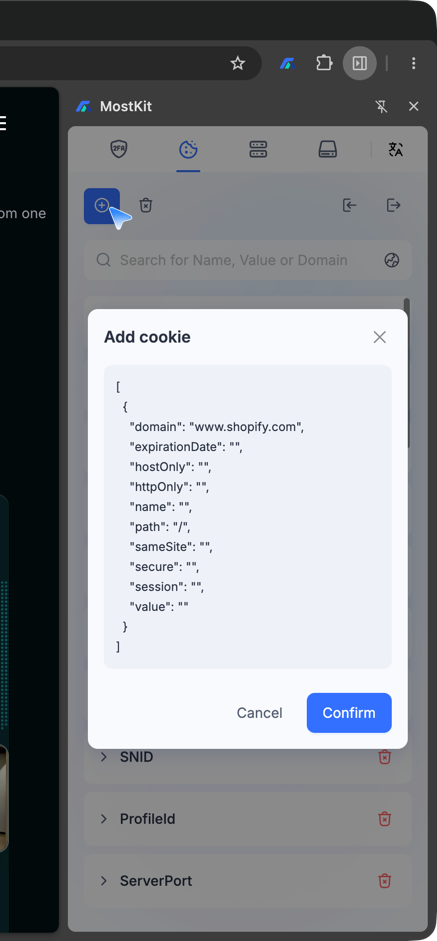
3.3 Adding a cookie manually
Click + Add cookie.
A dialog opens with a JSON template. Fill in the values you need:
Click Confirm to create the cookie, or Cancel to discard.
Tip: The most common use is
name,value,domain,pathand optionallyexpirationDate. Leave optional fields empty to use defaults.
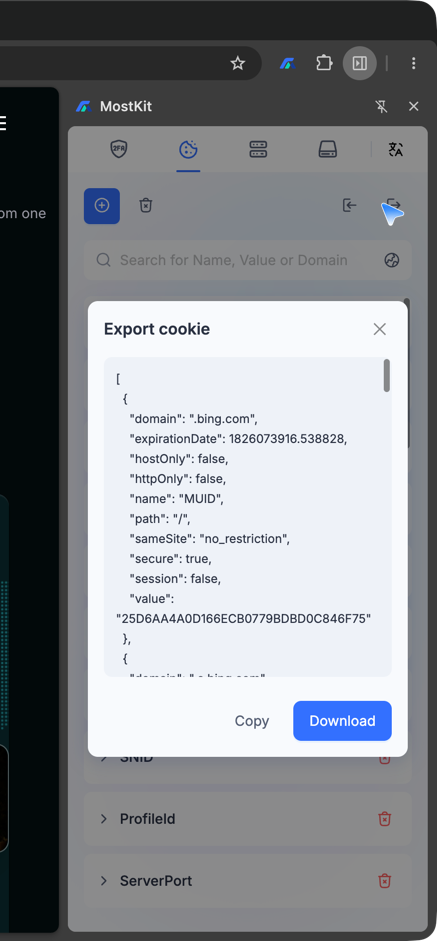
3.4 Exporting cookies
Click ↪ Export cookie. A dialog shows the complete cookie set of the current site as a JSON array. Use Copy to copy the JSON to the clipboard, or Download to save it as a file. The exported file can be re-imported later with Import cookie (e.g., to move a logged-in session to another browser profile).
4. Tab 3 — Local Storage (🗄️)
Manage the Local Storage key/value pairs of the current site.
4.1 Toolbar
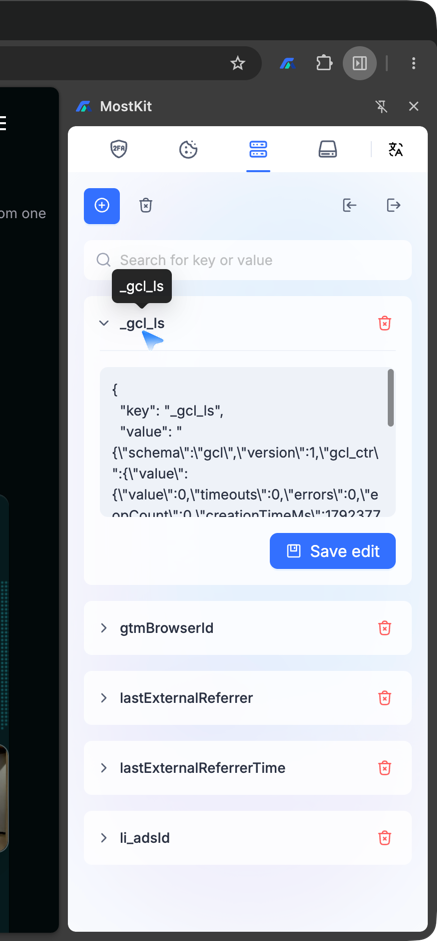
4.2 Viewing and editing an entry
The list shows the keys, e.g.
_gc_ls,gtmBrowserId,lastExternalReferrer,lastExternalReferrerTime,li_adsl.
Click a row to expand the JSON editor:
Edit the
keyorvalue, then click Save edit.
Use the trash (🗑) button on a row to delete that single entry.
4.3 Adding entries manually
Click + Add Local Storage.
In the Add Local Storage dialog, paste JSON data into the "Paste here..." text area (a JSON object mapping keys to values).
Click Confirm to apply, or Cancel to discard.
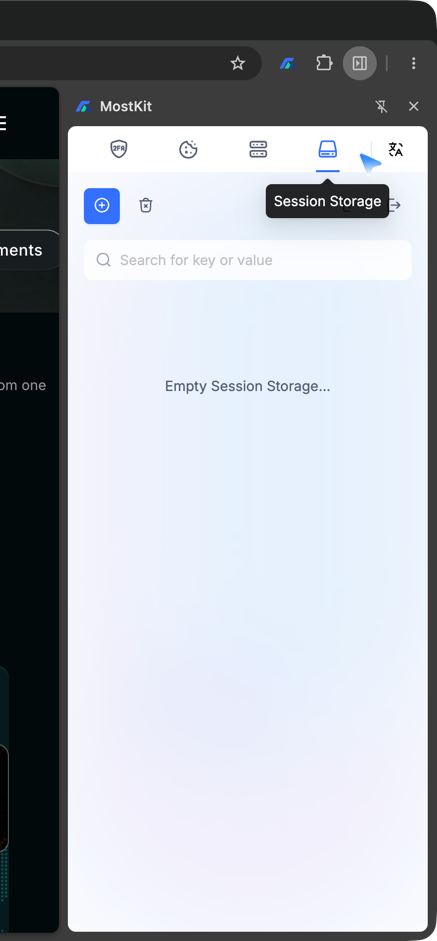
5. Tab 4 — Session Storage (🖨️)
Works exactly like Local Storage (add / delete all / import / export / search / refresh / per-row edit and delete), but manages Session Storage, which is cleared when the tab or browser session ends. If the current site has no session storage data, the panel shows "Empty Session Storage...".
6. Common Workflows
6.1 Copy a login session to another profile/browser
Open the site and confirm you are logged in.
Open MostKit → Cookies tab → ↪ Export cookie → Download (or Copy).
Open the site in the other profile → MostKit → Cookies tab → ↩ Import cookie → select the exported file.
Reload the page. You should now be logged in (valid for cookies that are still unexpired).
6.2 Move localStorage settings (e.g., anti-bot flags, theme, A/B test flags)
Local Storage tab → ↪ Export Local Storage (JSON) → Download.
On the target profile/site → ↩ Import Local Storage → select the file → reload.
6.3 Add a website's 2FA secret to MostKit
In the website's 2FA setup, capture the QR code or copy the secret key.
MostKit → 2FA tab → + Add account → scan the QR or paste the secret manually → Save.
Use the live code from the Added 2FA List when logging in.
7. Notes and Cautions
Site-scoped only: MostKit operates on the currently active tab's domain. Navigate to the correct site first.
Destructive actions: "Delete all cookies" and "Delete all Local/Session Storage" permanently remove data for the current site — you may be logged out or lose site settings. Export first if in doubt.
Codes expire: 2FA codes refresh automatically. Copy and use them before the countdown ends.
Sensitive data: cookies and storage values may contain session tokens or personal identifiers. Handle exported files carefully and never share them publicly.
MostKit must have access: the toolbar icon shows "Has access to this site". If a site blocks extensions, the panel may not read data.
Was this helpful?
Still need help? Ask the team