Profile local backup management
Written By Penny - Product specialist
Last updated About 2 months ago
The Local Backup Management feature allows you to view, manage, and recover browser profile data (including Cookies, LocalStorage, and IndexedDB) from up to 3 stored local snapshots per profile.
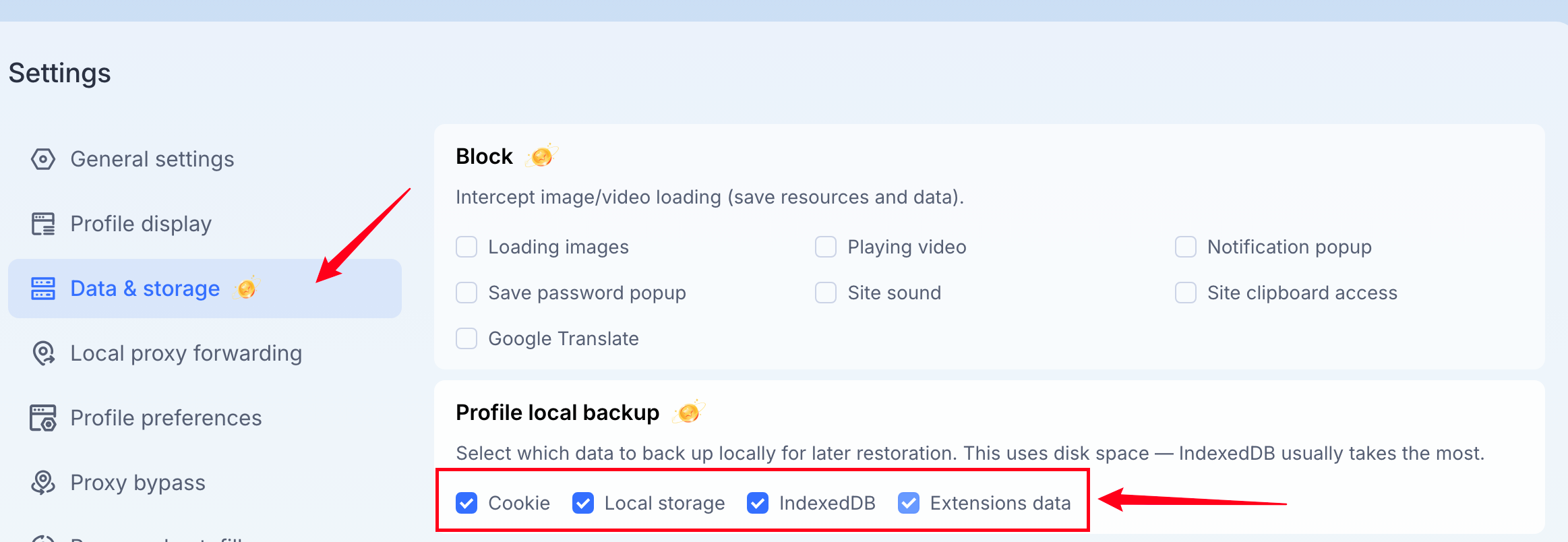
You can customize backup items from [Settings - Data & storage]. Save your edit and it will be applied to newly opened and closed profiles.
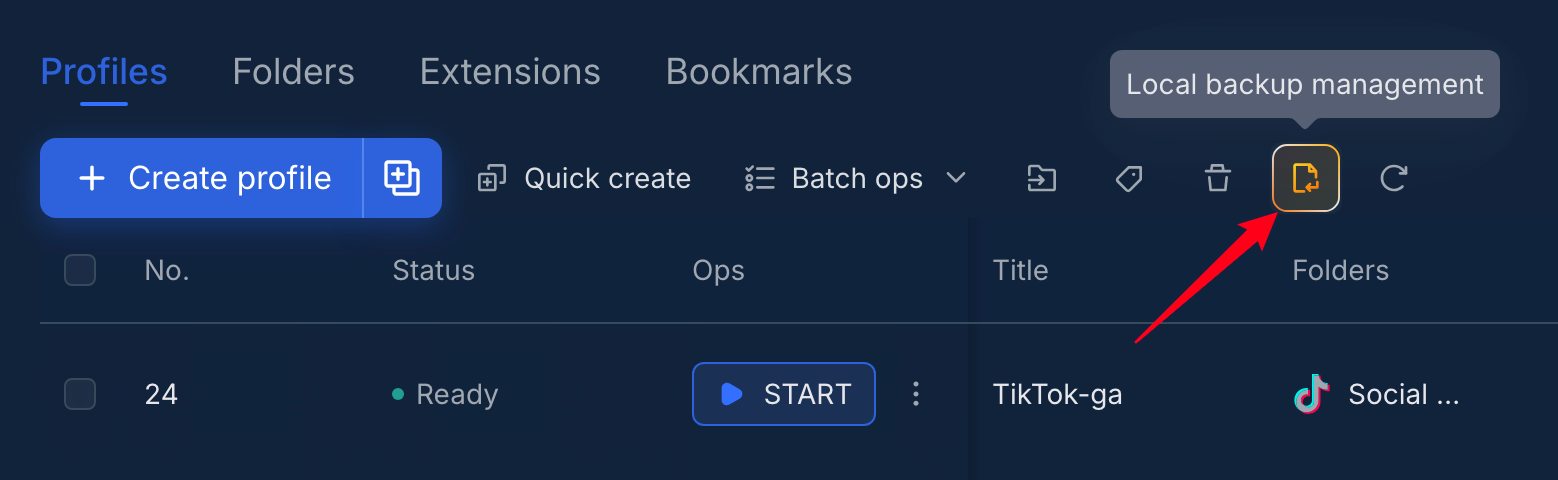
To manage local backups, simply go to [Profiles - Profiles], you can see the [Local backup management] icon-button next to the refresh icon-button.
Overview Metrics
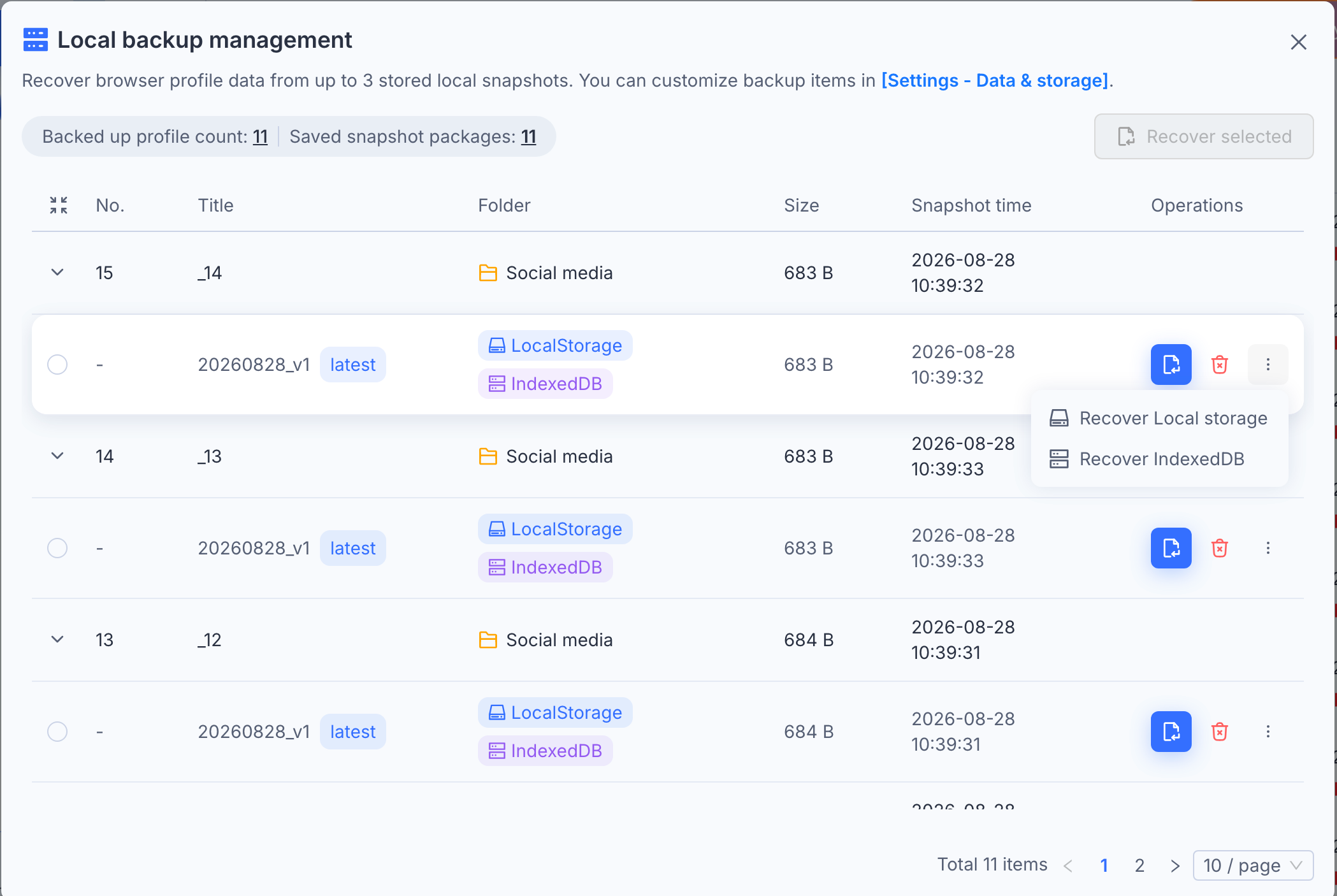
Backed up profile count: Displays the total number of profiles that currently have local backups stored.
Saved snapshot packages: Shows the total number of individual snapshot files saved across all profiles.
Local Backup Management
Easily view, manage, and restore browser profile data (Cookies, LocalStorage, Extension data, and IndexedDB) using automatically saved local snapshots.
Interface Overview
How to Recover Backup Data
1. Fast Single Recovery
Full Restore: Click the Blue Recover Icon to restore all profile data from that snapshot.
Partial Restore: Click the Three Dots (⋮) next to a snapshot to restore specific data types only:
Recover cookie
Recover Local storage
Recover IndexedDB
Recover Extension data
2. Batch Recovery
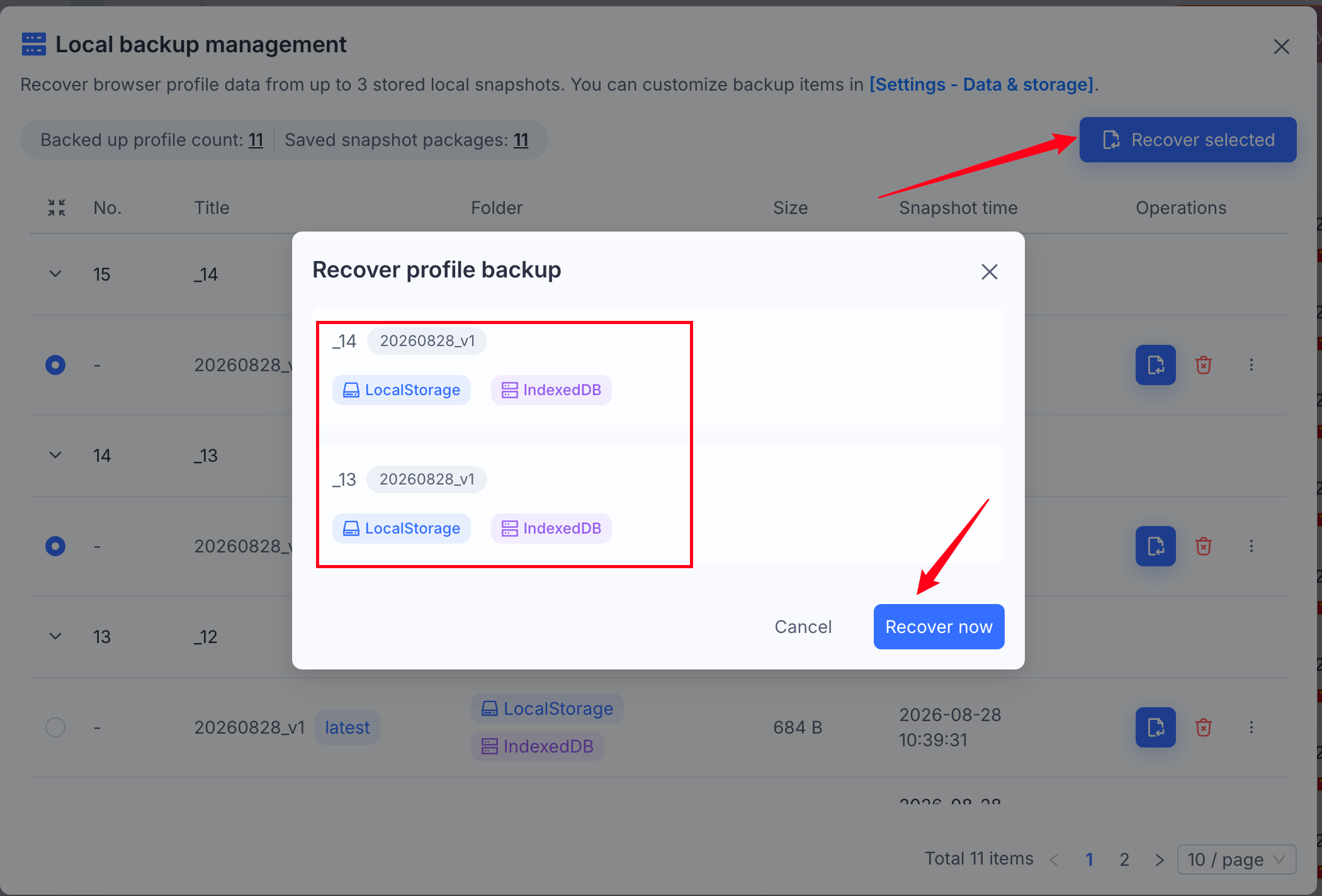
Select the radio buttons next to the snapshots you want to restore.
Click Recover selected in the top-right corner.
3. Delete Backups
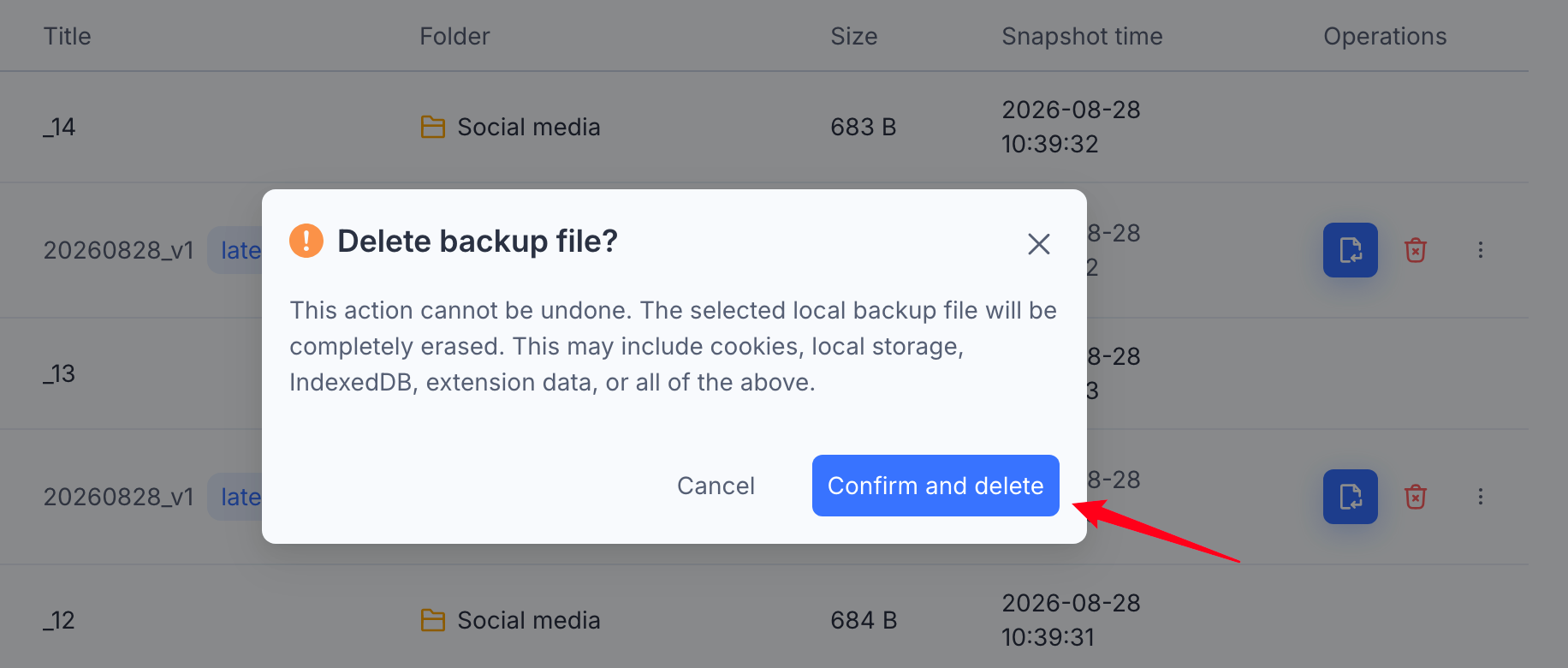
Click the Red Trash Icon next to any snapshot to remove it permanently.
Was this helpful?
Still need help? Ask the team