MostLogin MCP
Written By Penny - Product specialist
Last updated 4 months ago
MostLogin MCP Server is a local API service provided by MostLogin to connect with MCP-compatible AI tools. It enables seamless integration between MostLogin and popular AI development tools such as Claude, Cursor, Codex, and OpenCode.
MostLogin client version 2.1.9 and above is required for MCP.
Some prerequisites:
Ensure your MostLogin client is updated to version 2.1.9 or higher.
Keep MostLogin running in the background with the LocalAPI service enabled.
Authorize local API
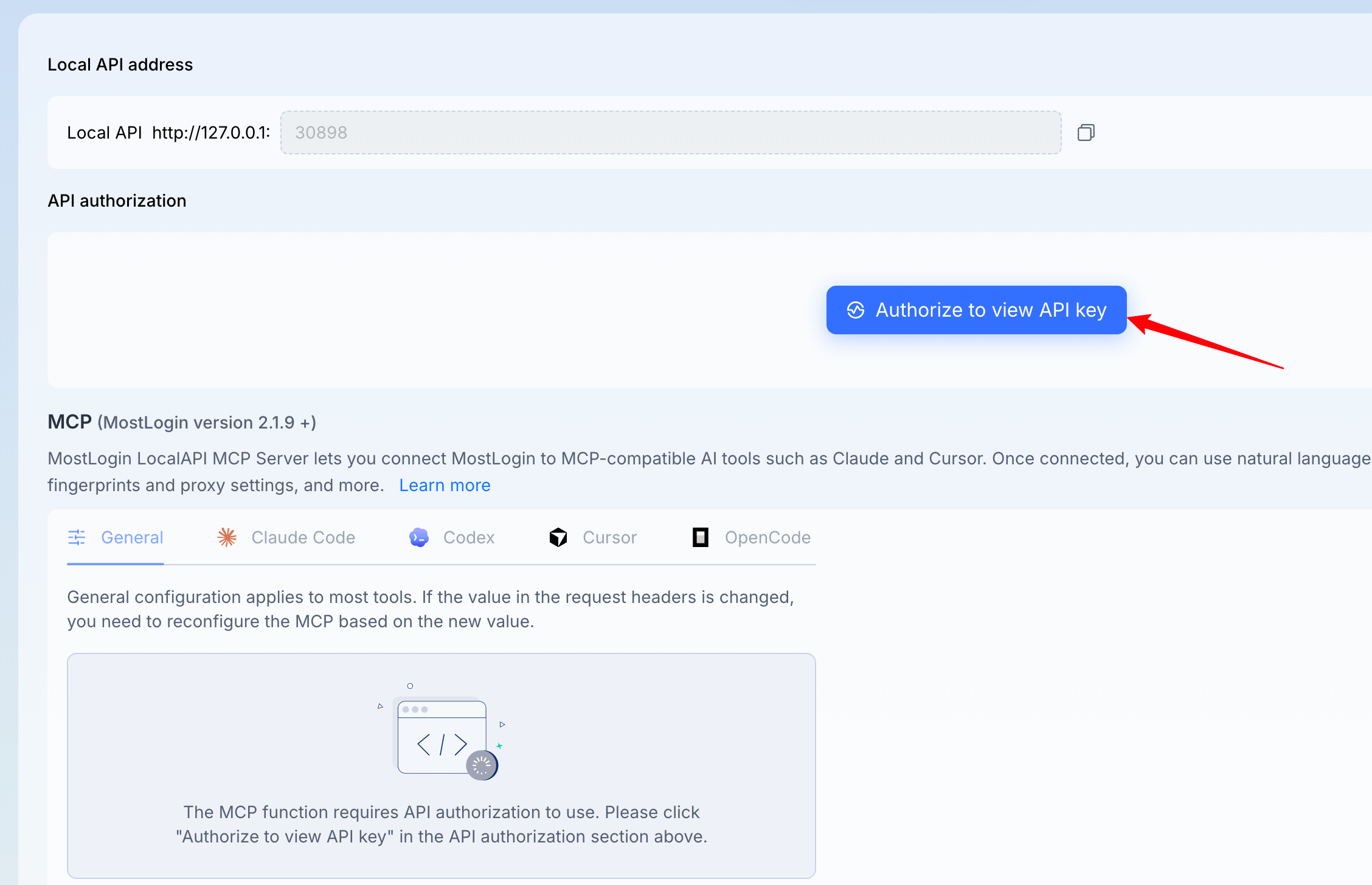
Once the local API is authorized, you can see the configuration options as below.
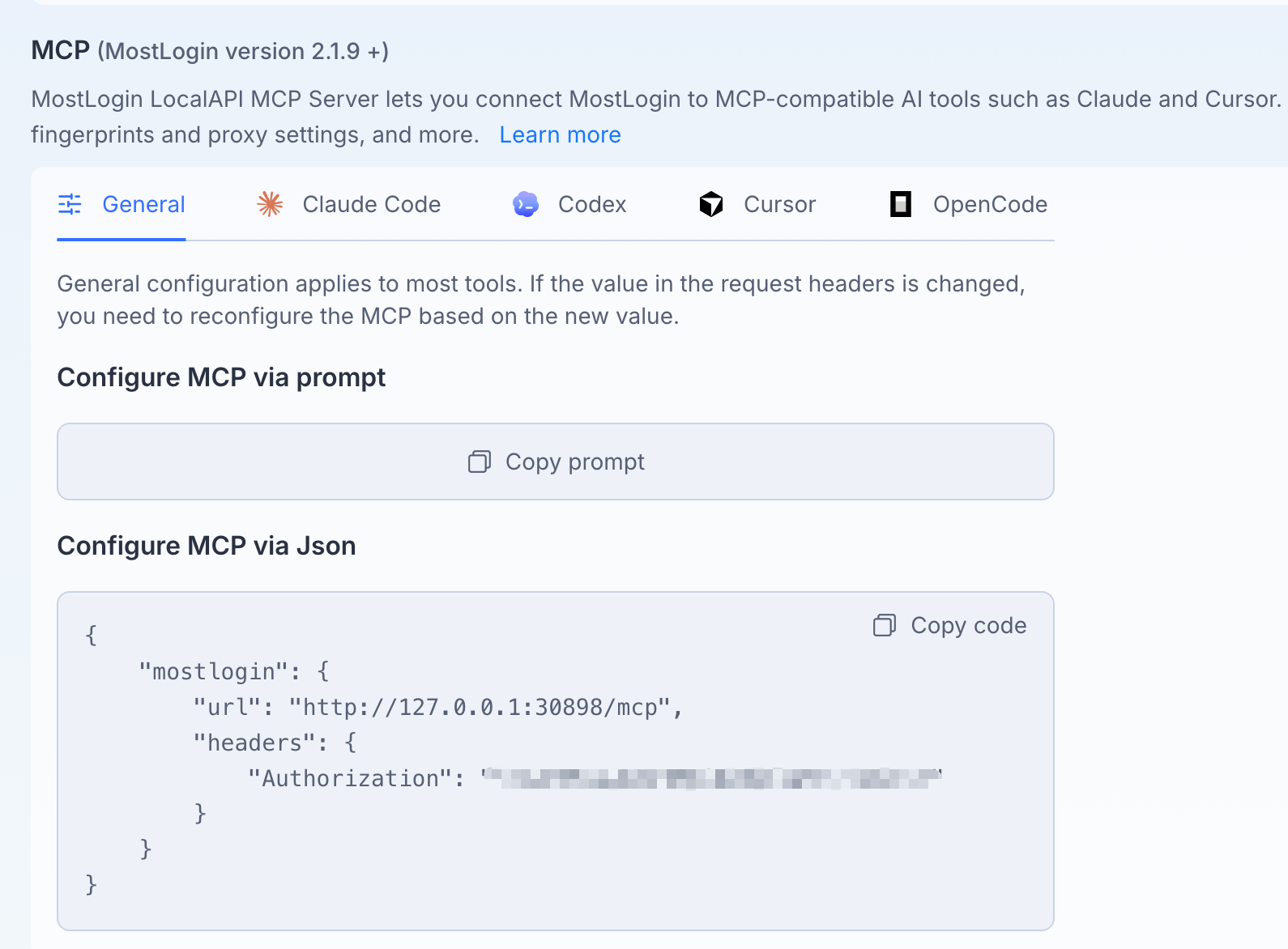
🛠️ Method 1: Configuration in the AI IDE UI (Taking Cursor as an Example)
Cursor supports direct configuration of SSE (Server-Sent Events) type MCP servers through its graphical interface.
Open Cursor and navigate to settings:
Select Features from the left-hand menu, then scroll down to the MCP section.
Click + Add New MCP Server.
Fill in the following details in the popup window:
Name:
mostloginType: Select
SSEURL: Enter the address shown in your app:
[http://127.0.0.1:30898/mcp](http://127.0.0.1:30898/mcp)
Add Request Headers (Headers):
Add a new Key-Value pair in the Headers section.
Key:
AuthorizationValue: Copy the full token string that follows
Authorizationfrom your MostLogin screen (the blurred part in the image).
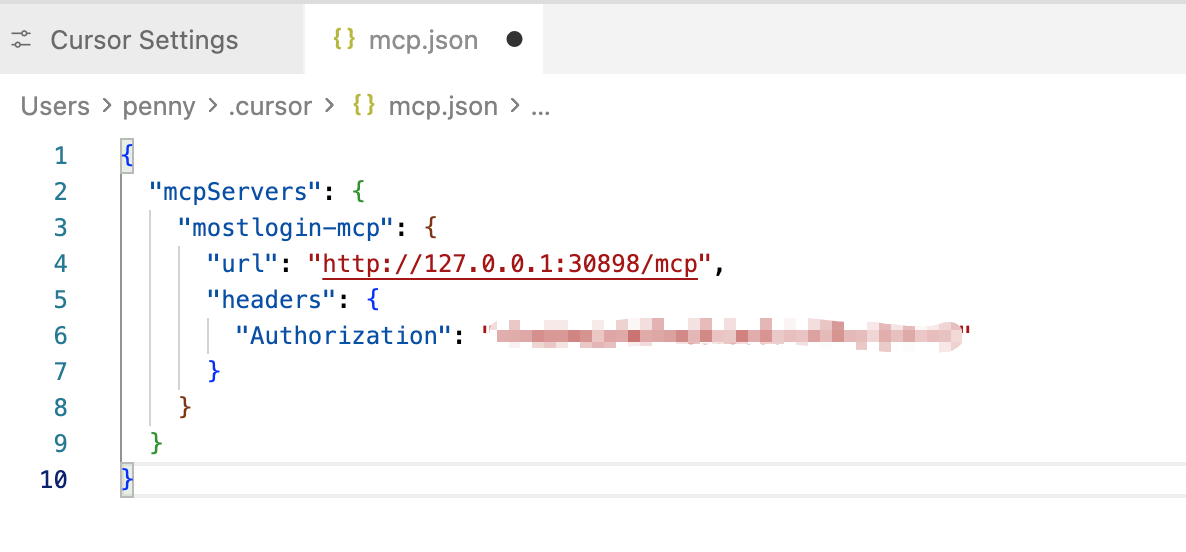
Click Save. If the connection is successful, Cursor will display a green indicator light next to the server.
💡 Connect method 2: Quick Configuration via Prompt
If the AI assistant you are using supports guided configuration through prompts:
Click Copy prompt under the Configure MCP via prompt section in MostLogin.
Paste the text directly into your AI Chat window (e.g., Claude 3.5 Sonnet or Cursor Chat).
The AI will read the context instructions and automatically guide you through or complete the tool integration.
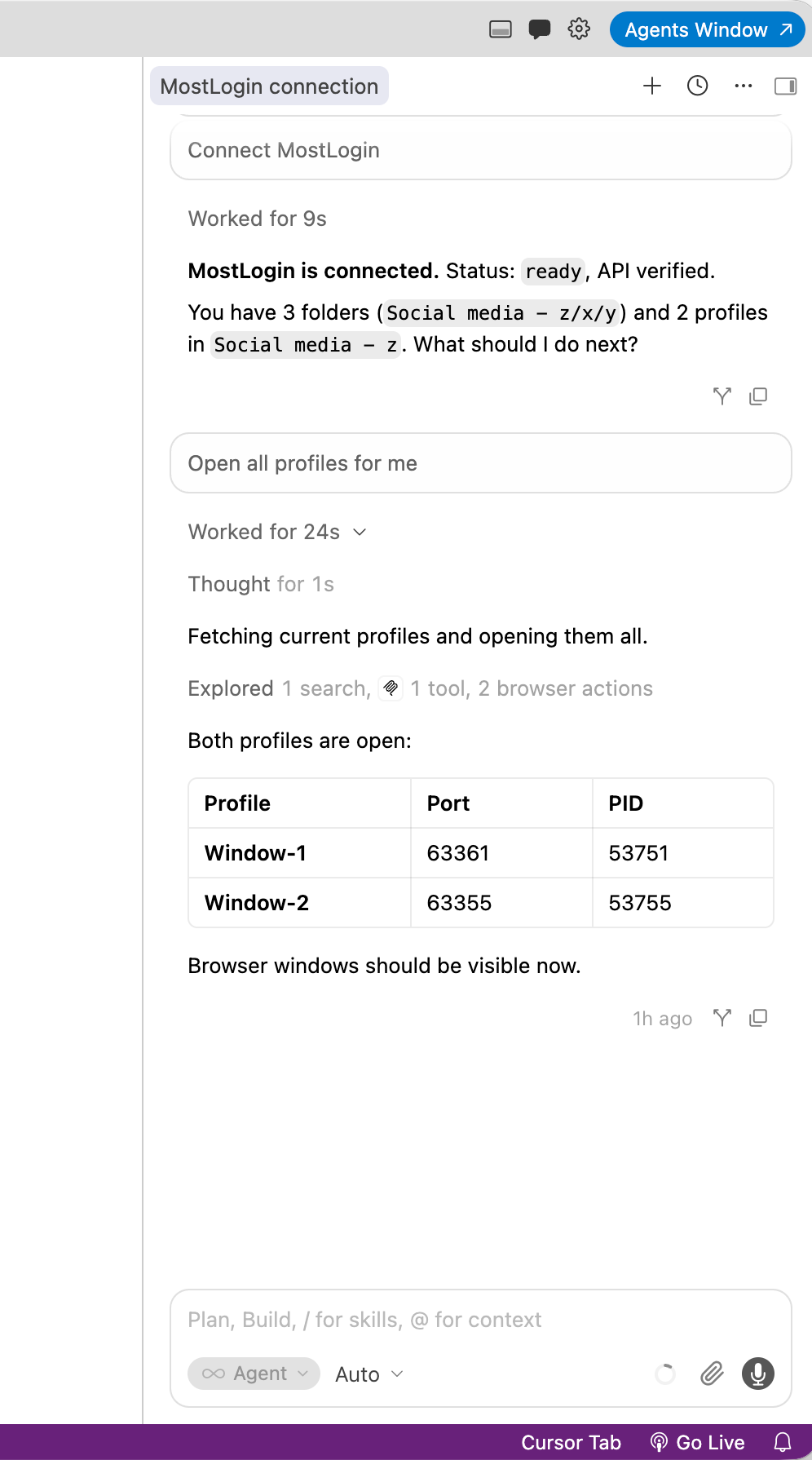
Once connected, you can use natural language commands to control MostLogin and perform the following key operations:
Create and launch browser profiles
Update browser fingerprints
Configure proxies
Manage sessions, cookies, User-Agent strings, and more
Execute other browser automation tasks
This integration significantly enhances AI-assisted development, testing, and automation workflows by allowing AI tools to interact with realistic browser environments just like a human user would.
Supported Tools
The MCP Server currently supports the following tools:
Claude (Claude Code) (Node.js is required)
Cursor
Codex (ChatGPT)
OpenCode
The General configuration applies to most tools. If you change values in the request headers, you will need to reconfigure the MCP based on the new values.
Common Use Cases & Example Commands
Create New Profile:
“Create a new browser profile with Windows 10, latest Chrome, located in Los Angeles, using a SOCKS5 proxy.”Update Fingerprint:
“Modify the current profile’s Canvas and WebGL fingerprints to match a real device more closely.”Batch Operations:
“Create 10 different fingerprint profiles and assign unique proxies to each.”Session Management:
“Save cookies from the current browser session and restore them on next launch.”
Important Notes & Best Practices
Network & Ports
Default port is
30897. Ensure your firewall allows traffic on this port.Use the local address
http://127.0.0.1:30897/mcpfor security.
Token Security
Keep your
AUTH_TOKENconfidential.Regenerate and update the token if it expires or becomes invalid.
Compatibility
When switching AI tools (e.g., from Claude to Cursor), re-apply the configuration.
Reconfigure MCP whenever request headers change.
Performance Tips
Initial connection may take a few seconds.
For large batch profile operations, process in smaller groups to avoid high resource usage.
Troubleshooting
Connection Failed: Verify MostLogin is running, the port is not occupied, and the token is correct.
Commands Not Working: Ensure instructions explicitly mention “MostLogin” or “MCP” and clearly describe the desired action.
Proxy Issues: Confirm the proxy is working and specify the correct type (HTTP/SOCKS5) when creating profiles.
Check Logs: Use the MCP Server logs in the MostLogin interface for detailed diagnostics.
Was this helpful?
Still need help? Ask the team