How to create a new cloud phone environment?
Written By Penny
Last updated 2 months ago
This guide will walk you through the steps to create a new cloud phone environment using the "New environment" pop-up window.
Over at Cloud phones menu, under the Environments tab, click the [New env] button.
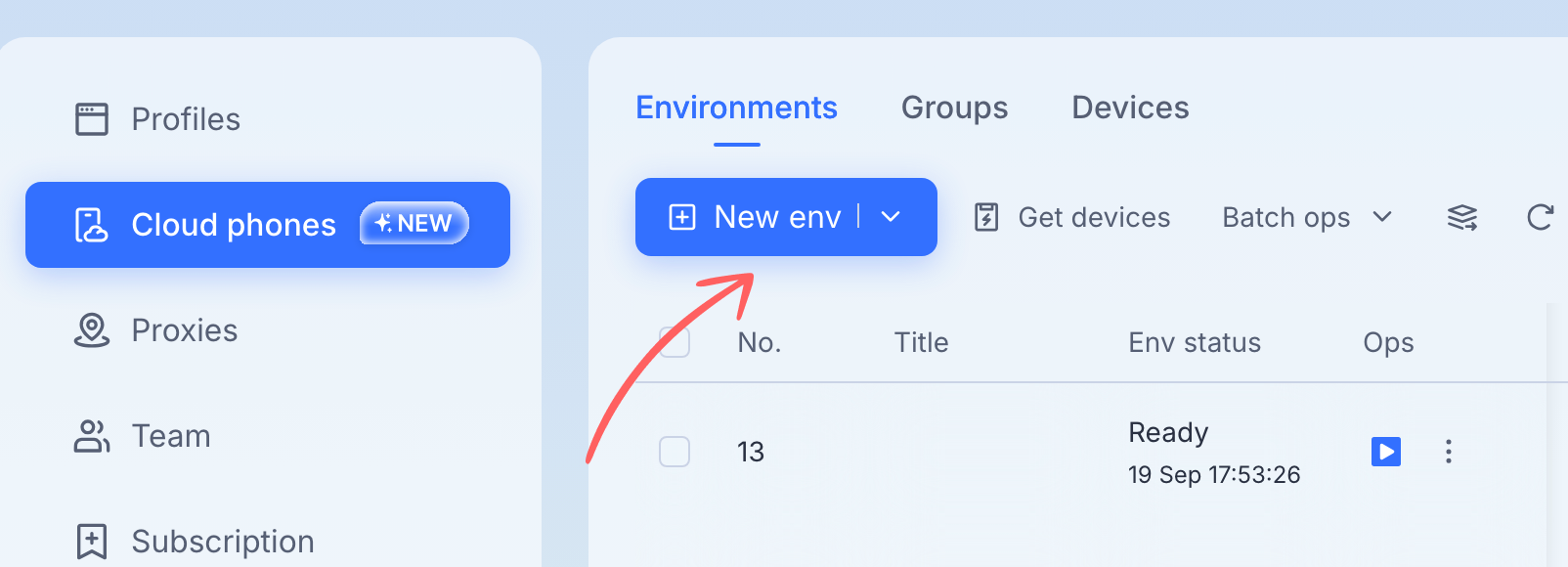
You will see a pop-up window like below:
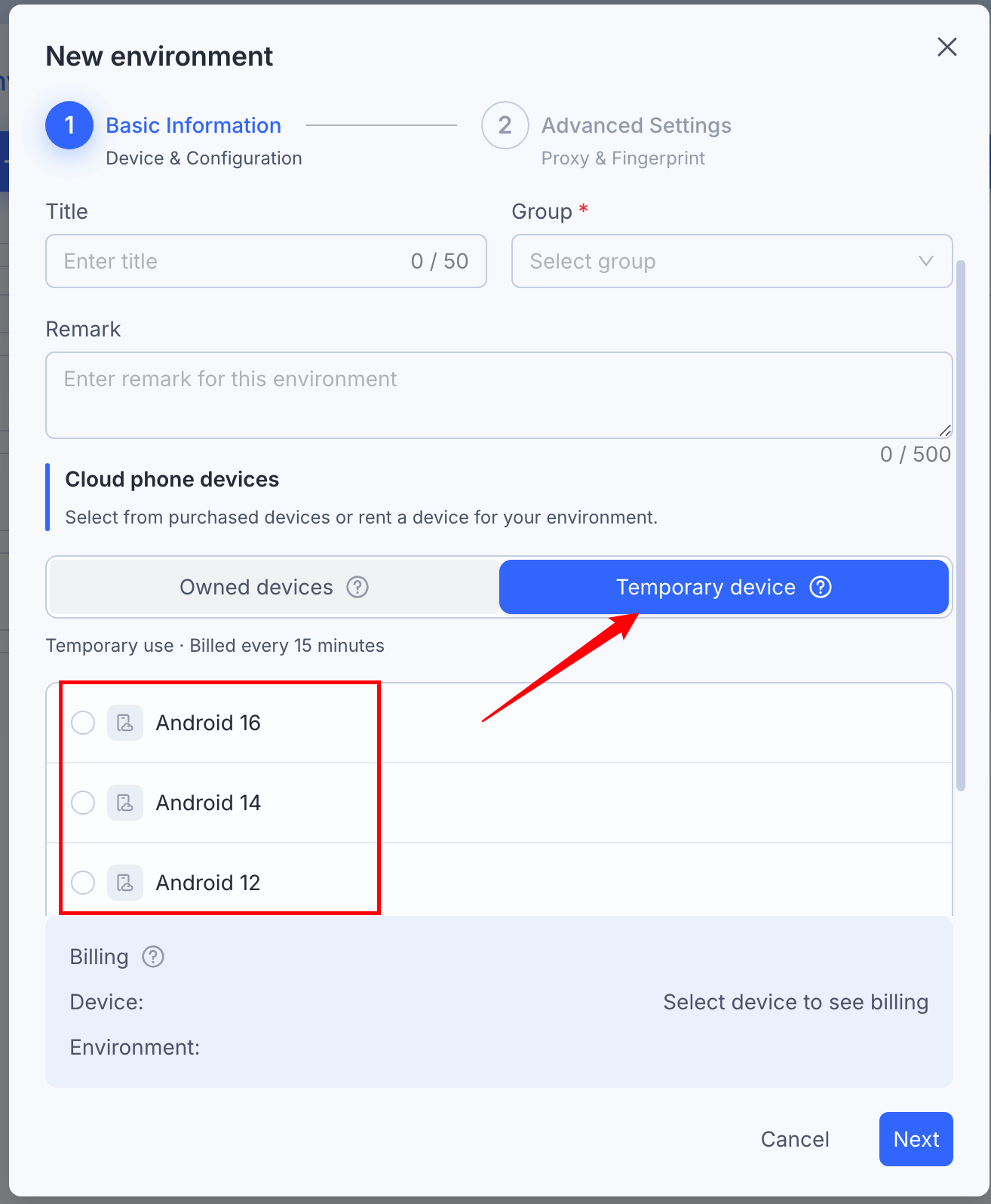
Here is the structure breakdown.
1. Cloud phone device (required)
First, you'll need to select the type of device you want to use. You can choose from two tabs at the top:
Purchased devices: Use this option to use a device you have already subscribed. The available Android versions and their quantities are displayed. Select the one that fits your needs.
Rent a device: If you don't have a purchased device, select this tab to rent one for your session. You can also click the Get more devices link to purchase additional devices.
2. Title (optional)
The Title field is used to name your new environment.
3. Group (required)
Use the dropdown menu under Group to assign this new environment to a specific group. This helps you keep your devices organized.
4. Remark (optional)
Use the Remark field to add any notes or details about this environment. This is a good place to jot down its purpose or any specific settings you've applied.
5. Proxy
This section lets you configure a proxy for your environment. You can choose to:
Set up later: Click this button to create the environment first and configure the proxy at a later time.
Set up now: Click this button to go directly to the proxy configuration screen after the environment is created.
If you choose to set up proxy info as you create the environment, you'll have two options: Customize and Select proxy (from Proxy list)
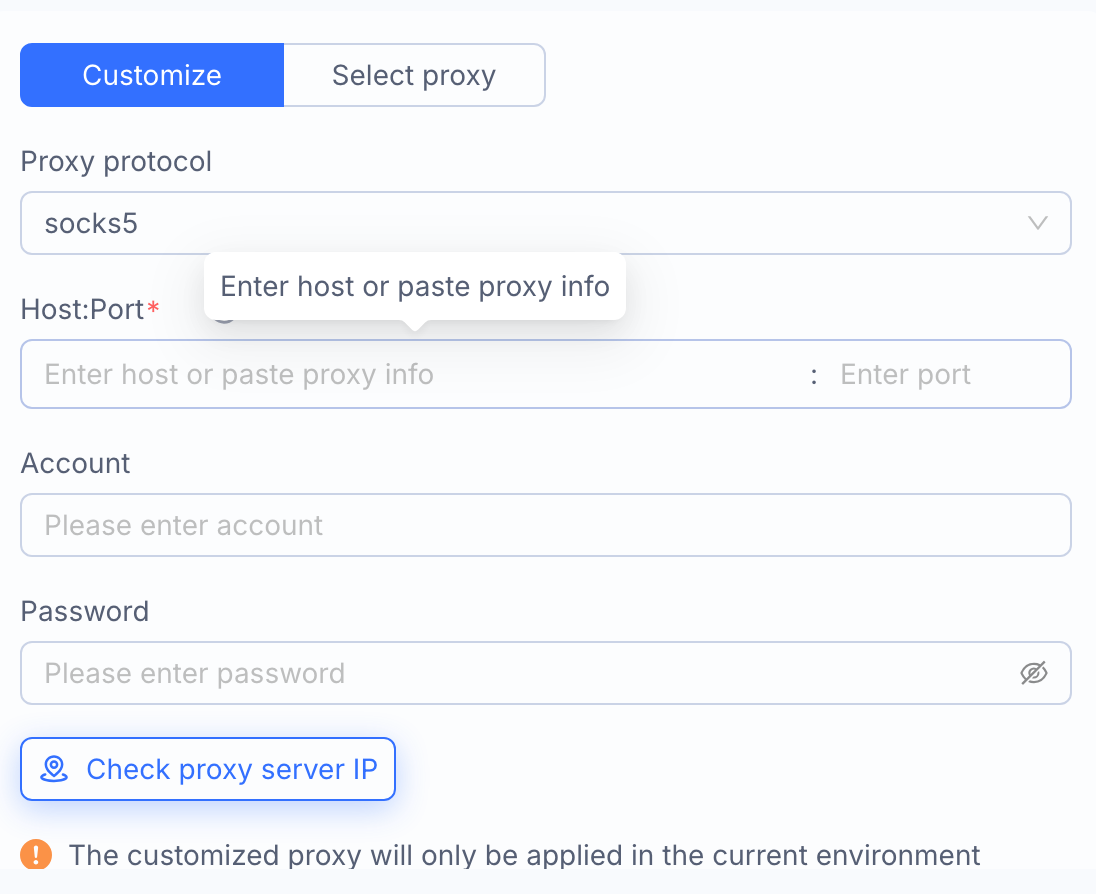
Remember, you can always edit the proxy information after the new environment has been created regardless whether the proxy was set when creating.
Cloud phone environments can only be opened if the proxy info is correct and can be connected.
Only socks5 protocol is supported for cloud phones.
6. Fingerprint
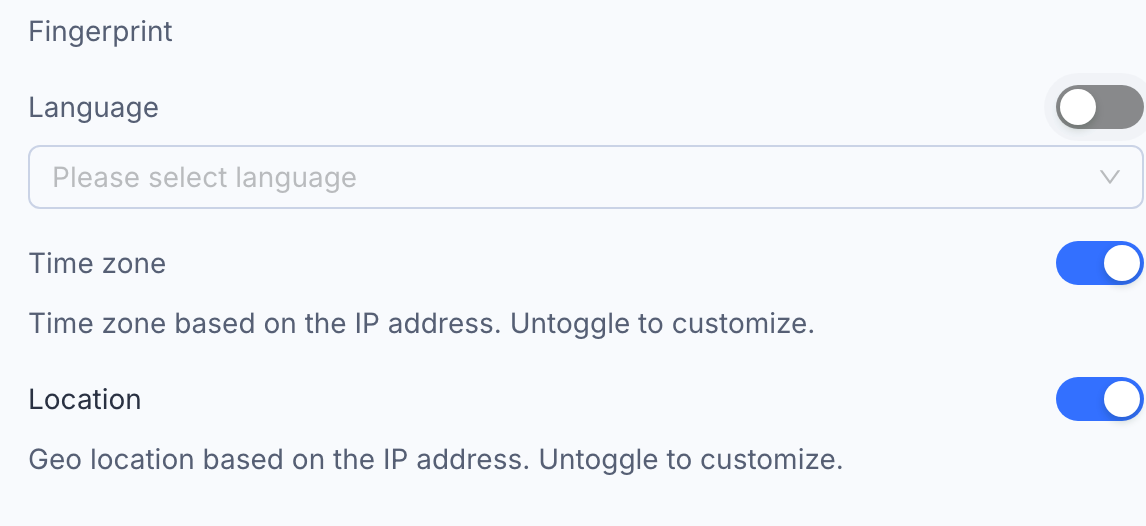
The system automatically applies a recommended default fingerprint for your cloud phone environment. If you need to use a custom fingerprint, click the Customize fingerprint link.
(It's recommended to leave the default fingerprint configuration as is.)
7. Billing
The Billing section provides a summary of the costs associated with your new environment.
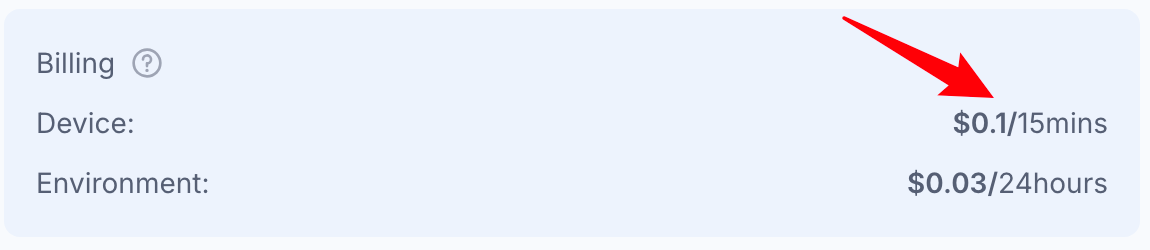
Device: This shows the cost of using the device itself.
If you're renting a device, the billing $0.1 per 15 minutes. (capped at $1.6/day)
If you are using a purchased device, there won't be device billing because it has been covered by your pre-purchased device.
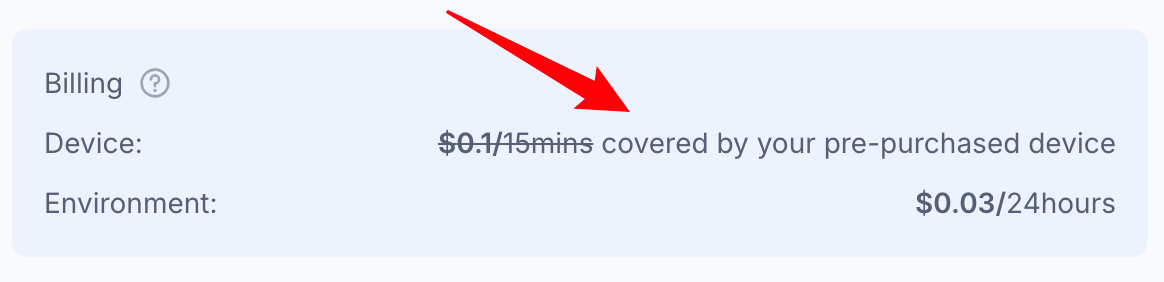
Environment: This shows the cost for the environment itself. The environment cost is $0.02 every 24 hours for Android 14 and Android 16 and $0.03 per 24 hours for Android 12 and Android 15. This cost is usually offset by your available storage units.
Please note:
Rental device billing and environment daily billing are both deducted from your MostLogin balance. Please make sure you have enough balance to avoid service interruption.
Purchased device's billing is already covered by your device subscription. Rental device billing will start when the device is connected. Rental device is billed every 15 minutes ($0.1/15 minutes, $1.6/day tops), the billing stops when the environment is shut down. Suspending the device while closing the environment, rental device billing will continue.
Each environment is billed every 24 hours. You will need to have sufficient balance for opening the environment and renting the device. Please be ware of your MostLogin balance. (Unpaid environments will be deleted.)
8. Finalize
Once you have finished configuring all the settings, click Confirm to create your new cloud phone environment. If you want to cancel the process, click Cancel.
Now that's all settled. How do I open a cloud phone environment?